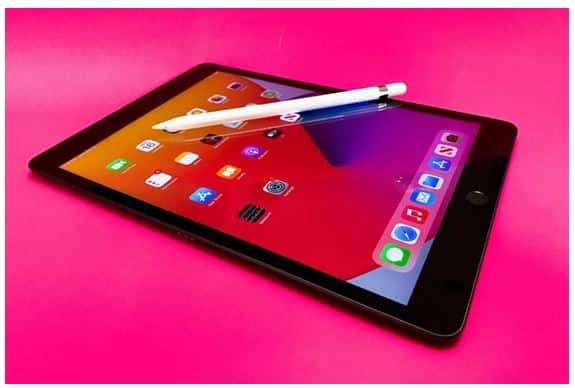
How to Pick the Best Apple iPad for You

Buying an iPad today is a bit like walking into a restaurant with too many good options — everything looks great, but choosing the right one depends entirely on what you actually need. Apple now offers multiple iPads across different screen sizes, performance levels, and price points. The good news? There’s an ideal iPad for almost every type of user.

If you’re confused about which model fits your workflow, lifestyle, or budget, here’s a simple guide on how to choose the right iPad model without getting lost in technical jargon.

Start With Your Purpose

Before looking at specs, figure out what you’ll actually use your iPad for. That alone already narrows your choices.

  • Casual Browsers & Streamers: watching movies, reading, light notes
  • Students: digital textbooks, writing, research, online classes
  • Creative Pros: editing, designing, drawing, logic or video work
  • Business Users: multitasking, presentations, portability
  • Kids: learning apps, drawing, entertainment

Different models shine in different areas — and knowing your use case helps you avoid overspending or undershooting.

iPad (Entry-level)
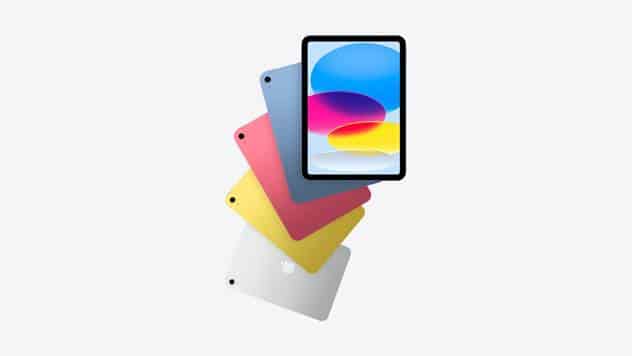
Source: Apple

iPad (11th generation, 2025) — A16-based entry-level model with a larger screen and fresh storage.

The classic. Affordable, reliable, great for families, casual users, schoolwork, and basic tasks.

Best for: reading, browsing, entertainment, and note-taking.

iPad mini
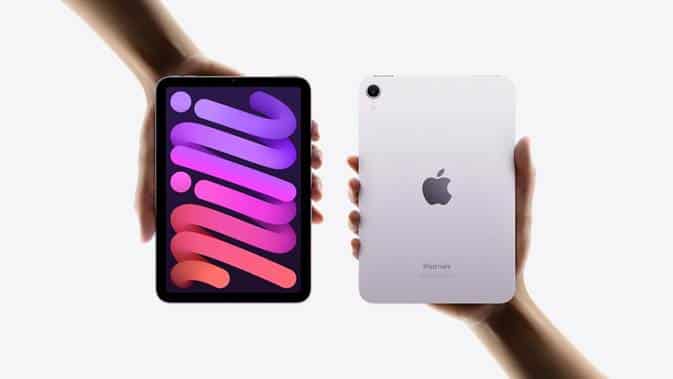
Source: Apple

iPad mini (2024) with A17 Pro chip — Compact, powerful, and still in the latest sales lineup.

Smallest, lightest, easiest to carry. Surprisingly powerful despite its compact size.

Best for: travellers, pilots, field workers, or anyone who loves portability.

iPad Air

Source: Apple

iPad Air 11-inch (M3, 2025)

iPad Air 13-inch (M3, 2025) — These are the current Air models optimised for performance and multitasking.

The middle child with top-tier performance. Perfect blend of power and price. Works with the Magic Keyboard and Apple Pencil for proper productivity.

Best for: students, professionals, and light creatives.

iPad Pro
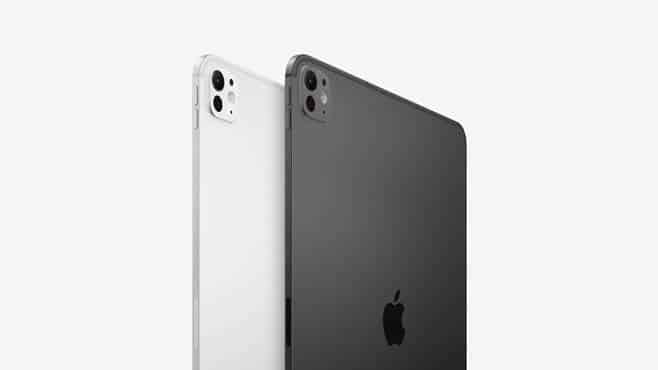
Source: Apple

iPad Pro 11-inch (M5, 2025)

iPad Pro 13-inch (M5, 2025) — Apple’s top-tier tablets with the latest chips and high-end displays.

The powerhouse. For users who want laptop-level performance, the best display, and advanced features like Thunderbolt, ProMotion, better speakers, and the M-series chips.

Best for: graphic artists, filmmakers, designers, high-end multitaskers.

The Best iPad for Different Users

To make it easy, here’s a quick guide to the best iPad for students and professionals and more:

  • Students → iPad Air or entry-level iPad
  • Office workers → iPad Air (portability + performance)
  • Digital artists → iPad Pro (due to Apple Pencil responsiveness)
  • Travel-heavy users → iPad mini
  • Budget users → base iPad
  • Pro-level editors/designers → iPad Pro

What About the Future?

If you’re planning, consider the best Apple iPad for 2026 by focusing on long-term support, newer chipsets (M-series), and compatibility with future accessories. The Air and Pro series usually offer the longest lifespan due to their advanced processors and premium hardware.

Read More – Common iPad Problems and How to Fix Them

Key Features to Compare Before Buying

1. Display Size

Bigger isn’t always better. Choose based on portability vs. workspace.

  • 8.3″ → extremely portable (mini)
  • 10.9″ → balanced (Air/entry-level iPad)
  • 11″–13″ → pro-level creative use

2. Processor

  • A-series → enough for everyday tasks and student use
  • M-series → ideal for pro apps, editing, design, and longevity

3. Storage

Choose more than you think you need — iPads aren’t upgradeable.
 128GB minimum if you store photos, videos, or apps.

4. Accessory Support

Magic Keyboard and Apple Pencil support differ by model.
 If your workflow depends on typing or drawing, check compatibility first.

5. Budget

Buying the most expensive model doesn’t always mean it’s the right one. Buy based on needs, not specs you’ll never use.

There’s no single “best” iPad — but there is a best iPad for you. Start with your purpose, match it with the right features, and choose a model that will last comfortably over the next few years. Apple’s current lineup is powerful enough to handle everything from school assignments to full-scale creative editing — you just need the right match.

FAQs

1. Which iPad is the best value for money?

The iPad Air usually offers the best balance between price and performance.

2. Is the iPad Pro worth it for everyday users?

Not really — its power is overkill unless you do professional creative or technical work.

3. How much storage should I get?

128GB is a safe minimum; go higher if you edit videos, use heavy apps, or store large files.

4. Do all iPads support the same Apple Pencil?

No — compatibility varies by generation. Always check before buying.

5. Which iPad model lasts the longest?

The iPad Pro typically has the longest software support due to its higher-end chips.

Read More – iPad Not Charging? Here’s the Fix
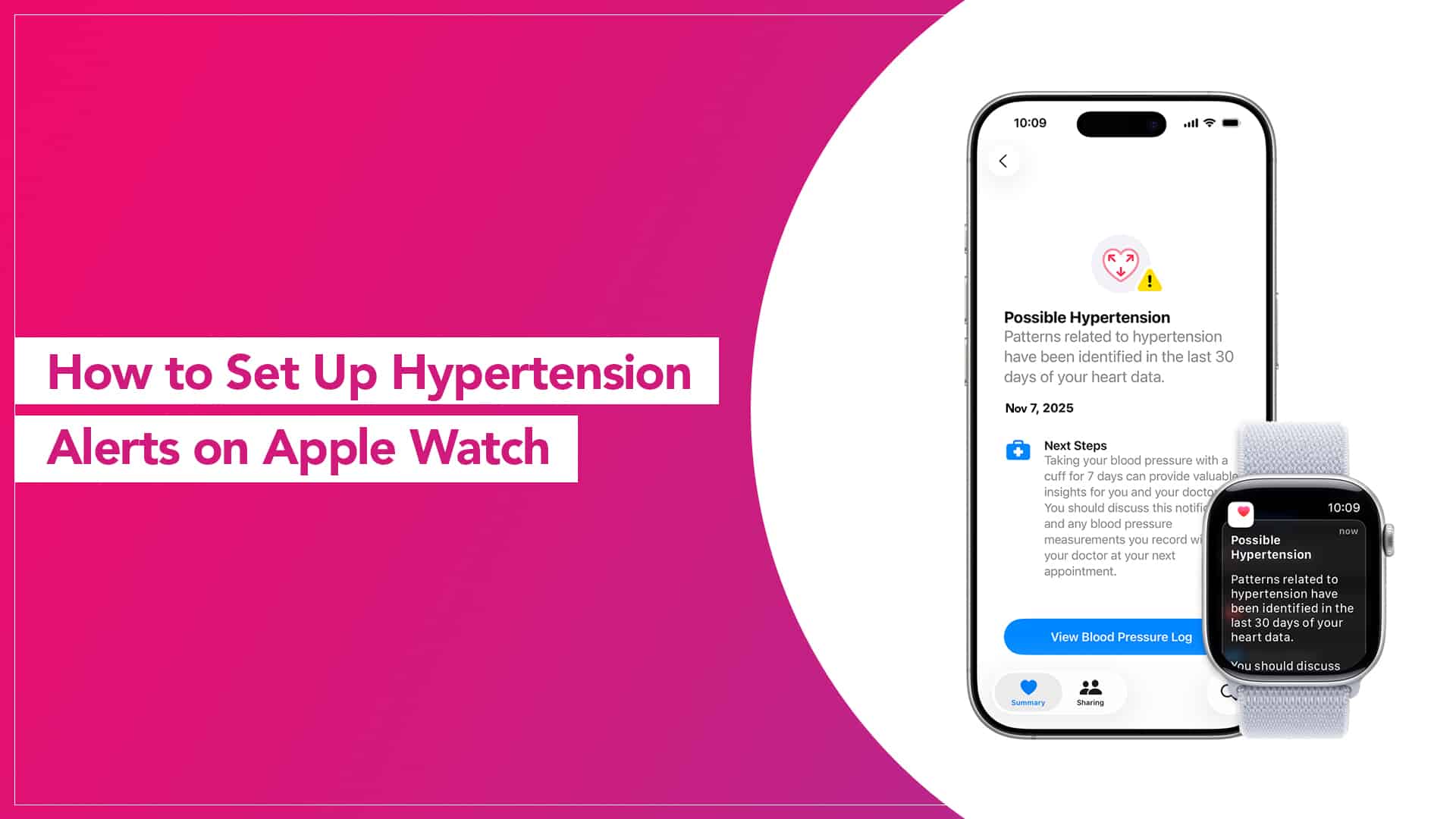
How to Set Up Hypertension Alerts on Apple Watch

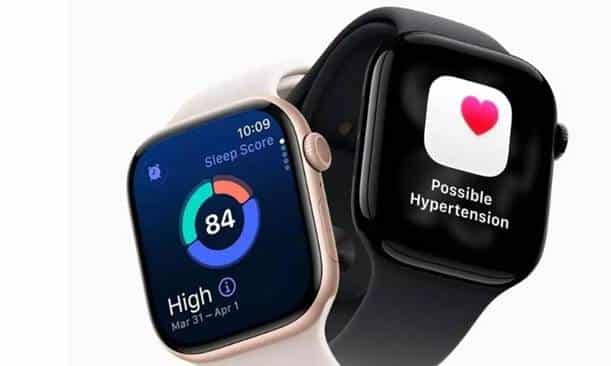
The Apple Watch has quietly become one of the most reliable health companions you can wear. From tracking your workouts to reading your heart rate throughout the day, it gives you insights you’d otherwise ignore — or never even notice. And while it doesn’t measure blood pressure directly, it can still warn you when something is off, helping you stay one step ahead of hypertension-related risks.

If you’re trying to keep a closer eye on your cardiovascular health, here’s how to set up meaningful alerts and notifications on your Apple Watch so it can do more than just count your steps — it can help you monitor patterns that matter.

First Things First: What the Apple Watch Can (and Can’t) Do

Let’s clear the confusion: the Apple Watch does not measure blood pressure on its own. There’s no built-in cuff or compression tech for that.

However, it does track heart rate, resting heart rate, heart rate variability, background rhythm patterns, and irregularities. These measurements help support hypertension tracking with Apple Watch indirectly — by catching spikes, dips, or irregular rhythm changes that may suggest something’s not right.

Think of it as early-warning system rather than a medical-grade blood pressure monitor.

Step-by-Step: Set Up Hypertension-Related Alerts

Even without a full Apple Watch blood pressure feature, you can still enable powerful notifications that keep you informed about your cardiovascular health.

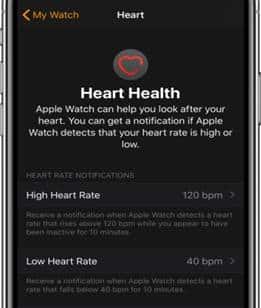
1. Enable High Heart Rate Alerts

  1. Open the Watch app on your iPhone.
  2. Go to Heart.
  3. Turn on High Heart Rate.
  4. Choose a threshold (usually 120–150 BPM depending on your doctor’s recommendation).

This alert triggers when your heart rate stays elevated while you’re inactive — a potential red flag for hypertension or stress load.

Source: vowe dot net

2. Enable Low Heart Rate Alerts

  1. In the same Heart settings, turn on Low Heart Rate.
  2. Choose a limit (typically 40–50 BPM).

Sudden drops in resting heart rate can also indicate cardiovascular irregularities.

3. Turn On Irregular Rhythm Notifications

  1. Go to Watch app → Heart.
  2. Enable Irregular Rhythm Notifications.

The Apple Watch uses advanced algorithms to identify potential atrial fibrillation (AFib). While not directly a hypertension signal, AFib and hypertension often coexist — catching one early helps manage the other.

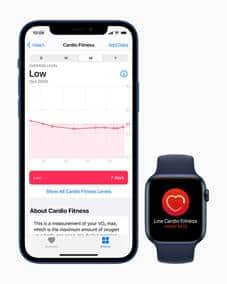
4. Set Up Cardio Fitness Notifications

  1. On the Watch app, go to Health → Cardio Fitness.
  2. Turn on notifications for low cardio fitness levels.

Low cardio fitness is closely linked to higher hypertension risk. This lets you know when your overall heart health needs attention.

Source: Apple

5. Use the Blood Pressure App (If You Have a Smart BP Monitor)

If you use an external BP monitor compatible with iPhone (like QardioArm or Omron), you can log readings automatically.
 This allows consistent trend analysis even though the Apple Watch doesn’t take BP measurements directly.

Source: The Hans India

Read More – Why Your Apple Watch Needs Regular Screen and Battery Checkups

Why These Alerts Matter

Hypertension is called the “silent killer” for a reason — symptoms don’t always appear until the situation gets serious. That’s why Apple Watch health notifications help bridge the gap between daily life and early detection.

Your Apple Watch becomes useful when:

  • Your heart rate spikes unexpectedly
  • Your rhythm becomes irregular
  • Your cardio fitness drops over time
  • Your average resting heart rate trends upward

Most people miss these signs — your Apple Watch doesn’t.

A Quick Note on Accuracy

These alerts are helpful, but they’re not diagnostic tools. Always cross-check with a certified blood pressure monitor and consult a doctor if you notice consistent patterns.

Read More – Apple Watch Tips for First-Time Users

FAQs

1. Can Apple Watch directly measure blood pressure?

No. It can’t measure BP on its own. You need a compatible external BP monitor for actual readings.

2. Are these alerts medically accurate?

They’re reliable for pattern detection, not for diagnosis. Treat them as early indicators.

3. Should I enable all alerts?

If you’re monitoring hypertension or heart health, yes — high/low HR, irregular rhythm, and cardio fitness notifications are all helpful.

4. Will these alerts drain battery?

Not significantly. Heart rate monitoring runs in the background either way.

5. Can the Apple Watch replace a home BP monitor?

No. It’s meant to complement medical devices, not replace them.

MacBook Screen Problems: Common Issues and Fixes

Your MacBook’s screen is arguably its most important interface — it’s how you see your work, your videos, your design projects, and your day-to-day digital life. But even Apple’s beautifully engineered displays aren’t immune to trouble. Whether it’s flickering, cracks, or dead pixels, these issues can interrupt your workflow and sometimes hint at deeper problems. Let’s walk through the common MacBook screen issues, how to troubleshoot them, and when it’s time to seek professional help.

1. Flickering or Flashing Screen

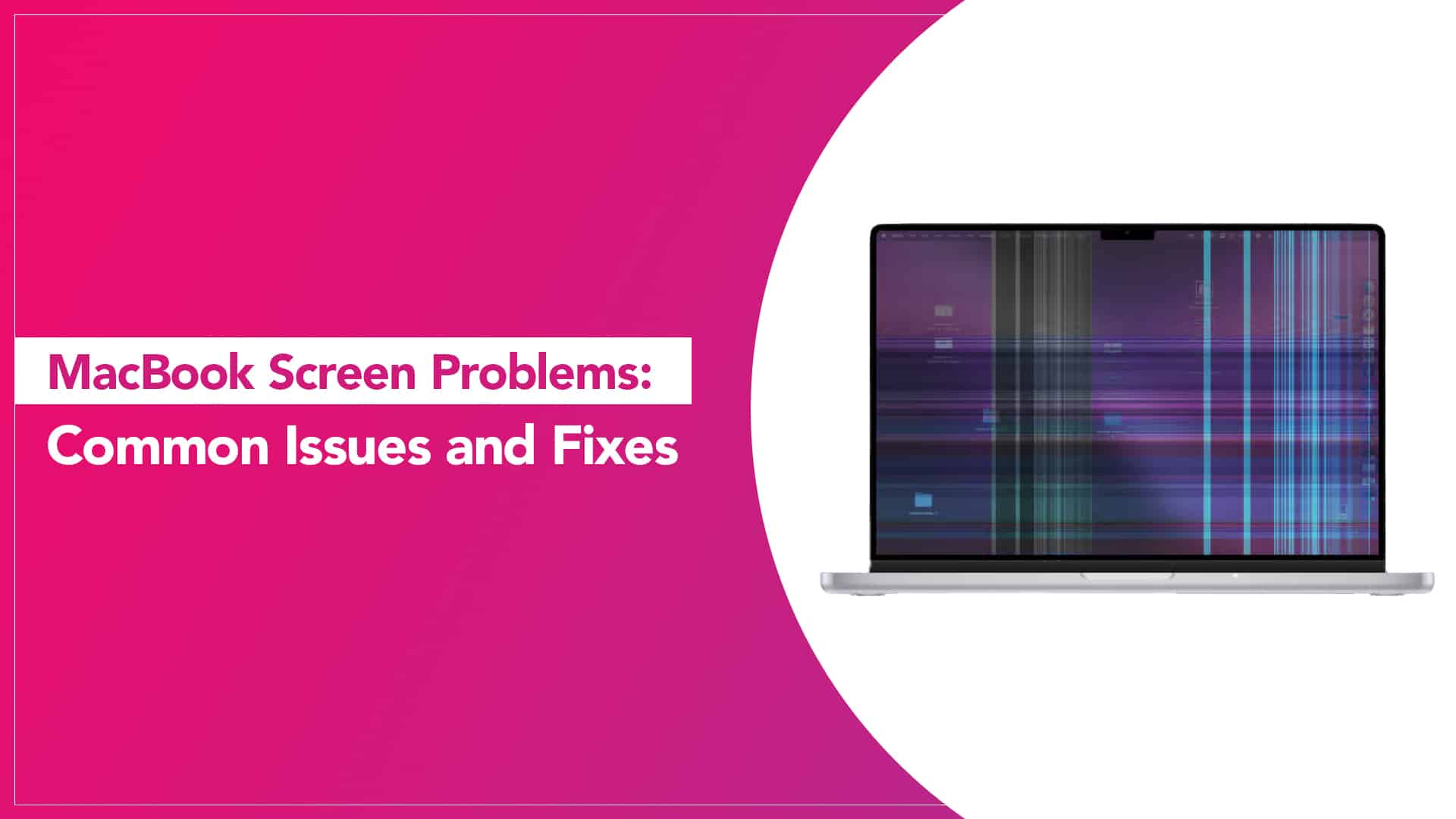
This is one of the most frequently reported problems. Sometimes the screen seems to flicker, flash or vary in brightness suddenly. This can be caused by macOS issues, display settings, or even graphics-related glitches. Often, a software update, a restart, or resetting the System Management Controller (SMC) can help. However, persistent flicker usually means there’s a hardware fault in the display or its connectors.

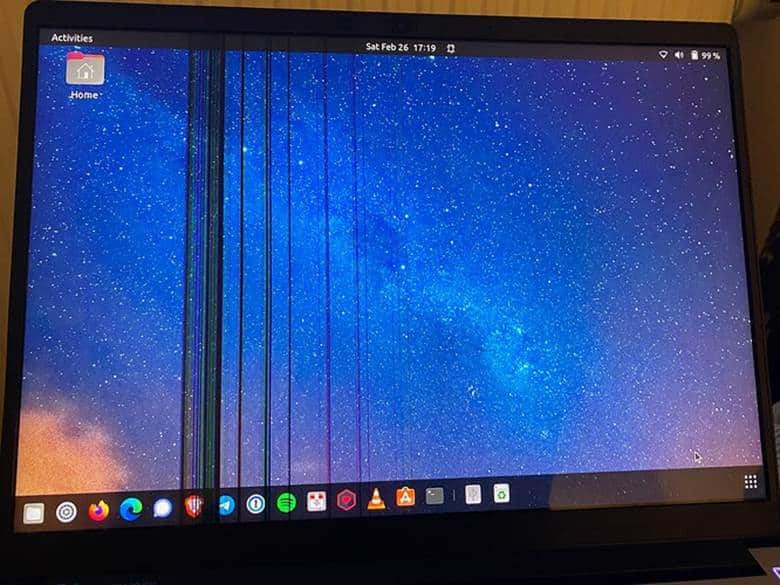
2. Cracked or Physically Damaged Screen

Accidents happen — a fall, pressure on the lid, or even objects left on the keyboard when closing the lid can cause cracks or visible damage. Once the display is cracked, colours may distort, touch response may fail, or the screen may simply refuse to turn on. Continuing to use a cracked screen can let dust or moisture enter and cause further internal issues.

Source: Framework Community

3. Dead Pixels or Lines on Display

Dead pixels (tiny black or colored dots that won’t illuminate) and horizontal or vertical lines can be extremely distracting. These often point to physical panel damage or a loose internal connector. In some cases, software tricks (like gentle flicker apps) can temporarily mask the issue, but the long-term fix is usually display replacement.

4. Black or Blank Screen

When your MacBook powers on but shows nothing, it’s understandably alarming. Before assuming the worst, check brightness settings, external display connections, or boot into Safe Mode. If the screen still stays blank, the problem could be a dead display panel, backlight failure, or a logic board issue.

5. Backlight or Brightness Issues

If your content looks grey, washed out, unevenly lit, or only visible at certain angles, the backlight might be failing. This can result from liquid damage or wiring faults and generally requires professional hardware attention.

Quick Troubleshooting You Can Try

Source: Newsday

Before booking a repair, here are a few simple steps:

  • Restart Your MacBook: Often surprisingly effective.
  • Check for macOS Updates: Updates can fix display-related bugs.
  • Reset SMC or NVRAM/PRAM: These resets can solve display anomalies in some cases.
  • Safe Mode Boot: See if the issue persists with minimal system loading.
  • Check External Displays: Helps isolate whether the problem is internal.

If none of these steps help, or if the problem is recurrent, it’s likely a hardware issue that needs professional attention.

Source: Apple

Read More – How to Extend the Life of Your MacBook

When You Need Professional Repair

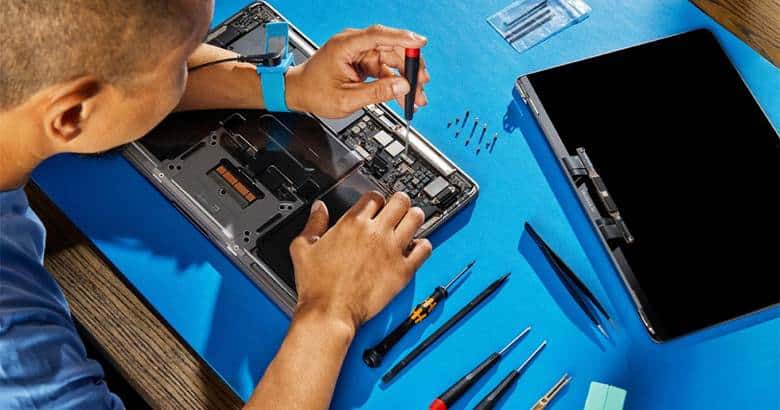
For serious issues — like persistent flicker, cracked screens, blackouts, or dead zones — it’s time to consider MacBook screen repair services in India. Rapid Repair offers comprehensive repair support, including free pickup/drop service and genuine parts, rather than DIY fixes that risk further damage.

How Much Does MacBook Screen Repair Cost?

The MacBook screen repair cost in India varies widely depending on your model and whether you choose a refurbished or new display panel. For example, for MacBook Air models, display replacement can range from around ₹15,000 for older units to ₹32,000+ for newer Retina panels when done through reputable independent services. For MacBook Pro models, especially newer M-series laptops, repair costs can be proportionally higher because the Retina displays are more complex and expensive.

If your device is in warranty or covered by AppleCare+, repair fees might be reduced — but accidental damage is usually charged at service fee rates.

Tips to Prevent Screen Problems

  • Always close the lid gently, without objects on the keyboard.
  • Use a protective sleeve or case when on the move.
  • Avoid pressing hard along the screen edges.
  • Keep liquids away from your laptop.

Read More – MacBook Keyboard Issues Common Problems & Solutions

FAQs

1. Why is my MacBook screen flickering on and off?

Software bugs, outdated OS versions, or faulty display hardware can all cause flicker — try updates and restarts first.

2. Can I continue using a cracked MacBook screen?

Temporarily, perhaps — but it risks dust/moisture entering and causing deeper issues.

3. Does screen repair void my warranty?

If done by unauthorised technicians, yes. Use reputable providers that use genuine parts.

4. How long does a screen replacement take?

Typically 1–3 days with most independent services, depending on parts availability.

5. Can software cause lines on the display?

Yes, some lines can be software-related, but persistent hardware lines usually require panel replacement.

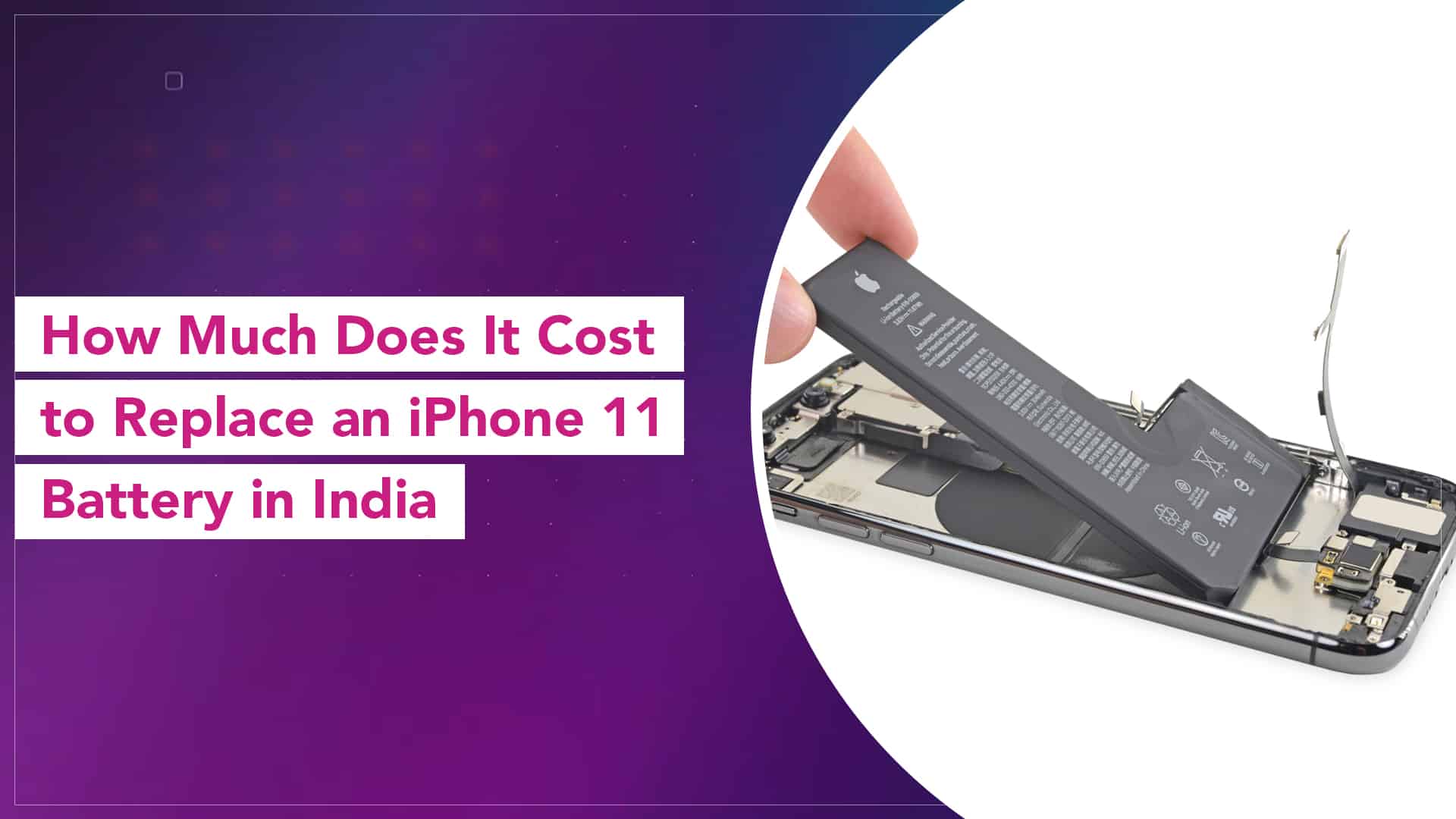
How Much Does It Cost to Replace an iPhone 11 Battery in India?

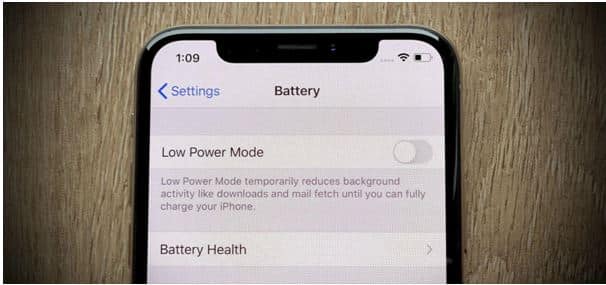
If your iPhone 11 has started biting at battery life — sudden drops, early shutdowns, or that dreaded “Service” warning under Settings → Battery Health — it’s probably past the fresh-out-of-box phase. Replacing the battery can make your phone feel significantly more reliable, whether you’re texting, watching videos, or juggling work and calls.

So, let’s talk numbers, expectations, and what goes into the iPhone 11 battery replacement cost in India — especially if you’re considering a trusted independent repair provider like Rapid Repair.

Typical Battery Replacement Price

At Rapid Repair, a trusted Apple repair partner in India that provides genuine parts and doorstep service, the cost to replace an iPhone 11 battery is approximately ₹4,500 (exclusive of taxes). This pricing applies to the standard battery component and the full replacement service, assuming no other faults are found during diagnostics.

This figure is quite competitive compared to Apple’s own service centres, where battery fees tend to be higher (and often vary depending on warranty status).

Source: iOS & iPhone – Gadget Hacks

Why It’s Worth Investing in a Quality Replacement

Battery wear is a natural process. After a few hundred charge cycles, capacity drops — and once it falls below about 80%, you’ll start noticing performance issues. A fresh battery does more than just last longer between charges; it also helps maintain stable performance under load.

If you’re looking for an affordable iPhone battery replacement in India that doesn’t compromise on quality, going the independent route like Rapid Repair often means:

  • Use of a genuine iPhone 11 battery replacement part
  • Free pickup and drop-off service across many cities
  • Expert technicians with years of experience and state-of-the-art equipment
  • No surprise charges — diagnosis is free if you choose not to proceed with the service

Source: www.jawaharatalrasheedhotel.com

Signs You Need a Battery Replacement

Before booking the service, make sure it’s really the battery that’s the problem. Here are the common symptoms:

  • Battery percentage drops suddenly, even when it shouldn’t,
  • Phone shuts down unexpectedly at moderate battery levels,
  • iPhone gets unusually warm when charging or in use,
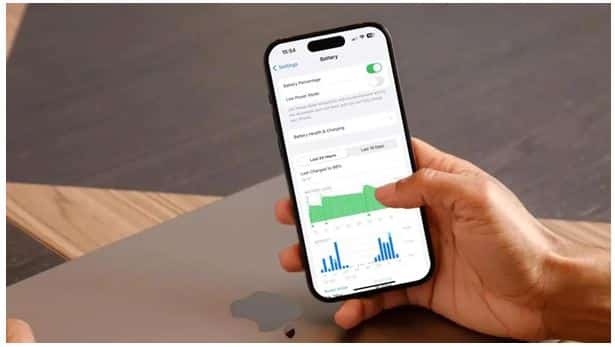
  • Battery health is below ~80% in Settings → Battery → Battery Health,
  • Charging takes longer than it used to.

If you see a combination of these, a replacement is likely due — and getting it done sooner often prevents secondary issues like logic board stress or abrupt shutdowns.

How the Replacement Process Works

  1. Book a service via call/WhatsApp or through the service portal.
  2. Rapid Repair offers free doorstep pick-up and drop across many Indian cities.
  3. They’ll give your iPhone a free diagnostic to confirm the battery is the issue.
  4. Once you approve the quote, they replace the battery with a high-quality, genuine part.
  5. Full QA checks ensure everything works — and you get warranty paperwork before it’s returned to you.

The whole process usually completes within a couple of days, depending on your location.

Source: CNBC

Apple vs Independent Repair — What’s the Difference?

Apple service centres do excellent work, but their costs tend to be steeper — and waiting times can stretch, especially in smaller cities where appointments are limited. Independent providers like Rapid Repair balance cost, convenience, quality parts, and quick turnaround. If you’re out of warranty, this often makes more sense for day-to-day users.

Replacing the battery is one of the most cost-effective ways to breathe new life into your iPhone 11. Instead of stressing over short battery life or unnecessary upgrades, a quality battery swap is quick, reliable, and — with the right service partner — affordable too.

Read More – How Much Does It Cost to Replace an iPhone 12 Mini Battery in India?

FAQs

1. How long does an iPhone 11 battery replacement take?

Usually 1–3 days, including pickup, repair, and return, depending on location and part availability.

2. Does the battery replacement come with a warranty?

Yes — many independent services offer a lifetime warranty on the repair (terms apply).

3. Will my iPhone show 100% battery health after replacement?

Yes — with genuine parts, your iPhone 11 should display full battery health post-replacement.

4. Is DIY battery replacement safe?

No. iPhones are tightly assembled; DIY replacements risk damage, non-genuine parts, and voided warranties.

5. Should I replace the battery if it still lasts most of the day?

If battery health is above ~80% and performance is normal, you can wait. But early replacement avoids future performance dips.

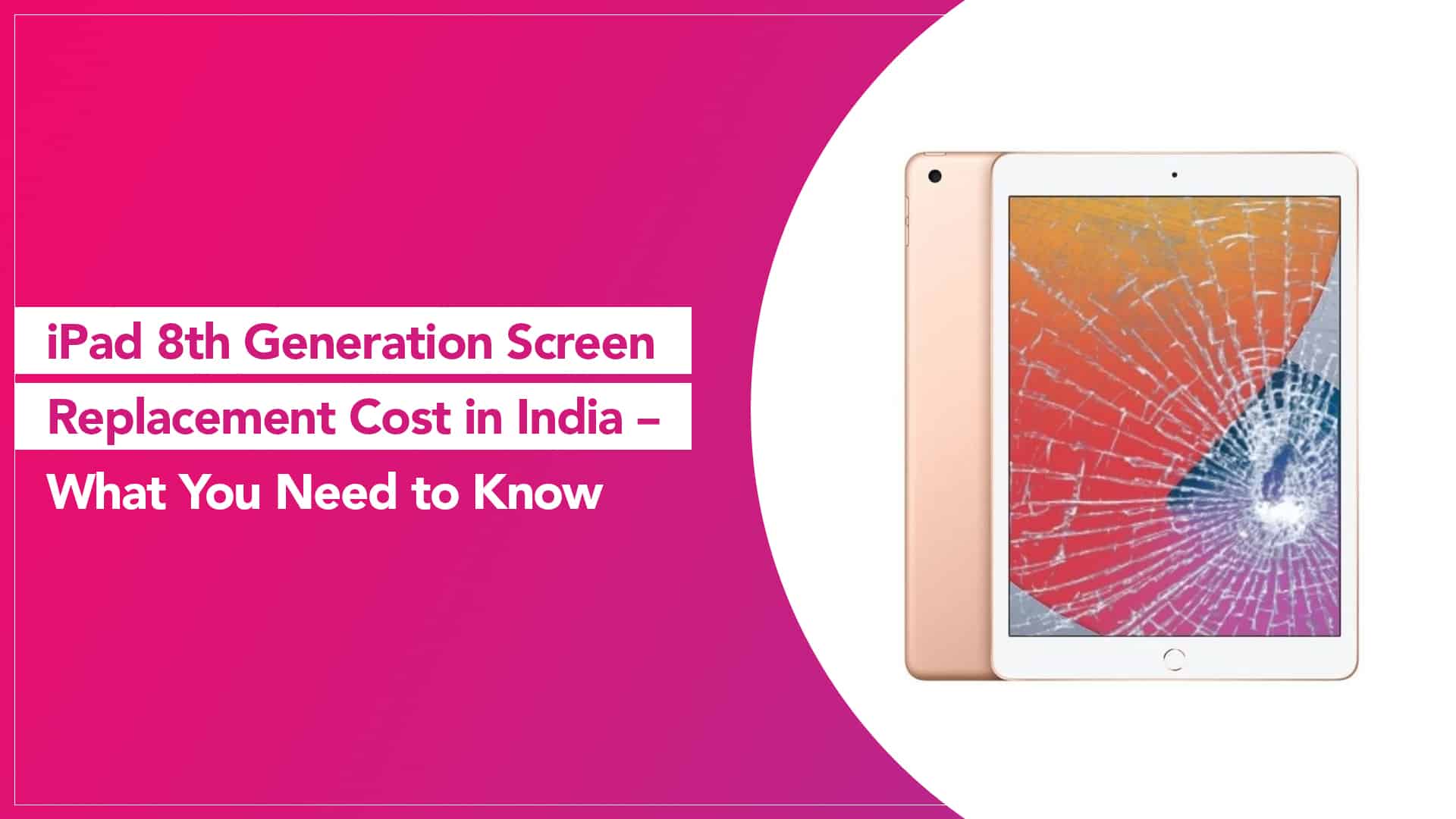
iPad 8th Generation Screen Replacement Cost in India — What You Need to Know

Dropping an iPad paints a familiar picture: you lift it with a sinking feeling, check the screen, and yep — a spider web of cracks. It happens to the best of us. Before you panic or rush to buy a new device, there’s a more sensible question: how much will an iPad 8th-generation screen repair cost in India — and who can do it properly?

Let’s practically unpack this so you know what to expect in terms of price, quality, and service when getting your iPad 8 screen fixed.

What’s the Screen Replacement Price?

For the digitiser replacement (the touchscreen layer) on the iPad 8th generation, the cost starts at around ₹5,500 (exclusive of taxes). If the damage affects the entire display panel (touch + LCD), the price is closer to ₹11,000 (exclusive of taxes).

Both options depend on whether only the outer glass/touch layer is damaged or whether the actual screen beneath it is affected too — something technicians determine during diagnosis.

Source: shoshitam

Read More – iPad Screen Replacement Cost

What Influences the Screen Repair Cost?

Several factors can affect the final price you pay:

  • Extent of damage: A simple crack might only need digitiser repair, but pressure damage or display malfunction often requires full panel replacement.
  • Parts quality: Genuine parts tend to cost more but last longer and perform reliably.
  • Service provider: Authorised centres may charge more, while experienced independent services like Rapid Repair balance quality and cost effectively.

Why Choosing the Right Service Matters

When it comes to fixing an iPad screen, cheap is rarely better. You want:

  • Durable parts that don’t fade, bleed colours, or lose touch responsiveness over time
  • Professional installation that seals the device fully to maintain strength and longevity
  • Warranty support so you don’t pay again if something goes wrong shortly after repair

That’s why an affordable iPad 8 screen repair service is more than the lowest price — it’s about reliability and peace of mind, along with cost-effectiveness.

Rapid Repair, for example, offers free pickup and drop across many parts of India, a lifetime warranty on screen services, and thorough diagnostics before proceeding with any repair.

How the Process Works

  1. Book a service — via call or WhatsApp with your repair partner.
  2. Free pickup — a technician or courier collects your iPad from your doorstep.
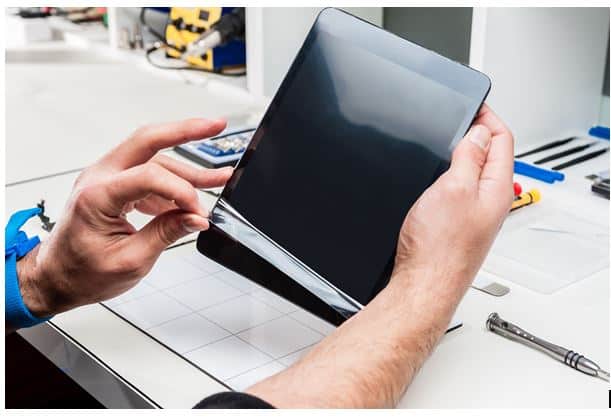
  3. Diagnosis — the service centre checks whether only the touchscreen or the whole display needs replacement.
  4. Quote approval — you get a clear price and can decide to proceed.
  5. Screen replacement and testing — parts are installed and thoroughly tested before being returned to you.
  6. Return delivery — your iPad comes back good as new, often within a couple of days.

Source: CNET

When to Replace vs When to Live With Minor Damage

Sometimes a small crack doesn’t affect functionality right away, but screen damage can spread, worsen, or even weaken the entire structure of the tablet. If you’re seeing:

  • Flickering or unresponsive touch in areas
  • Colour distortion
  • Black or dead zones
  • Increased glare or brightness issues

…it’s worth replacing the screen sooner rather than later.

Replacing your iPad 8th-generation screen doesn’t have to break the bank. The genuine iPad 8 screen replacement parts and professional services ensure your device looks and performs as intended — with costs that make sense for most users.

Whether it’s a digitiser repair or full panel replacement, you’ll get clarity and quality when you choose a reputable partner who balances cost, work quality, and convenience.

Read More – iPad 9th Generation screen replacement cost

FAQs

1. Is screen replacement worth it for an older iPad?

If your iPad 8 still meets your day-to-day needs, replacing the screen is often cheaper and smarter than buying a new tablet.

2. Will my Apple Pencil still work after screen replacement?

Yes — the Apple Pencil (1st generation) will continue working after proper screen installation.

3. How long does the repair take?

Screen replacements are typically done within a day or two, depending on the service and your location.

4. Does screen repair include a warranty?

Rapid Repair offers warranties on the parts and workmanship, which gives you additional security.

5. Can I use a cracked screen temporarily?

You can, but the cracks may worsen or spread, and touch sensitivity may degrade over time.

whatsapp logo