Water Damaged Apple Watch? Here’s what you need to know

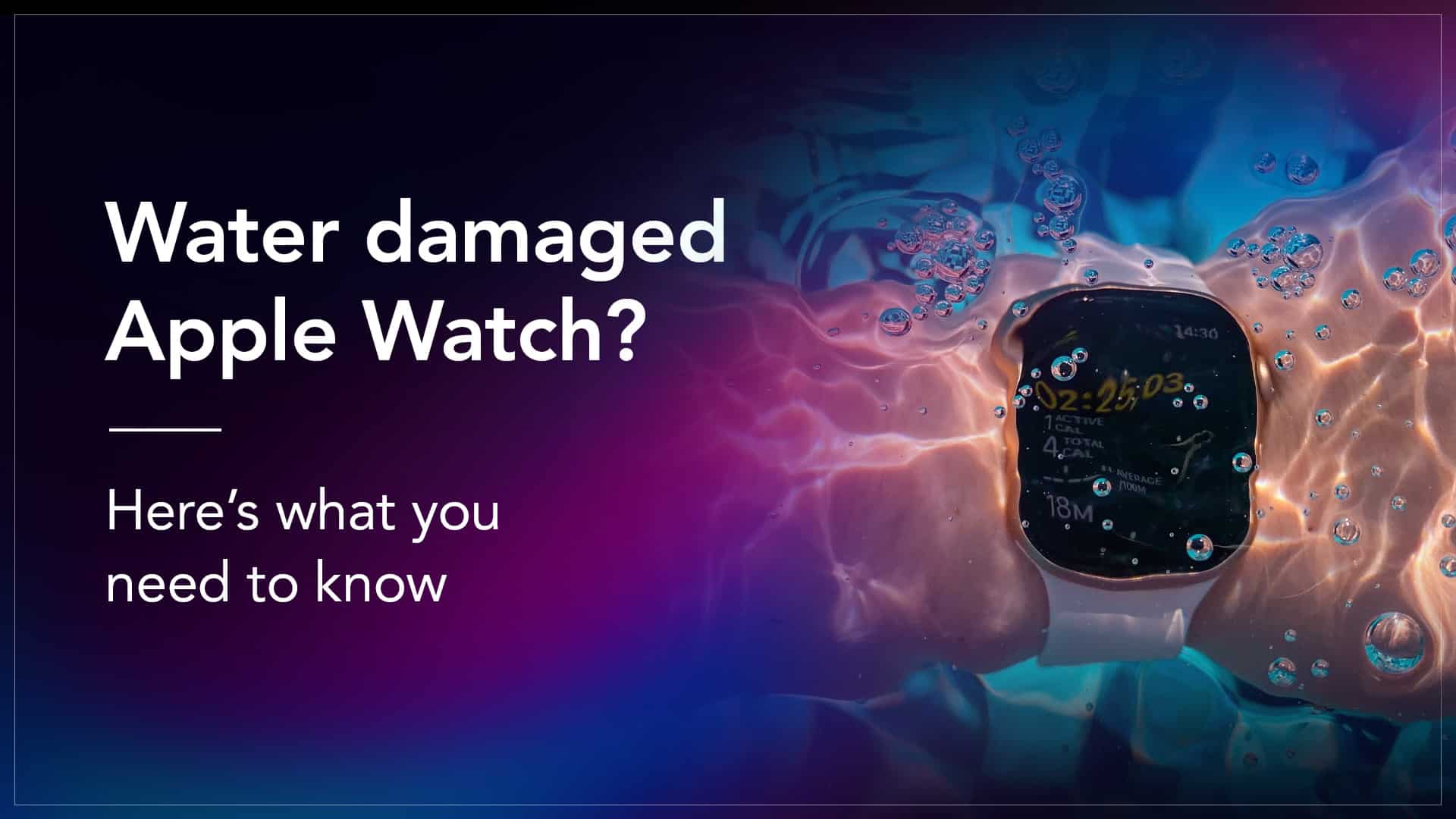
An Apple Watch is a helpful and smart device that many people use every day. It can track your steps, show messages, and even tell you the time. But sometimes, things can go wrong, especially if your watch comes into contact with water. Apple Watch water damage is a common problem that can happen if your watch is used in the shower, pool, or heavy rain. Even though Apple Watches are water-resistant, they are not completely waterproof. In this blog, we will talk about the signs of Apple Watch water damage, how it can happen, and what you should do if your watch gets wet.

                                     Source: 9to5 Mac

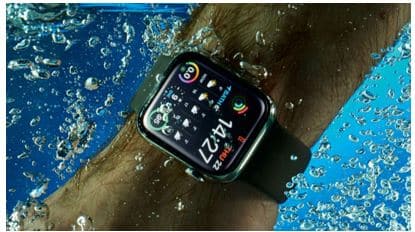
Apple Watches are water resistant up to a certain limit. If your Apple Watch is submerged in deep water for long, it can damage the internal components, and your Apple Watch may face serious issues.

                     Source: rschrono.com

Read – Apple Watch Tips for First-Time Users

How can an Apple Watch get damaged by wet?

Here are some common reasons for Apple Watch water damage:

Wearing it while swimming too deep: Apple Watches are water-resistant, not waterproof. Swimming in deep water or diving can let water seep in.

Using it in hot showers or saunas: Steam and hot water can damage the seals and allow moisture to enter the watch.

Pressing buttons underwater: Pressing buttons while the watch is underwater can break the water resistance and let water inside.

Cracks in the screen or case: If your Apple Watch has small cracks or damage, water can easily get inside and cause problems.

Worn-out water seals: Over time, the seals that keep water out can wear down, making it easier for water to get in.
                                  Source: How-To-Geek

Signs of water damage in your Apple Watch:

Corrosion: Water seeping into your Watch can corrode the battery and logic board and lead to a short circuit, or any other hardware malfunction. In case of any sign of corrosion, connect to the service provider.

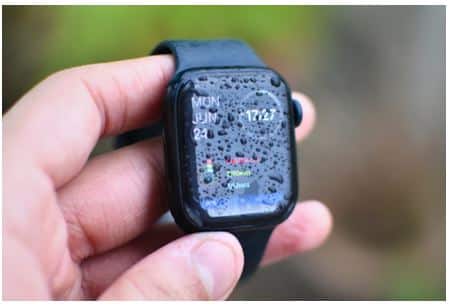
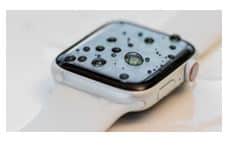
Moisture under the Display Screen: A common sign of liquid damage is a water spot or foggy moisture spot on the display screen. Malfunctions can happen if the water or any liquid seeps from under the screen to the internal parts.

Water Droplets: You won’t always see foggy spots on your screen. Before drying out it can affect the screen and also may damage the internal organs.

Fuzzy Growth on the Charging Set: This is a sign of a critical case of water damage, where water or moisture can travel its way to the charging set.

Discolouration: The Apple Watch is available in different colours as well as the wristband. A watch coming in contact with water can damage the colour of the watch or the band. The colour can fade, followed by damage.

Water Lock Breach: The water lock helps to protect the device if you wear it while swimming or taking a shower. But it has a limit, in case if it crosses the limit there are chances of serious damage.
                                 Source: Koster Clinic

These situations can lead to Apple Watch water damage, even if you’re careful. It’s important to know what to avoid to keep your watch safe.

Here are the troubleshooting tips that may help you to fix the issue:
                      Source: Macworld

Read – How to Solve Apple Watch Series 10 Speaker Issues?

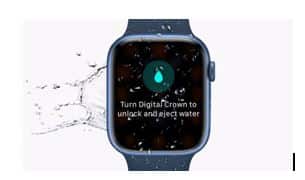
Newer models have a water lock system and a built-in option to play a tone that forces the water out.

Swipe up from the bottom of your Apple Watch, open the control centre> Tap the water lock icon, and you will see a water droplet icon on your screen.

The Watch will make a sound and force the water out. After the process, your Apple Watch will start responding.

If your Watch is not working, then power down the Watch > Wait for a while and turn it on.

Remove the band and dry off the water that may go inside the hidden connector. Even if you don’t see any sign of water damage, you should avoid using your Apple Watch until it’s dry.

Charging a water-damaged watch can cause short circuits. Let it dry fully before even thinking about charging.

The faster you dry your Apple Watch, the bigger the chance of saving it from water damage. Do not attempt to charge it unless it is dry.

Use a dry cloth to wipe off the excess moisture before charging. Make sure you have done everything you should do with your Apple Watch to keep it safe.
                               Source: Fixsquard

Acting quickly can help prevent more serious issues. When simple tips don’t work, it’s best to leave it to the professionals to fix Apple Watch water damage.


Common iPad Problems and How to Fix Them

Is your iPad not working the way it should? Don’t worry you’re not alone. Many people face common iPad issues like a frozen screen, battery draining fast, or apps not opening. These problems can be annoying, but the good news is that there are easy solutions. In this blog, we will discuss common iPad issues and solutions. Whether your iPad is running slow or won’t charge, we’ve got helpful tips to get it working again. Let’s get started!

                                     Source: ifixyouri

How to Fix Common iPad Problems?

iPad problems can happen for many simple reasons. Here are the common iPad issues and solutions that will help to fix the problem and get your device back in its running form.

                                   Source: Make Use Of

iPad won’t turn on: The battery might be empty, or the system might have crashed.

        Source: Apple Support

Plug in your iPad and let it charge for at least 30 minutes. If it still doesn’t turn on, press and hold the power button and home button, or volume button for newer models, together for about 10 seconds to force restart.

Unresponsive touch: Unresponsive touch on an iPad can happen for several reasons. It might be caused by dirt, oil, or water on the screen, which blocks the touch sensors.

                                    Source: Digital Trends

Clean the screen with a soft, dry cloth. Remove any screen protectors or cases and try again. If the touch is still not working, restart the iPad. If it stays frozen, do a force restart by pressing and holding the power and home (or volume) buttons together until the Apple logo appears. Updating the software can also help fix the issue.

The screen is frozen: Too many apps open or a system glitch.

                           Source: Business Insider

Do a force restart by pressing the power and home/volume buttons together. This refreshes the iPad without erasing anything.

iPad won’t connect to Wi-Fi: Wi-Fi signal is weak or network settings are wrong.

              Source: ProTabletPC

Restart your iPad and router. Go to Settings > Wi-Fi and forget the network, then connect again. You can also reset network settings by going to Settings > General > Transfer or Reset iPad > Reset > Reset Network Settings.

iPad is running slow: Not enough storage, background app activity, old software or ageing hardware.

Read – iPad Could Not Be Activated? How to fix

                 Source: onsitego.com

Delete apps you don’t use, remove old photos/videos, and update your iPad to the latest software.

Battery drains too fast: Bright screen, background apps, or old battery.

         Source: GadgetGone

Lower your screen brightness, close background apps, and update your iPad. If the battery is still bad, it may need to be replaced.

Sound is not working: Volume might be low, or the device is stuck in headphone mode.

                               Source: OS X Daily

Turn up the volume, make sure the mute is off, and plug in and unplug headphones to check. If that doesn’t help, restart your iPad.

Apps keep crashing: The app may have bugs or your iPad software is outdated.

                     Source: UR.co.uk

Read – How to fix iPad charging issue?

Update the app in the App Store. If that doesn’t work, delete the app and reinstall it. Also, make sure your iPad has the latest iOS version. Try a hard reset.

If problems continue, it might be time to visit a repair centre. Understanding these iPad issues and solutions can save you time and money. In case you live in a remote area, you have the option to mail your damaged device to the repair provider.

Got issues with your Apple Watch, iPhone, iPad, MacBook or any Apple device? Is a trustworthy repair centre not in sight? Don’t worry, the experts can help you get a free pickup and drop service and provide a bright iPad repair solution for all your Apple woes. Call today for iPad battery replacement, screen replacement, and other top repair services.

How to Set WhatsApp as Your Default Calling and Messaging App on iPhone?

WhatsApp has become one of the most popular apps for communication around the world. With its free messaging, voice calls, and video chats, it’s no wonder many iPhone users prefer using WhatsApp instead of the built-in Phone or Messages app.

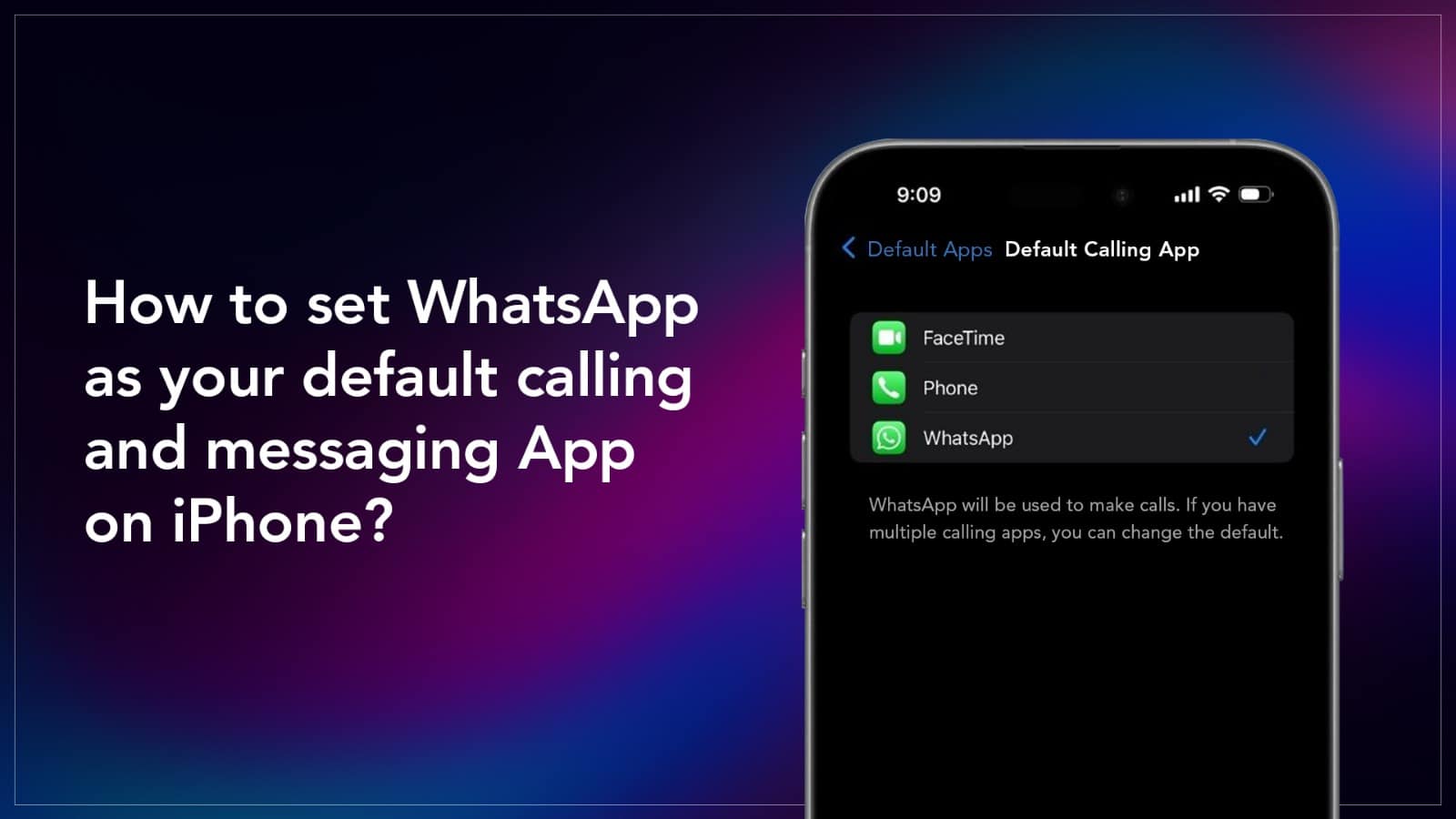
But can you make WhatsApp the default app for calling and messaging on your iPhone? Yes now you can, WhatsApp has finally uploaded the support of the default app feature for iPhone users. With iOS 18.2 update Apple gave the opportunity to select WhatsApp as the default app for calling and messaging. This update will allow you to dial a number directly from the WhatsApp Calls tab. It will let you type in the number and make calls, as long as it’s linked to a WhatsApp account. In this blog post, we’ll guide you step-by-step on setting WhatsApp as the primary communication app for calling and messaging, and how to make it easier and quicker to use every day.

                Source: idownloadblog.com

Here’s What You Need To Do To Change The Default Calling App:

                         Source: techyahoo.com

  1. Update the WhatsApp Version: You must have WhatsApp version 25.8.74 or later for this functionality. Go to the app store, select WhatsApp and click on update.
  • Default Calling App: On your iPhone with latest iOS 18.2 updated, go to Settings, navigate to Apps, select Default Apps.
  • Select Calling App: Tap on calling, it will show you the updated WhatsApp option that’s available on your iPhone. Select WhatsApp as your preferred app for calling.

Change Default Messaging App:

  1. On your iPhone go to the Settings app and go to the App section.
  • Select the Default App section.
  • Tap on Messages and select WhatsApp from the list.

                 Source: techyahoo.com

Read – The All New iPhone 16e Facts, Features and More

These are a few good reasons why you should consider setting WhatsApp as the primary communication app. It can bring security, simplicity and savings all in one place. If you are still wondering why use WhatsApp as the Default Calling and Messaging App, here’s the answer.

  1. WhatsApp uses the internet, so you don’t have to worry about the SMS charges. Also don’t have to wait for 15 seconds to listen to government warnings on spams.
  • WhatsApp works smoothly on both iOS and Android, it makes communication easier than before.
  • WhatsApp keeps your calls and messages private with strong encryption.

                                  Source: croma.com

WhatsApp is a powerful tool for both personal and professional communication. By setting WhatsApp as the primary communication app, you will find it more convenient to stay connected with family and friends. However, for any sort of internal malfunctions get connected to the nearest repair provider. In case you live in a remote area, you have the option to mail your damaged device to the repair provider.

Read – iPhone stuck in recovery mode? Tips to recover data without losing files

Got issues with your Apple Watch, iPhone, iPad, MacBook or any Apple device? Is a trustworthy repair centre not in sight? Don’t worry, the experts can help you get a free pickup and drop service and provide a bright repair solution for all your Apple woes. Call today for iPhone battery replacement, screen replacement, and other top repair services.

whatsapp logo