MacBook Turns On, but the Screen Stays Black? Here’s What Might Actually Be Happening

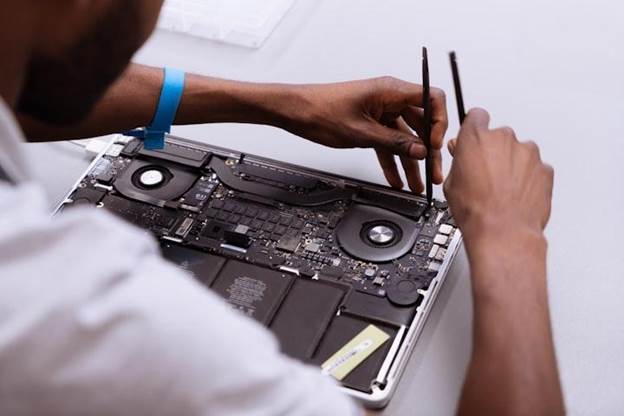
MacBook powered on with a black screen while a technician diagnoses the display issue

A MacBook black screen issue is unsettling because the laptop often behaves like it’s alive. You hear the startup sound. The keyboard lights up. The fan spins. Maybe charging works too. But the display stays completely black.

Sometimes the screen flashes briefly before going dark again. Sometimes it happens right after login. In other cases, the MacBook starts normally, but the display disappears after a few minutes.

Users usually describe this problem in three ways:

  • MacBook black screen after startup
  • MacBook screen gone black
  • or simply “the MacBook turns on, but nothing appears”

The tricky part is that this issue can come from either software instability or physical hardware failure, and both look very similar initially.

Source: Creative Bloq

Not Every Black Screen Means a Dead Display

This is the first misconception people have.

A black screen does not automatically mean the display itself is broken.

Sometimes the MacBook is functioning perfectly in the background, but something interrupts the display output process.

That distinction matters because the repair path changes completely depending on the cause.

The Most Common Software-Related Causes

A surprising number of black screen cases are software-related.

macOS Update Failure

This is extremely common after interrupted updates.

If the MacBook:

  • shuts down during installation
  • runs low on storage during update
  • or encounters corrupted system files

The system may fail to load the graphical interface properly. The laptop powers on, but the screen remains black.

Sleep/Wake Glitches

Some MacBooks occasionally fail to wake the display after sleep mode.

You press keys.
Trackpad clicks respond.
But the screen stays dark.

This usually points toward temporary software or firmware instability rather than hardware damage.

External Display Conflicts

Sometimes macOS incorrectly routes display output to an external monitor that is no longer connected.

The MacBook technically boots normally, but the internal display never activates properly.

It looks dead even when the system is still running.

When the Problem Is Hardware-Related

This is where things become more serious.

Display Cable Damage

In many MacBook models, especially thinner ones, the display cable flexes constantly during lid movement.

Over time, repeated opening and closing can damage the connector or flex cable.

Typical signs:

  • screen flickering before failure
  • display working only at certain angles
  • backlight disappearing gradually

Eventually, the screen goes black entirely.

Source: PC Mag

Logic Board or GPU Failure

A black screen can also originate from:

  • motherboard faults
  • graphics chip instability
  • power delivery issues

Usually, these cases are accompanied by:

  • overheating
  • random shutdowns beforehand
  • charging inconsistencies
  • repeated crashes before failure

First Things You Should Try Before Panicking

Not every black screen requires immediate repair.

A few troubleshooting steps are worth attempting first.

Force Restart the MacBook

Hold the power button for around 10 seconds until the MacBook shuts down completely.

Wait briefly, then restart normally.

Sometimes the system simply gets trapped during startup.

Increase Screen Brightness

It sounds obvious, but it genuinely happens.

Some users mistake extremely low brightness for a dead display after certain updates or resets.

Disconnect External Accessories

Remove:

  • external monitors
  • USB hubs
  • hard drives
  • adapters

Then restart the MacBook.

External display conflicts occasionally create startup display issues.

Try Safe Mode

Booting into Safe Mode can help determine whether startup software is causing the black screen.

If the display works normally in Safe Mode, the issue is likely software-related.

When the Black Screen Probably Needs Repair

This is where patterns matter.

If:

  • the display flickered before failing
  • the screen briefly appears then disappears
  • external monitor works but internal screen stays black
  • or the MacBook overheats repeatedly

then hardware diagnosis becomes necessary.

Especially if the issue keeps returning after resets or software restoration.
Source: Vocal Media

What Affects MacBook Black Screen Repair Cost?

The MacBook black screen repair cost depends entirely on the actual fault.

Software repair costs are obviously lower.

But hardware-related cases vary significantly:

  • display cable repairs
  • screen replacement
  • motherboard repair
  • GPU-related fixes

A damaged flex cable is far cheaper than replacing an entire Retina display assembly.

That’s why proper diagnosis matters before quoting repair costs.

How Rapid Repair Handles Black Screen Cases

Rapid Repair approaches black screen problems by identifying whether the fault begins from:

  • software corruption
  • display assembly failure
  • backlight issues
  • motherboard instability
  • or graphics-related faults

Instead of immediately replacing the macbook screen, the device is tested first to isolate the exact cause.

That approach prevents unnecessary part replacement, which is extremely important with expensive MacBook displays.

Once diagnosed, the Macbook repair is carried out using model-compatible components and tested thoroughly before return.

One Mistake People Commonly Make

They assume the screen itself is dead immediately.

In reality, many black screen issues originate from:

  • software corruption
  • display cables
  • backlight circuitry
  • motherboard instability

Replacing the entire display without diagnosis can become an expensive guess.

Source: CNN

A MacBook screen gone black issue feels dramatic because the laptop becomes partially functional in a very confusing way.

The system may still be running. The keyboard may light up. Charging may continue normally.

But the display refuses to cooperate.

Sometimes the problem is minor software instability. Sometimes it points toward deeper hardware faults developing gradually over time.

The important thing is not assuming the cause too early.

Because with MacBooks, the symptom you see is not always where the real problem begins.

Read – MacBook Screen Flickering? Causes and Fixes You Should Try First

FAQs

Why does my MacBook turn on but the screen stays black?

This can happen due to software corruption, display cable failure, backlight issues, motherboard faults, or graphics-related instability.

Can a macOS update cause a black screen issue?

Yes. Interrupted or corrupted updates can prevent the graphical interface from loading properly after startup.

How do I know if the screen itself is damaged?

If an external monitor works normally while the internal display stays black, the issue may involve the screen assembly, display cable, or backlight system.

Does a black screen always mean expensive repair?

No. Some black screen issues are software-related and can be resolved without major hardware replacement.

What is the average MacBook black screen repair cost?

The cost depends entirely on the fault. Software repairs are cheaper, while display or motherboard-related repairs vary significantly by model and damage level.

Can overheating cause black screen problems?

Yes. Long-term overheating can affect graphics components and motherboard stability, which may eventually trigger black screen issues.

When should I seek professional diagnosis?

If:

  • the screen keeps going black repeatedly
  • the display flickered before failure
  • or resets and software recovery do not help

then professional inspection is recommended.

iPhone Charging Port Repair Cost in India: What Actually Decides the Price?

iPhone charging port repair technician fixing a damaged charging connector in India

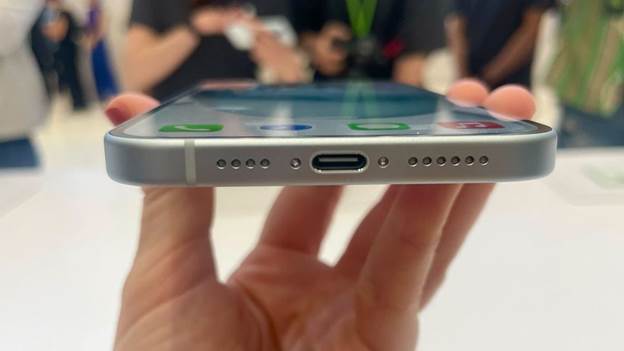
The pricing varies heavily depending on the iPhone model and the quality of replacement parts. Typical market ranges in India look like this:

  • Older iPhones: around ₹2,000–₹4,000
  • Mid-generation devices like iPhone 11 or 12: around ₹3,500–₹6,500
  • Newer models: can go beyond ₹7,000 depending on complexity and part quality

For example:

  • iPhone 13 charging repair services are commonly priced around ₹2,499 in third-party repair markets
  • iPhone 16 Pro charging port replacements can cost around ₹4,599 or more

Source: iGeeksBlog

So there is no single universal price. The model changes everything.

Charging problems usually begin in a very ordinary way.

Your iPhone charges only at a certain angle. The cable feels loose. Charging becomes painfully slow. Eventually, the device stops responding completely when plugged in.

At first, most people blame the charger.

Then comes the realisation. The port itself may be damaged.

That is when people start searching for iPhone charging port repair cost, and immediately get confused. One place quotes ₹2,000. Another says ₹8,000. Apple’s pricing feels even higher.

The gap exists for a reason.

First, Make Sure It’s Actually the Port

Not every charging issue means the port is damaged.

In many cases, the issue is caused by:

  • lint or dust buildup
  • damaged charging cable
  • software glitches
  • battery-related issues

Apple itself recommends checking for debris and accessory issues before assuming hardware failure.

But if:

  • Charging only works at specific angles
  • The cable disconnects easily
  • The phone repeatedly connects and disconnects
  • Charging stops completely

Then the port likely needs repair.

That’s one of the most common signs of an iPhone charging port not working properly.

Source: Mac World

Read – Signs Your iPhone Needs Professional Repair: What to Watch For

Why the Same Repair Has Different Prices

This is where most users get misled.

A charging port replacement is not just about swapping a small connector.

Depending on the model, the process may involve:

  • opening the entire device carefully
  • disconnecting sensitive internal components
  • replacing flex assemblies
  • recalibrating charging behaviour
  • testing power delivery and connectivity

Newer iPhones are significantly more compact internally, which increases labour complexity.

And then there’s part quality.

Low-grade ports may charge initially but develop problems again within months.

The Cheap Repair Trap

A lot of users choose the lowest quote available. That usually creates a second repair later.

Poor-quality charging ports often lead to:

  • unstable charging
  • overheating while plugged in
  • accessory detection issues
  • faster wear of the connector

The phone technically charges, but not consistently.

That inconsistency becomes frustrating very quickly.

A More Reliable Approach

This is where the repair process matters more than the raw price. Rapid Repair handles iphone charging port repair with proper diagnosis first. Because sometimes the problem is not the port at all. It could be the charging IC, battery, or an internal board-level issue.

Once the fault is identified:

  • The damaged component is replaced using OEM-grade parts
  • Charging stability is tested
  • Connector fit and power delivery are checked before return

The company also offers doorstep pickup and delivery across multiple cities, which removes the need to travel around with a half-working phone.

That matters more than people think.

Source: CNN

Should You Repair or Replace the Phone?

In most cases, repair makes more sense.

Even premium charging port repairs cost a fraction of replacing the entire iPhone. Unless the phone has major motherboard damage or severe liquid exposure, repairing the port is usually the practical choice.

The iPhone port replacement price in India varies because the repair itself is more complex than it appears.

You are not paying only for a connector.
You are paying for:

  • the quality of the part
  • the precision of the repair
  • and whether the issue stays fixed afterwards

A bad charging port repair becomes part of your daily frustration.

A good one disappears completely.

Read – 20 Most Common iPhone Problems in 2026 (Based on Real Repair Cases)

FAQs

Why is my iPhone charging only at a certain angle?

This usually happens when the charging port becomes loose, damaged, or clogged with dust and lint. In some cases, the cable itself may also be faulty.

Can a dirty charging port stop the iPhone from charging?

Yes. Dust and pocket lint often get compacted inside the port, preventing the connector from fitting properly. Cleaning the port carefully can sometimes solve the issue without repair.

How much does an iPhone charging port repair cost in India?

The cost depends on the iPhone model and the extent of damage. Older models are usually cheaper to repair, while newer iPhones with more compact internal designs cost more.

Is charging port replacement cheaper than buying a new iPhone?

In most situations, yes. Even premium charging port repairs are far less expensive than replacing the entire device.

How long does a charging port repair take?

Simple repairs can sometimes be completed within a few hours. More complex repairs involving internal diagnostics may take longer, depending on the issue.

Can charging port issues damage the battery?

Yes, prolonged unstable charging can affect battery health over time, especially if overheating or interrupted charging continues for weeks.

Is wireless charging a temporary solution if the port stops working?

It can help temporarily if your iPhone supports wireless charging. However, the underlying charging port issue should still be diagnosed and repaired.

When should I seek professional repair?

If your iPhone:

  • repeatedly disconnects while charging
  • charges very slowly
  • does not detect cables properly
  • or stops charging entirely

Then, a professional inspection is recommended.
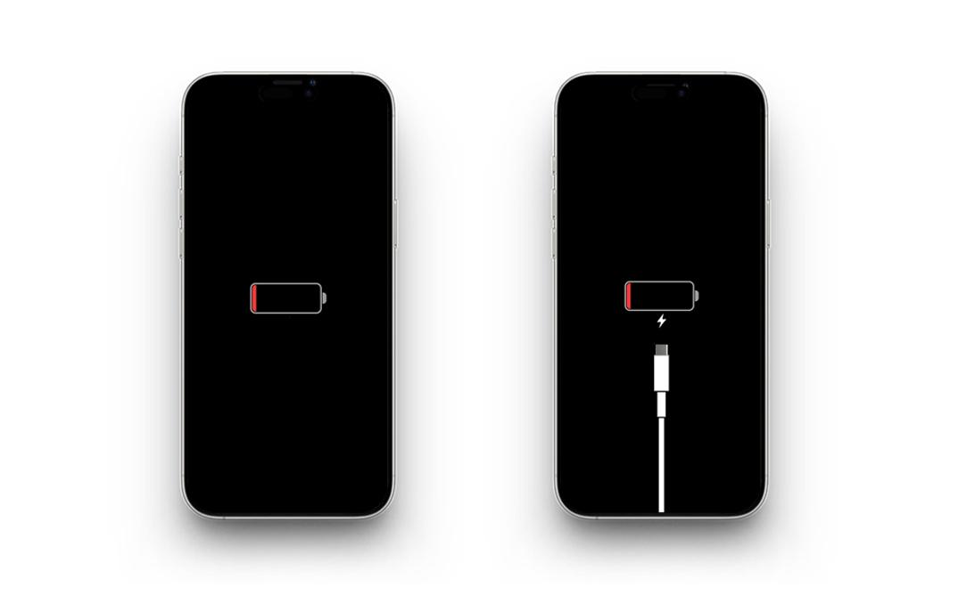
Why Your iPad Keeps Restarting and Gets Stuck on the Apple Logo

Common causes of iPad restart loops and Apple logo freeze problems

An iPad stuck in a restart cycle creates a very specific kind of panic.

The Apple logo appears. The screen goes black. It restarts again. Then repeats the same thing endlessly.

Sometimes the device never reaches the Home Screen at all. Sometimes it works for a few minutes before crashing again.

Source: OS X Daily

People usually describe this in three ways:

  • iPad stuck in boot loop
  • iPad restarting again and again
  • iPad stuck on Apple logo

All three point toward the same underlying problem. The system is failing to boot properly.

The good news is that this does not always mean the iPad is permanently damaged.

What a Boot Loop Actually Means

A boot loop happens when the iPad starts powering on, but something interrupts the startup process before iPadOS loads completely.

The device keeps trying to restart because it cannot complete that cycle successfully.

Think of it as the iPad repeatedly tripping before crossing the finish line.

The Most Common Causes

There is no single reason behind boot loops. Several things can trigger them.

Failed iPadOS Updates

This is one of the most common causes.

If an update gets interrupted due to:

  • low battery
  • unstable internet
  • storage issues
  • sudden shutdowns

The system files may become corrupted.

The iPad keeps restarting because the operating system cannot load properly.

Storage Completely Full

This surprises many users.

When storage becomes critically full, iPadOS sometimes struggles to manage temporary system processes properly. That instability can trigger random restarts or boot loops.

Older iPads are especially vulnerable to this.

Source: iPad Pilot News

Battery or Power Issues

A degraded battery can also create restart cycles.

If the battery cannot provide stable power during startup, the device may reboot repeatedly before loading fully.

This becomes more common in older iPads.

Read – iPad Battery Draining Too Fast? Here’s How You Can Prevent It

Hardware Damage

Drops, liquid exposure, or motherboard-level issues can also trap the iPad in a restart loop.

Usually, hardware-related boot loops are accompanied by:

  • overheating
  • screen flickering
  • charging issues
  • sudden shutdowns before the problem began

First Things You Should Try

Before assuming serious hardware failure, try these steps.

Force Restart the iPad

For newer iPads:

  • Press Volume Up
  • Press Volume Down
  • Then hold the Power button until the Apple logo appears

Sometimes the device simply needs a clean restart cycle.

Connect to a Charger and Wait

If the battery is unstable or deeply discharged, leave the iPad charging for at least 30–40 minutes before trying again.

Do not keep repeatedly forcing restarts every few minutes.

Update or Restore Through Finder/iTunes

If the iPad still remains stuck:

  • connect it to a Mac or PC
  • open Finder or iTunes
  • place the iPad into Recovery Mode

You may then see options to:

  • Update
  • Restore

Always try “Update” first because it attempts to reinstall iPadOS without erasing data.

When the Problem Is No Longer Software

This is where many users lose time.

If:

  • The restore process fails repeatedly
  • The iPad overheats during startup
  • The device keeps looping even after a fresh installation
  • Or the Apple logo appears and disappears endlessly

Then the issue may be hardware-related.

At that point, software fixes alone usually stop helping.

Read – iPad Running Slow? Here’s How to Speed It Up

How Rapid Repair Handles Boot Loop Issues

Rapid Repair approaches these cases with diagnosis first instead of immediate iPad repair or restoration attempts.

Because sometimes the problem is:

  • battery instability
  • NAND/storage failure
  • charging IC issues
  • motherboard faults
  • corrupted system files

The device is checked to determine whether the issue is software-based or deeper at the hardware level.

That distinction matters. A motherboard issue disguised as a software problem can waste hours of unnecessary resets and restore attempts.

Source: Time

One Mistake People Commonly Make

They keep force-restarting the iPad repeatedly for hours.

If the issue is hardware-related, repeated restart attempts can sometimes worsen instability or drain the battery further.

A few troubleshooting attempts are reasonable. Endless restart cycles usually are not.

An iPad stuck on the Apple logo looks dramatic, but it is not always catastrophic.

Many boot loops are caused by update failures, storage overload, or temporary software corruption. Others point toward deeper hardware issues that need proper diagnosis.

The important thing is recognising when basic troubleshooting stops helping.

Because there is a difference between a temporary startup glitch and a device trying very hard to tell you something deeper is wrong.

Read – Common iPad Problems and How to Fix Them

FAQs

Why is my iPad restarting again and again?

This can happen due to failed software updates, battery instability, storage overload, or hardware issues affecting the startup process.

Can a software update cause an iPad boot loop?

Yes. Interrupted or corrupted iPadOS updates are one of the most common causes of boot loops.

Will a force restart fix an iPad stuck on the Apple logo?

Sometimes. If the issue is temporary software instability, a force restart may restore normal startup.

Does restoring the iPad erase data?

A standard “Update” through Finder or iTunes usually attempts to preserve data. A full “Restore” may erase the device.

Can low storage cause boot loops?

Yes. Critically full storage can interfere with system processes and create startup instability on some iPads.

When should I seek professional repair?

If the iPad:

  • keeps restarting after restore attempts
  • overheats during startup
  • or fails to complete booting repeatedly

Then, a hardware diagnosis is recommended.

Why iPad Charging Ports Fail Before the iPad Does

Close-up of an iPad charging port and internal components illustrating why iPad charging ports fail before the device itself.

An iPad ages strangely. The processor often remains perfectly usable for years. The display still looks sharp. Even older iPads continue handling streaming, reading, sketching, meetings, and casual work without much complaint.

But eventually, one physical component starts giving up before everything else. The charging port, not dramatically, quietly.

First, charging slows down. Then the cable becomes sensitive to movement. A slight touch interrupts power. One day, the iPad simply refuses to charge unless the connector sits at an oddly specific angle.

That’s usually when people start searching for iPad charging port replacement and immediately discover something confusing. The repair prices are wildly inconsistent.

There’s a reason for that.

An iPad Port Is Not Built Like a Phone Port

Most users assume the charging connector is a small, easily replaceable part.

On older devices, repairs were simpler. Modern iPads are different.

The internal layout is thinner, tighter, and more layered. In many models, accessing the charging assembly means partially dismantling the device, carefully lifting the display, and working around delicate internal connectors.

That complexity changes the repair cost significantly.

Especially on newer Air and Pro models.

The Cheapest Repair Is Often the Most Expensive One Later

A lot of users make the same decision.

The iPad still turns on. Everything else works. So they chose the lowest repair quote available just to restore charging quickly.

Technically, the device starts charging again.

Then, after a few months:

  • the cable loosens again
  • charging becomes unstable
  • the connector overheats
  • slow charging returns

This usually happens because low-quality charging assemblies wear out faster under daily strain.

And unlike phones, iPads often remain plugged in for long sessions. Online classes, Netflix, drawing apps, Zoom meetings, desk usage. The connector experiences sustained pressure for hours at a time.

Weak replacement parts don’t survive that well.

Source: CNET

What Actually Decides the Repair Cost?

The iPad charging port repair cost in India depends less on the connector itself and more on three things:

1. iPad Model

Older standard iPads are easier to work on.
Newer iPad Air and Pro models are far more compact internally.

Repair difficulty increases sharply with newer devices.

2. Type of Damage

Sometimes the port is damaged physically.
Sometimes the issue sits deeper:

  • charging IC faults
  • corrosion
  • board-level charging failure

That changes the pricing entirely.

3. Quality of the Replacement

This is where the biggest difference appears.

Lower-cost replacements reduce upfront pricing but often compromise durability. Better-quality charging assemblies cost more but handle long-term daily charging much more reliably.

The Real Problem With a Failing Port

A damaged connector affects more than charging.

An unstable port can:

  • interrupt data transfer
  • affect charging speed
  • create heat buildup
  • stress the battery over time

That’s why ignoring the issue usually makes things worse gradually instead of immediately.

Where Rapid Repair Fits In

Rapid Repair approaches these issues differently from basic connector-swap setups.

Instead of immediately replacing the port, the device is diagnosed first to determine whether the fault is:

  • the charging assembly itself
  • battery-related
  • or connected to internal board-level charging circuits

Only then is the repair carried out using OEM-grade components, followed by charging-cycle and stability testing.

Source: Verge

That matters because many users assume the connector is faulty when the actual issue sits deeper inside the device.

The pickup-and-drop service also makes practical sense for iPads, especially larger Pro models that people are understandably hesitant to carry around unnecessarily.

So, Is It Worth Repairing?

In most situations, yes.

iPads tend to outlive many other gadgets. A properly repaired charging port can easily extend the usable life of the device by several more years.

Replacing the entire iPad because of a failing connector is usually unnecessary unless major internal damage exists elsewhere.

The phrase iPad charging port not working sounds minor until the device stops fitting into your daily routine properly.

And because iPads are built to last unusually long, charging ports often become one of the first hardware components to wear out under constant use.

The good news is that most of these issues are repairable.

The important part is making sure the repair itself lasts longer than the problem did.

Read – iPad Not Charging? Here’s the Fix

FAQs

Why is my iPad charging only when the cable is tilted?

This usually points to a loose or worn charging port. In some cases, dust buildup inside the connector can also prevent proper contact between the cable and the port.

Can a dirty charging port stop the iPad from charging completely?

Yes. Pocket lint and debris can get tightly packed inside the port over time, especially if the iPad is carried in bags frequently. Cleaning the connector carefully may restore charging if the issue is minor.

How much does an iPad charging port repair cost in India?

The cost depends on the iPad model and the extent of damage. Older standard iPads are generally cheaper to repair, while newer iPad Air and iPad Pro models usually cost more due to their compact internal design.

Is iPad charging port replacement better than buying a new iPad?

In most situations, yes. If the display, battery, and motherboard are functioning properly, replacing the charging port is far more economical than replacing the entire device.

Can a faulty charging port damage the battery?

Over time, unstable charging can affect battery health, especially if the connector repeatedly disconnects or overheats during charging.

Why do some charging port repairs fail again after a few months?

This usually happens because of low-quality replacement parts or improper installation. Since iPads are often used while charging, weak charging assemblies wear out faster under constant strain.

How long does iPad charging port replacement take?

The repair time depends on the model and the severity of the issue. Simple repairs may be completed within hours, while more complex internal repairs can take longer.

Should I continue using the iPad if the charging keeps disconnecting?

It is better to diagnose the issue early. Repeated unstable charging can gradually affect the battery and internal charging circuits over time.

Apple WWDC 2026: Everything That Happened – And Why It Matters for Your Devices

Apple WWDC 2026 Everything you need to know about

Apple just wrapped up WWDC 2026. If you missed it – don’t worry. Here’s everything that went down between June 8 and June 12 at Apple Park, Cupertino.

It wasn’t just any developer conference this year. Apple was proving something, and in the majority of cases, they did.

Whether it was with a newly-rebuilt Siri or sweeping changes across all platforms, iOS, macOS, watchOS, and now visionOS, this was Apple on fire on all cylinders. This one is for anyone who uses an iPhone, anyone who is a Mac fan, or anybody who wants to know whether or not they have to get the iOS 8.3 update.

What Is WWDC?

WWDC (Worldwide Developers Conference) is Apple’s annual conference where they announce new software updates for its devices, including iPhones, iPads, Macs, Apple Watch, Apple TV, and Vision Pro. The developer sessions continued through June 12, while the keynote launched June 8 at 10 a.m. PT.

Worth mentioning – this may have been Tim Cook’s final WWDC as CEO. He is expected to step down in September to be replaced by John Ternus, and he ended the keynote by stating that Apple’s journey was “the honor of a lifetime” for him.

Siri Finally Gets Smart

This was a key headline announcement. So, here comes Siri AI, and it’s a totally different type from the one you’ve been banging your head up against for years.

Siri AI, powered by Google’s Gemini model, understands personal context, knows what’s on screen, and provides real, conversational responses. As Apple VP Mike Rockwell put it: “Siri is now a wonderfully more capable assistant that gets you the information you need and gets you more done.

During a live demonstration, a person instructed Siri on how to get to a place they had seen in an Instagram photograph. Siri understood it and carried it out accordingly. It’s a real step up! A dedicated Siri chatbot app is also included, launching first in English.

iOS 27 – What’s New for iPhone Users

iOS 27 is fast. According to Apple, app launches are 30% faster, Photos opens up 70% faster, and Airdrop transfers are 80% faster. Even if in real life they are half as many, you’ll feel it.

Last year’s Liquid Glass theme remains, but now there’s also a personalization slider to reduce the opacity level if the design does not align with your taste. Shortcuts can be programmed with simple natural-language input – Siri can be instructed to automate tasks by stating what you are looking for. Parental controls have also been dramatically improved, allowing parents to fully control both apps and websites.

iOS 27 can run on all devices that previously ran iOS 26, the last successful operating system the company released.

macOS Golden Gate

This update for the Mac has been called Golden Gate, and it’s the complete death of the Intel era. The whole OS is now Apple Silicon-based, and Apple Intelligence is integrated into it. Better performance, native apps are tighter, and it’s a whole lot nicer.

Image Source: macrumors.com

Everything Else

  • iPadOS 27 is the same as iOS 27 in terms of Siri AI, Apple Intelligence, parental controls, Liquid Glass improvements, and more.
  • watchOS 27 adds Workout Buddy, an AI health coach for fitness sessions, enhanced women’s health indicators, and a new gesture control feature to help people navigate without touching the volume slider.
  • visionOS 27 adds a 3D Siri you can actually converse with in your virtual space, along with a redesigned Control Center.

One important note: the most advanced AI features require newer hardware. iPhone 15 Pro or newer, and an M1 chip or newer for Mac and iPad. It is important to note that older devices are still receiving the update, but not all of the AI capabilities.

Bonus: The new iCloud Shared Albums feature will allow Android/Windows users to contribute photos too. The small change which is really useful.

Our Take – As a Repair Perspective

At RapidRepair.in, each one of Apple devices that passes through our hand is viewed. Honest advice: don’t rush the update. Older phones might suffer in certain respects regarding battery life with major iOS updates, particularly with AI functions active in the background.

Back up and then update. If your iPhone or Mac is already broken – battery life issues, cracked screen, sluggish performance, etc. – then fix it before you do anything else. A healthy device will have no problems with an update. An ineffective one fails to.

The developer versions are now available. Public betas drop in July. The full release will be accompanied by the new iPhone lineup in September.

Do you have an iOS 27 device, or an iOS that supports the new AI capabilities? Send us an e-mail or come to your local Rapid Repair Centre.

iPhone 16 Common Issues: Practical Fixes That Actually Help

iPhone 16 Common Issues Explained

The iPhone 16 lineup arrived with major expectations, better thermals, improved cameras, stronger battery optimisation, and Apple Intelligence features. On paper, it looked polished.

In reality, early adopters across Apple communities started reporting a familiar pattern. Heating issues, battery drain, touch response glitches, and occasional camera instability.

To be fair, most of these problems do not affect every device. Some are software-related. Some appear after updates. Others happen during the initial setup period when the phone is still indexing apps and data.

Still, if you recently bought an iPhone 16 device and something feels off, you are definitely not alone.

Here are some of the most reported iPhone 16 common issues and what you can actually do about them.

1. Overheating During Camera Use or Charging

This has probably been the most discussed issue so far, especially with the Pro models.

Many users reported the phone getting unusually warm while:

  • Using the camera for extended periods
  • Recording 4K video
  • Charging
  • Transferring data during setup
  • Gaming or editing videos

In some cases, users even saw temperature warnings appear during camera usage.

Possible Reasons

  • Background indexing after setup
  • iOS bugs after updates
  • High camera processing load
  • Heavy background app activity
  • Charging while using intensive apps

Fixes

  • Update to the latest iOS version immediately
  • Avoid gaming or video editing while charging
  • Turn off Background App Refresh temporarily
  • Remove thick phone cases during charging
  • Reduce screen brightness if the device heats excessively
  • Restart the phone after long camera sessions

If the heating continues for weeks under normal usage, contact Apple Support.

This remains one of the most searched iPhone 16 overheating issue complaints online right now.

Read – iPhone X is Overheating After Normal Use: Pro Fixes

Source: AppleInsider

2. Rapid Battery Drain

Many iPhone 16 users noticed aggressive battery drain, especially after software updates. Some reported losing battery much faster than expected, even with light usage.

Apple itself acknowledged that major iOS updates can temporarily affect thermal and battery performance due to background optimisation processes.

Fixes

  • Give the phone 2–3 days after a major update
  • Check Battery settings to identify background-draining apps
  • Disable Always-On Display if not needed
  • Turn off unnecessary location permissions
  • Use Low Power Mode temporarily
  • Update apps from the App Store

In many cases, battery performance stabilises after indexing finishes.

3. Touchscreen Becoming Unresponsive

Some users experienced temporary touch freezes or delayed responses, especially shortly after launch.

Apple later addressed this through an iOS update.

Signs

  • taps not registering properly
  • keyboard lag
  • delayed swipe response
  • random touch freezing

Fixes

  • Install the latest iOS update
  • Remove low-quality screen protectors
  • Restart the device
  • Reset all settings if the issue continues

If the display still behaves abnormally after updates, hardware inspection may be necessary.

4. Camera Freezing or Stuttering

A few iPhone 16 Pro users reported:

  • camera lag
  • black preview screens
  • stuttering during recording
  • crashes while using macro mode

Apple also pushed fixes related to camera freezing in early software patches.

Fixes

  • Force close the Camera app
  • Restart the device
  • Disable HDR video temporarily
  • Update iOS
  • Avoid overheating during long recordings

If the issue happens repeatedly only inside one app, like Instagram or Snapchat, update the app itself.

Source: CNET

5. Performance Slowdowns After Updates

Some users noticed the phone feeling slower after updating, especially during the first few days.

This is usually tied to:

  • background indexing
  • photo analysis
  • app optimisation
  • iCloud syncing

Fixes

  • Keep the phone connected to Wi-Fi and charging overnight
  • Update all apps
  • Restart after the update installation
  • Free up storage if nearly full

Most slowdowns disappear after the system finishes optimisation.

6. Unexpected App Crashes

This issue is less hardware-related and more software-related.

Some apps, especially social media and editing apps, were unstable on early iOS builds.

Fixes

  • Update the app immediately
  • Delete and reinstall problematic apps
  • Clear iPhone storage if almost full
  • Avoid beta iOS versions unless necessary

Should You Be Worried?

Not necessarily.

Every major iPhone release goes through an adjustment phase where software updates iron out bugs and optimisation issues. The iPhone 16 series is no exception.

Most users reporting problems eventually saw improvements after:

  • software updates
  • background indexing completion
  • app updates
  • restarting or resetting settings

That said, persistent overheating, battery swelling, or repeated crashes should never be ignored.

The iPhone 16 series is powerful, but like every modern smartphone lineup, it launched with a few rough edges.

Though most of the iPhone 16 problems and solutions are software-related and fixable without hardware replacement, if your device feels unusually hot, drains battery aggressively, or behaves inconsistently for more than a week or two, don’t just wait endlessly for the next update. Diagnose the pattern early.

Because small software annoyances are normal. Persistent instability isn’t.

Read – 20 Most Common iPhone Problems in 2026 (Based on Real Repair Cases)

FAQs

1)Why is my iPhone 16 heating up so much?

This can happen during setup, gaming, camera usage, charging, or after major iOS updates. Background processing and app optimisation are common causes initially.

2)Does iPhone 16 battery drain improve over time?

Yes, in many cases. Battery life often stabilises after a few days once indexing and background syncing finish.

3)Did Apple fix the iPhone 16 touch issue?

Apple released software updates addressing temporary touchscreen responsiveness problems on certain iPhone 16 models. ([The Verge][4])

4)Is overheating during charging normal?

Mild warmth is normal. Excessive heat with temperature warnings is not and should be investigated.

5)Should I reset my iPhone 16 if issues continue?

If software updates and restarts do not help, resetting settings or performing a clean restore may help resolve persistent glitches.

whatsapp logo