How Do I Know What iPad I Have?

iPads tend to stay with us for years. They survive updates, new accessories, and sometimes even a cracked corner or two. Which is exactly why many people suddenly realise they have no idea which model they’re actually using. You only notice this when you try to buy a case, replace a screen, or check compatibility for a new update.

The good news is that identifying your iPad is easier than it sounds. You do not need special tools, and you definitely do not need to be a tech expert.

Why Knowing Your iPad Model Matters

At first glance, many iPads look almost identical. Similar screens, similar buttons, same Apple logo. But internally, models differ quite a lot.

Knowing the exact model helps when:

  • buying accessories like covers or keyboards
  • checking software compatibility
  • repairing or replacing parts
  • selling or trading in the device

That is usually when people start searching things like What iPad do I have.

The Easiest Way: Check in Settings

This is the quickest method and works on almost every iPad.

  1. Open Settings
  2. Tap General
  3. Tap About
  4. Look for Model Name

You will see something simple like iPad Air (5th generation) or iPad Pro 11-inch. Right below it, you’ll also find a model number starting with A followed by numbers. That number tells you the exact version.

Source: Teachable News

Read More – iPad Not Charging? Here’s the Fix

Using the Model Number on the Back

If your iPad does not turn on, there is still another way.

Flip the device over and look near the bottom. You’ll see small text that includes a model number like A2436 or A2270.

This method helps when buying second-hand devices or when troubleshooting without accessing the software. It is one of the simplest ways for how to identify your iPad model without opening any menus.

Check the Original Box or Receipt

If you still have the original packaging, Apple prints the model name and number clearly on the label. This is often overlooked, but it saves time.

Digital receipts from Apple or authorised stores also mention the exact model.

Source: Apple

Use Apple’s Website for Confirmation

Once you have the model number, you can match it on Apple’s support page. The site lists every iPad generation with photos and specifications.

This helps when two devices look almost the same but belong to different generations.

Visual Clues That Help

Sometimes you can identify the model just by looking at it.

  • Home button present → usually older iPad, iPad Air, or basic iPad models
  • No home button with slim bezels → newer iPad Pro or iPad Air
  • Single camera vs dual camera
  • USB-C vs Lightning port

These clues are not perfect, but they narrow things down quickly.

Why People Get Confused

Apple has released many iPads with small design changes. A 10.2-inch iPad and a 10.9-inch iPad may look similar at first glance. Names like Air, Pro, and regular iPad also overlap in size.

That confusion is exactly why people search for How to find out what iPad I have when they need a replacement part or accessory.

Tips Before Buying Accessories

Before ordering a case or screen protector:

  • Confirm model number, not just size
  • Check the generation year
  • Compare camera cutouts and button placement

A case that fits one generation may not fit another, even if the screen size matches.

Source: CNET

Finding your iPad model is simpler than most people expect. The answer is usually sitting inside the Settings app or printed quietly on the back of the device. Once you know the model, everything else becomes easier — from repairs to updates to buying the right accessories.

Take a minute to check now. It saves confusion later.

Read More – iPad Running Slow? Here’s How to Speed It Up

FAQs

1. Can two iPads look the same but be different models?

Yes. Apple often keeps similar designs across generations while changing internal hardware.

2. Where do I find the model number on an iPad?

You can find it in Settings under General → About, or printed on the back of the device.

3. Does screen size alone identify the iPad?

Not always. Different generations can share similar screen sizes.

4. Can I identify my iPad if it won’t turn on?

Yes. Use the model number printed on the back or check the original box.

5. Why is knowing my iPad model important?

It helps ensure compatibility for accessories, repairs, updates, and resale value.

How to Clean an iPhone Speaker Without Damaging It

An iPhone speaker usually works quietly in the background until one day it doesn’t sound quite right. Music feels muffled. Calls sound softer than usual. Voice notes lose clarity. Most of the time, the problem isn’t the speaker itself. It’s dust, pocket lint, or tiny particles slowly building up over months of everyday use.

The good news is you can fix this at home. You just need to be gentle and know what not to do.

Why iPhone Speakers Get Dirty So Easily

Think about where your phone goes every day. Pockets, bags, beds, tables, and car dashboards. Tiny fibres and dust settle into the speaker grills without you noticing. Over time, that layer blocks sound.

It’s one of the most common reasons people look up how to clean an iPhone speaker when the volume suddenly feels weaker.

Things You Should Never Use

Before cleaning anything, avoid these mistakes:

  • No needles or metal pins
  • No blowing directly with your mouth
  • No strong liquids or cleaning sprays
  • No high-pressure air canisters can be held too close together

The speaker mesh is delicate. One wrong move can push dirt deeper or damage internal components.

Source: AppleToolBox

The Safest Way to Clean the Speaker

Start simple.

1. Use a Soft, Dry Brush

A clean toothbrush or a soft paintbrush works well. Hold the phone upright and gently brush across the speaker grill. Small movements are enough. You are trying to lift dust out, not push it in.

This method is effective if you are wondering how to remove dust from iPhone speaker openings without risking damage.

2. Use Painter’s Tape or Adhesive Putty

A tiny piece of low-stick tape can pull out lint trapped in the holes. Lightly press and lift. Do not push hard.

3. Clean the Bottom Speaker and Earpiece

Remember, there are multiple speaker openings on an iPhone. The bottom speaker handles media sound, while the top earpiece affects call quality. Both deserve attention.

A Quick Test After Cleaning

Play a song or a voice note at full volume. Compare the clarity before and after. Often, the difference is immediate.

If sound improves but still feels weak, repeat the cleaning gently rather than trying aggressive methods.

Should You Use Cleaning Apps or Sound Tricks?

You may see videos suggesting sound waves to shake dust loose. These methods sometimes help slightly, but they are not a complete solution. Physical cleaning is still the safest and most reliable way to clean iPhone speaker grills.

How Often Should You Clean Your Speaker?

You don’t need to do it every week. Once every couple of months is enough for most users. If you work in dusty environments or keep your phone in your pocket often, you might need to clean it more frequently.

A simple routine prevents buildup and keeps sound clear.

Source: Mashable

Signs It Might Be More Than Dust

Sometimes cleaning won’t solve the problem. Watch for these signs:

  • Distorted or crackling sound
  • Audio cutting in and out
  • No sound at all, even at full volume
  • The speaker only works with headphones

If that happens, the issue could be hardware-related rather than dirt.

Keeping your iPhone speaker clean is a small habit that makes a big difference. Clear audio improves calls, videos, and music without needing any apps or accessories. The key is patience and gentle handling.

Once you learn the process, it takes less than two minutes and can save you from thinking something is broken when it’s just a bit of dust.

Read More – iPhone Air – All You Need to Know

FAQs

1. Can I use alcohol or a liquid to clean my iPhone speaker?

It’s better not to. Liquids can seep inside and damage internal components.

2. Is compressed air safe for cleaning speakers?

Only if used very carefully and from a distance. Strong blasts can push dust deeper.

3. Why does my iPhone sound muffled even after cleaning?

The speaker may have moisture damage or internal wear. Cleaning helps only when dust is the issue.

4. How often should I clean my iPhone speaker?

Every 2–3 months is enough for normal use.

5. Can I clean the speaker with a toothpick?

No. Sharp objects can tear the mesh or damage internal parts.

How Long Do MacBooks Last? Understanding the Real Lifespan of a MacBook

Buying a MacBook is not a casual purchase. It is an investment. And before spending that kind of money, most people quietly wonder the same thing — how long is this thing actually going to last?

The answer is not dramatic. But it is practical.

A well-maintained MacBook can easily last 5 to 8 years, sometimes even longer. That does not mean it will feel brand new for eight years. It means it will remain usable, functional, and relevant with proper care.

Let’s break it down realistically.

So, How Long Do MacBooks Last in Real Life?

If you are asking how long do MacBooks last, the honest answer depends on three things:

  • The model you buy
  • How you use it
  • How you maintain it

A MacBook Air used for browsing, writing, and office work may feel smooth for 7 years. A MacBook Pro used for heavy video editing might show signs of stress sooner, simply because it works harder.

Apple designs its laptops with strong aluminium bodies and efficient chips. The Apple Silicon models, especially, have improved longevity because they run cooler and manage battery cycles more efficiently.

Source: Apple

Hardware vs Software Lifespan

There are two timelines to consider.

1. Hardware Durability

MacBooks are physically durable. The body, keyboard, and trackpad usually hold up well. The most common hardware parts that age first are:

  • Battery
  • Storage drive
  • Keyboard (on older butterfly models)
  • Charging ports

Battery degradation is normal after 3 to 4 years, but replacing it can extend usage significantly.

2. Software Support

Apple typically provides macOS updates for around 6 to 7 years from a model’s launch date. After that, the device may still work, but it stops receiving major system upgrades.

This does not instantly make your laptop useless. It just means you stop getting the newest features.

Read More – How to Extend the Life of Your MacBook: Tips & Tricks

Average MacBook Lifespan by Model

Here’s a general expectation:

  • MacBook Air (Intel era): 5–7 years
  • MacBook Pro (Intel era): 5–7 years
  • MacBook Air (M1 and later): 6–8 years
  • MacBook Pro (M-series): 7–9 years

Apple Silicon machines have significantly improved efficiency and thermal control. That directly impacts the MacBook lifespan.

What Reduces the Lifespan of a MacBook?

Some habits shorten it faster than people realise.

  • Keeping it plugged in 24/7 without battery optimisation
  • Blocking ventilation while using heavy apps
  • Using low-quality chargers
  • Ignoring overheating issues
  • Letting storage remain almost full all the time

Over time, these things quietly add stress.

Signs Your MacBook Is Ageing

A laptop does not suddenly “die.” It gradually slows down.

Common ageing signs:

  • The battery drains quickly
  • Fans run loudly
  • Apps take longer to open
  • macOS updates stop arriving
  • Storage fills up constantly

At that stage, many people start researching the lifespan of MacBook models because they feel the difference.

Source: Apple Insider

Can You Extend the Lifespan?

Yes. Quite easily.

  • Keep macOS updated
  • Avoid installing unnecessary background apps
  • Clean dust from vents periodically
  • Use original or certified chargers
  • Replace the battery when its health drops significantly
  • Keep at least 20% storage free

Simple habits often add two extra years of comfortable use.

Is It Worth Repairing an Old MacBook?

That depends on age and usage.

If your MacBook is 4 to 5 years old and only needs a battery replacement, a repair makes sense. If it is 8 years old and struggling with software support, upgrading may be smarter.

Think in terms of cost vs remaining usefulness.

A MacBook is not a two-year device. With reasonable care, most users can expect 6 to 8 years of dependable performance. Apple’s build quality, especially in the Apple Silicon era, has improved longevity noticeably.

The real question is not just how long it will last, but how long it will feel fast enough for your needs.

And that depends on how you use it.

Read More – MacBook Screen Problems: Common Issues and Fixes

FAQs

1. How long do MacBooks last on average?

Most MacBooks last between 5 and 8 years, depending on usage and maintenance.

2. What is the typical lifespan of MacBook batteries?

Around 3 to 5 years before noticeable degradation. Battery replacement can extend device life significantly.

3. Does macOS support affect usability?

Yes. Once major updates stop, security patches may also reduce over time, which affects long-term relevance.

4. Are M-series MacBooks expected to last longer?

Yes. They run cooler, are more efficient, and have fewer thermal stress issues compared to older Intel models.

5. Should I replace or repair my MacBook after 5 years?

If the issue is limited to battery or storage, repair is sensible. If performance struggles with daily tasks, upgrading may be wiser.

How Do I Install Apps on Apple Watch?

The Apple Watch feels complete straight out of the box. It tracks steps, shows notifications, and handles calls. But after a few days, most people realise something. It can do a lot more. You just need the right apps.

Installing apps on an Apple Watch is not complicated, but the process is slightly different from that of an iPhone. Once you understand the flow, it becomes second nature.

Let’s break it down properly.

First, Understand How Apple Watch Apps Work

Apple Watch apps are connected to your iPhone. Most of them are extensions of apps already installed on your phone. That means you don’t always download them directly to the Watch itself.

This is usually where people get confused and start searching for how to put apps on an Apple Watch.

The answer depends on whether the app already exists on your iPhone or not.

Source: 9to5 Mac

Method 1: Automatically Install Compatible iPhone Apps

By default, the Apple Watch can automatically install apps that support watchOS.

To check this:

  1. Open the Watch app on your iPhone
  2. Tap General
  3. Turn on Automatic App Install

Now, whenever you download an app on your iPhone that has an Apple Watch version, it will automatically appear on your Watch.

This is the easiest method.

Method 2: Manually Add Apps Through the Watch App

If the app didn’t install automatically, you can do it manually.

  1. Open the Watch app on your iPhone
  2. Scroll down to Available Apps
  3. Find the app you want
  4. Tap Install

This is the most common way for people learning how to add apps to the Apple Watch after initial setup.

The Watch will sync and install it within seconds.

Method 3: Download Directly From the Apple Watch

Newer versions of watchOS allow you to download apps directly from the Watch.

Here’s how:

  1. Press the Digital Crown
  2. Open the App Store
  3. Search using voice, scribble, or keyboard
  4. Tap Get
  5. Enter your Apple ID password if required

This method works well when you want quick access without picking up your iPhone. It’s especially useful for fitness, productivity, and music apps.

This is what Apple means when you download apps on your Apple Watch without using your phone.

Source: Rapid Repair

Read More – How to Unpair an Apple Watch Without Confusion

How to Rearrange or Remove Apps

Once installed, you can manage them easily.

To rearrange:

  • Press and hold any app icon
  • Drag it to your preferred position

To delete:

  • Press and hold the app
  • Tap the small X
  • Confirm removal

Keeping the Watch uncluttered makes navigation easier.

Why Some Apps Don’t Appear

Sometimes an app does not show up on the Watch. That usually happens because:

  • The app doesn’t support watchOS
  • Automatic install is turned off
  • The Watch is not properly paired
  • Software needs updating

Updating both iOS and watchOS often solves the issue.

A Quick Tip for Better Performance

Avoid installing too many unnecessary apps. The Apple Watch works best when it is focused. Too many background apps can affect battery life and performance.

Install what you actually use. Fitness. Banking alerts. Music. Maybe one productivity app. That’s usually enough.

Installing apps on an Apple Watch is simpler than it first appears. Whether you prefer automatic syncing or manual control, the process takes less than a minute. Once you personalise it with the right apps, the Watch feels far more useful.

And that is when it starts feeling like an extension of your phone, not just a notification screen on your wrist.

FAQs

1. Can I install apps on Apple Watch without an iPhone?

Yes, if your Watch supports the App Store directly. You can search and install apps using Wi-Fi or cellular.

2. Why are my iPhone apps not showing on Apple Watch?

Check if Automatic App Install is enabled and confirm the app supports watchOS.

3. Do Apple Watch apps affect battery life?

Yes, especially fitness and background tracking apps. Install only what you need.

4. Can I reinstall deleted apps?

Yes. You can download them again from the Watch App Store or through the Watch app on iPhone.

5. Do all iPhone apps have Apple Watch versions?

No. Only apps designed with watchOS support will appear.

Read More – How to Pick the Best Apple iPad for You

Apple iOS 26.3 Release Date, Features and Specifications

If you’ve ever tapped “Update Available” on your iPhone and hesitated, you’re not alone. Apple’s software updates usually go quietly, but every so often, a point release begins buzzing early — and iOS 26.3 is one of those. It’s not a complete overhaul like a major macOS or iPadOS update, but it brings a handful of meaningful improvements and groundwork for future changes.

Here’s everything you should know about the Apple iOS 26.3 release date, what it actually includes, and why it matters.

When is Apple iOS 26.3 Coming Out?

Apple has seeded the release candidate of iOS 26.3 to developers and public beta testers. A release candidate (RC) build is usually the final version before a public rollout, unless a last-minute issue is found.

Industry reporting suggests that the public release will likely happen in early February 2026, with some speculation pointing to the week beginning February 9.

So if you’re waiting for this update, it’s imminent — and it’s worth preparing your iPhone for it.

Source: Apple

What’s New in Apple iOS 26.3

This update isn’t about massive redesigns or headline features. Instead, it continues Apple’s pattern of polishing the system while adding useful tools and compliance improvements. Early reporting highlights the following additions as part of the Apple iOS 26.3 features lineup:

Android Transfer Tool

One of the most noticeable additions is a native tool that makes it easier to move data from an iPhone to an Android phone. This could include photos, messages, contacts, notes, and other essentials — all without needing third-party apps.

This is a big deal for people switching ecosystems, something Apple has never facilitated directly before.

RCS Messaging Infrastructure

Apple appears to be laying the foundation for better support of RCS (Rich Communication Services) messaging — a protocol that lets iPhone and Android users communicate more like modern chats rather than old SMS. Early builds hint that end-to-end encryption for RCS may be supported in future, though carriers have to roll out network support too.

This doesn’t immediately change how your chats work, but it marks a step toward a more secure cross-platform messaging experience.

Wallpaper and Personalisation Tweaks

iOS 26.3 also separates weather-related wallpapers into a dedicated section and adds a few more customisation options. It’s a small change, but if you enjoy tweaking your visuals, it’s welcome.

Privacy Enhancements

Reports suggest Apple is introducing a “Limit Precise Location” setting to share only broad regional data with cellular carriers, enhancing user privacy without affecting emergency services access.

This feature gives users more control over the data that’s shared beyond apps.

Source: PCMag

What This Update Is Not

iOS 26.3 isn’t bringing a major redesign or a shift in how you use your iPhone every day. There are no new core system interfaces or major AI functions like the ones Apple introduced in earlier versions of iOS 26.

Instead, this update sticks to a theme of refinement, compliance, and groundwork for future moves Apple might make in messaging and cross-platform communication.

Supported Devices

Apple historically supports several years’ worth of iPhones in its updates, and iOS 26.3 follows that path. Devices compatible with iOS 26 will also work with iOS 26.3. That includes models from recent flagship generations as well as some older ones, covering a wide base of users.

  • iPhone SE (2nd generation and later)
  • iPhone 11 series: iPhone 11, iPhone 11 Pro, iPhone 11 Pro Max
  • iPhone 12 series: iPhone 12, iPhone 12 mini, iPhone 12 Pro, iPhone 12 Pro Max
  • iPhone 13 series: iPhone 13, iPhone 13 mini, iPhone 13 Pro, iPhone 13 Pro Max
  • iPhone 14 series: iPhone 14, iPhone 14 Plus, iPhone 14 Pro, iPhone 14 Pro Max
  • iPhone 15 series: iPhone 15, iPhone 15 Plus, iPhone 15 Pro, iPhone 15 Pro Max
  • iPhone 16 series: iPhone 16, iPhone 16 Plus, iPhone 16 Pro, iPhone 16 Pro Max, iPhone 16e
  • iPhone 17 series: iPhone 17, iPhone 17 Pro, iPhone 17 Pro Max, iPhone Air

How to Install the iOS 26.3 Update

Once Apple rolls it out publicly, installing the update is straightforward:

  1. Open the Settings app
  2. Tap General
  3. Go to Software Update
  4. Tap Download and Install if the update appears

Your iPhone will handle the rest. It might take several minutes, so it’s best to do it when you aren’t in a rush.

Source: Tom’s Guide

Read More – Apple Event Key Highlights – 2025

Should You Update Right Away?

That depends on how you use your iPhone.

If you rely on your phone for daily work or important tasks, it makes sense to wait a few days after release. Early adopters can flag bugs that Apple might patch quickly.

If privacy and data migration tools matter to you, installing relatively soon after release is reasonable. The Apple iOS 26.3 update brings meaningful groundwork that could affect how your device interacts with non-Apple systems.

iOS 26.3 isn’t a dramatic shift. It doesn’t overhaul the whole experience or wait for Apple’s next big announcement. But it represents thoughtful iteration — better tools for people switching from Android, improved controls for notifications and accessories, and a stronger privacy stance.

It’s the kind of update that doesn’t scream for attention, but quietly improves the platform most users already know well.

FAQs

1. Is iOS 26.3 a major update?

No. iOS 26.3 is a point release. That means it focuses on improvements, fixes, and system-level additions rather than a full redesign or brand-new interface.

2. When will iOS 26.3 be available for everyone?

Apple has already released the RC version to testers, which usually means the public rollout is just days away. Once Apple confirms stability, the update will be pushed automatically to supported devices.

3. Will iOS 26.3 affect battery life?

Early point updates sometimes cause short-term battery drain due to background indexing. This usually settles within a day or two. Long-term performance is expected to be more stable than earlier builds.

4. Do I need to back up my iPhone before updating?

It’s always a good idea. While iOS updates are generally safe, a backup ensures your data stays protected in case anything unexpected happens.

5. Will iOS 26.3 slow down older iPhones?

There’s no indication that this update reduces performance on supported models. Apple typically uses .3 updates to improve stability rather than introduce heavier system loads.

6. Is the Android transfer feature mandatory?

No. It’s optional. The feature simply adds flexibility for users who want to move data to an Android device. If you never use it, nothing changes for you.

7. Does iOS 26.3 change messaging between iPhone and Android right now?

Not immediately. The update lays the groundwork for better RCS support, but full functionality depends on carrier support and future updates.

8. Should I install iOS 26.3 immediately or wait?

If your iPhone is critical for work, waiting a few days is sensible. If you’re comfortable updating and value security fixes, installing it early is fine.

iPad Screen Replacement Cost: Model Wise 2026

The cost of an iPad screen replacement depends on the model of your iPad and where you get the repair done. Generally, official Apple service providers tend to be more expensive than third-party repair shops. The actual prices may vary based on your screen damage, the specific model of your iPad, and any additional repair costs that may be incurred.

iPad Screen Replacement Cost Highlights

  • Price: It can be start from ₹ 5,500 and go up to ₹ 45,000.
  • Cost Varies: The cost of replacing an iPad depends on the specific model, storage capacity, and whether it’s an iPad, Air, Mini, or pro.
  • Repair vs. Replace: Without AppleCare, repairing or replacing a damaged iPad can be expensive. Consider the cost-effectiveness of repair versus replacement.
  • Accessories Included: The replacement cost also ensures that accessories like the Apple Pencil and Smart Keyboard will work because the screen is genuine OEM.
  • Informed Decisions: Understand your options and make informed choices when it comes to iPad repair or replacement.

Cost for iPad Models Requiring Digitizer & Display Replacement:

If you own an iPad model where both the digitizer (touchscreen) and display to be replaced, the following section provides detailed costs for the necessary repairs.

iPad ModelDigitizer Replacement CostDisplay Replacement Cost
iPad 3 / iPad 4Not Available Not Available
iPad Air / iPad 5Not AvailableNot Available
iPad 6Not AvailableNot Available
iPad 7th Gen / iPad 8th Gen₹ 5500₹ 7500
iPad 9th Gen₹ 6500₹ 7500
iPad Mini 2 / Mini 3Not AvailableNot Available
iPad 10th Gen ₹ 7500₹11500
iPad 11th Gen (A16)₹ 7500₹11500

 iPad LCD / OLED Display Replacement Cost

For other models where the entire Display panel needs replacement, detailed costs are provided.

iPad ModelDisplay Replacement Cost
iPad Mini 4Not Available
iPad Mini 5Not Available
iPad Air 2Not Available
iPad Air 3Not Available
iPad Air 4₹ 19000
iPad Air 5₹ 20000
iPad Pro 9.7”Not Available
iPad Pro 10.5”Not Available
iPad Pro 11” (1st & 2nd Gen)₹ 20000
iPad Pro 11” (3rd & 4th Gen)₹ 22000
iPad Pro 12.9” (3rd & 4th Gen)₹ 24000
iPad Pro 12.9” (5th & 6th Gen)₹ 30000
iPad Pro 13” (7th Gen)₹ 45000
iPad Pro 11″ (8th Gen)₹ 45000
iPad Pro 13” (8th Gen)₹ 45000
iPad Air 11″ (2024/2025)₹ 32000
iPad Air 13″ (2024/2025)₹ 35000

Factors Affecting iPad Screen Replacement Cost.

Following factors affect your iPad Screen Replacement Cost.

Physical Damage (Cracked Screen):

  • If your iPad screen has a crack, some models allow for partial replacement of the digitizer (the screen component). This option is more cost-effective, typically around 50% of the total cost.
  • Check if your specific iPad model supports this partial replacement.

Pressure Damage:

  • Common Issue: Given the larger screen sizes (like the 10.2″ iPad), users sometimes press too hard, causing the Liquid Retina display (LCD) to leak colors or develop dead pixels.
  • Full LCD Replacement: In most cases, when pressure damage occurs, the entire LCD needs replacement. Costs may be higher.
  • Exception: Some models have a separate digitizer unit. If touch functionality still works despite pressure damage, you can opt for LCD replacement only, saving on digitizer costs.

Liquid Damage or Complete Display Damage:

  • iPad Pro Models and Latest Air Models: These devices operate with Face ID (no traditional home button). Consequently, they have a full display panel.
  • Replacement Option: For liquid damage or extensive display damage, the only choice is to replace the entire display panel. This tends to be the most expensive repair option.

Warranty on a replacement of iPad Screen:

It depends on the part quality and service provider. If you are going with cheap aftermarket part from a local repair shop, then one shall not expect any warranty. Almost all other online service providers offer 90 Days limited warranty that does not cover Physical Damage, Water Damage and Pressure Damage. Some Independent Service Providers like RapidRepair in India provide legitimate Life Time Warranty on all iPad Screen Replacement Service. You need to be careful with other imposters providing similar term, hence a GST Invoice with proper HS Code gives you a peace of mind regards the legitimacy of the warranty terms offered on your iPad Screen Replacement service. 

How to get iPad screen replacement at Rapid Repair

It’s a 2-3 hours job for any iPad screen replacement service. Yes, the first step is Diagnosis and it does not take more than 30 minutes and then the post repair drying off period shall be another 1 hour. 

All of this is done the very same day. To help us achieve that, you just need to follow 3 simple steps:

Contact one of our tech experts at +918130609004 via call or WhatsApp and let them know your iPad model.

Post your first call, they will quickly get repair cost and time estimate along with scheduling the pickup of your iPad from any location in India.

Once you agree to the estimate, our Ops team will contact you to work out the schedule for your iPad repair session. You may choose different location and time slots for the pickup as per your convenience, once done it will be safely delivered back to you as new as it could be. 

FAQs

1. How much does it cost to replace an iPad screen in 2026?

The cost typically ranges from ₹4,000 to ₹25,000+, depending on the iPad model, screen type (LCD vs. Liquid Retina), and whether original or compatible parts are used.

2. Which iPad models are cheaper to repair?

Older models like iPad 7th, 8th, and 9th Gen are usually more affordable because parts are widely available and easier to replace.

3. Why is iPad Pro screen replacement more expensive?

iPad Pro models use advanced displays (Liquid Retina, ProMotion, laminated panels), which are more delicate and costly to repair.

4. Does the cost differ between glass replacement and full display replacement?

Yes. If only the top glass is damaged, the repair is cheaper. If the LCD/display is also damaged, the entire panel must be replaced, which costs significantly more.

5. How long does an iPad screen replacement take?

Most repairs are completed within 1–3 hours, but premium models may take longer due to complex assembly.

6. Will my data be safe during the repair?

Yes, screen replacement does not affect your data. However, it’s always recommended to back up your device before repair.

Conclusion

Replacing iPad Screen Cost varies from model and iPad type explained above. We recommend that it should be diagnosed properly by professionals and then you can make an informed decision. For all your Apple device repair needs, trust the pros at Rapid Repair, India’s best iPad repair company. Call or WhatsApp at 8130609004 and connect with one of their tech experts.

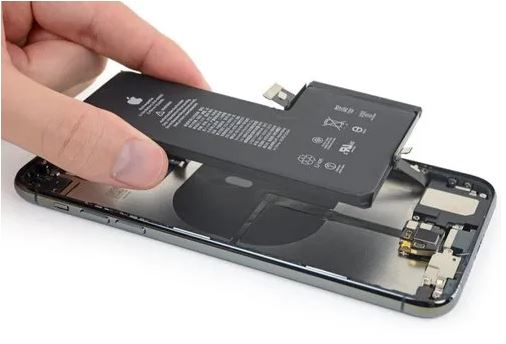
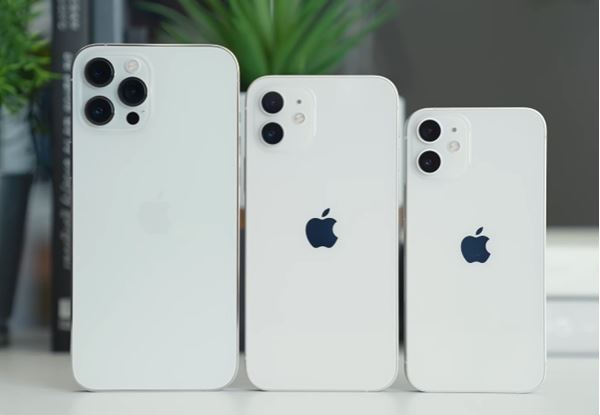
iPhone Battery mAh List 2026: Compare Battery Capacity & Performance

This guide provides a complete iPhone battery mAh list for all models, helping you understand how battery capacity and real-world performance vary across generations. It explains what iPhone battery mAh means, how battery size impacts daily usage, and why newer iPhones deliver better battery efficiency even when capacity differences are small. Whether you’re comparing the latest models or older iPhones, this overview helps you choose the right iPhone based on battery life and performance needs.

Top Picks for Battery-Hungry Users

  • Best All-Around: iPhone 17 Pro Max
  • Best Value Battery: iPhone 14 Plus
  • Best Past Performer: iPhone 13 Pro Max
  • Great for Power Users: iPhone 16 Pro Max

iPhone Battery mAh & Efficiency in Current iPhone Models

The latest iPhone models, especially the iPhone 16 and iPhone 17 series, represent Apple’s most refined approach to battery performance so far. Instead of just increasing battery size every year, Apple is now focusing on better efficiency, smarter power management, and consistent all-day usage.

In simple terms, this means:

  • longer real-world daily usage
  • more reliable battery performance under heavy tasks
  • slower battery drain compared to older generations

Based on the latest battery data:

  • iPhone 16 Pro Max offers a battery close to 4676 mAh, delivering over 24 hours of standby and around 5–6 hours of stress usage
  • iPhone 17 Pro Max pushes this further with a 5088 mAh battery, currently the largest battery ever in an iPhone
  • Even non-Pro models like the iPhone 16 Plus and iPhone 17 now cross the 4300 mAh and 3600 mAh range, making them strong options for users who prioritise battery life over Pro-only features

This clearly shows that in current iPhone generations, good battery life is no longer limited to Pro models. Apple has moved toward offering strong battery performance across the lineup, whether you choose a Pro, Plus, or standard iPhone.

iPhone Battery Capacity & Performance – Model Wise Overview

Below is a complete iPhone battery mAh list, covering old and new models. This comparison will help you choose the right iPhone based on battery life, not just price or features.

iPhone 17 Series Battery mAh

Model Battery (mAh) Expected Voltage Standby Stress
iPhone 17 Pro Max 5088 ~3.9V >24 hrs 5–6 hrs
iPhone 17 Pro 4252 ~3.9V >24 hrs 4–5 hrs
iPhone 17 3692 ~3.9V >24 hrs 4–5 hrs
iPhone 17 Air 3149 ~3.9V >24 hrs 3–4 hrs

iPhone 16 Series Battery mAh

Model Battery (mAh) Voltage Standby Stress
iPhone 16 Pro Max ~4676 3.87V >24 hrs 5–6 hrs
iPhone 16 Pro ~3355 3.87V >24 hrs 4–5 hrs
iPhone 16 Plus ~4480 3.87V >24 hrs 4–5 hrs
iPhone 16 ~3560 3.87V >24 hrs 4–5 hrs

iPhone 15 Series Battery mAh

Model Battery (mAh) Voltage Standby Stress
iPhone 15 Pro Max 4422 3.87V >24 hrs 4–5 hrs
iPhone 15 Pro 3274 3.87V >24 hrs 4–5 hrs
iPhone 15 Plus 4383 3.87V >24 hrs 4–5 hrs
iPhone 15 3349 3.87V >24 hrs 4–5 hrs

iPhone 14 Series Battery mAh

Model Battery (mAh) Voltage Standby Stress
iPhone 14 Pro Max 4323 3.85V >24 hrs 4–5 hrs
iPhone 14 Pro 3200 3.87V >24 hrs 4–5 hrs
iPhone 14 Plus 4325 3.85V >24 hrs 4–5 hrs
iPhone 14 3279 3.87V >24 hrs 4–5 hrs

iPhone 14 Series Battery mAh

Model Battery (mAh) Voltage Standby Stress
iPhone 13 Pro Max 4352 3.85V >24 hrs 4–5 hrs
iPhone 13 Pro 3095 3.87V >24 hrs 4–5 hrs
iPhone 13 3227 3.87V >24 hrs 4–5 hrs
iPhone 13 Mini 2406 3.70V >24 hrs 3–4 hrs

iPhone 12 Series Battery mAh

Model Battery (mAh) Voltage Standby Stress
iPhone 12 Pro Max 3687 3.83V >24 hrs 4–5 hrs
iPhone 12 Pro 2815 3.83V >24 hrs 4–5 hrs
iPhone 12 2815 3.83V >24 hrs 4–5 hrs
iPhone 12 Mini 2227 3.70V >24 hrs ~3 hrs

iPhone 11 Series Battery mAh

Model Battery (mAh) Voltage Standby Stress
iPhone 11 Pro Max 3969 3.79V >24 hrs 4–5 hrs
iPhone 11 Pro 3048 3.83V >24 hrs 4–5 hrs
iPhone 11 3110 3.83V >24 hrs 4–5 hrs

iPhone X / XS / XR Series mAh

Model Battery (mAh) Voltage Standby Stress
iPhone XS Max 3180 3.82V >24 hrs 3–4 hrs
iPhone XS 2640 3.81V >24 hrs 3–4 hrs
iPhone XR 2950 3.82V >24 hrs 3–4 hrs
iPhone X 2716 3.81V >24 hrs 3–4 hrs

iPhone 8, 7 & SE Series mAh

Model Battery (mAh) Voltage Standby Stress
iPhone 8 Plus 2961 3.82V >18 hrs ~3 hrs
iPhone 8 1821 3.82V >18 hrs 2–3 hrs
iPhone SE (2nd Gen) 1821 3.82V >18 hrs 2–3 hrs
iPhone 7 Plus 2900 3.82V >18 hrs ~3 hrs
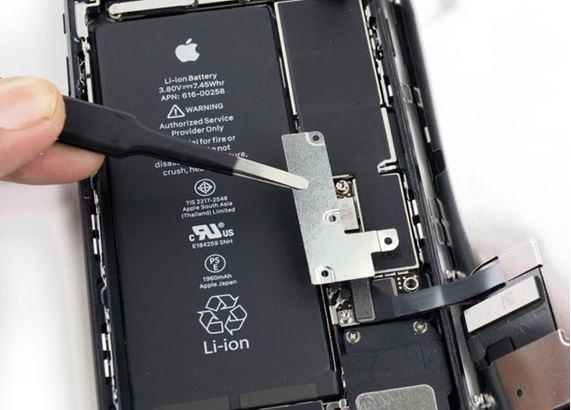
iPhone 7 1960 3.82V >18 hrs 2–3 hrs

** Standby Performance is measured when the device is in ideal condition, display is not “always on” and location services are turned off. Stress performance is measured when device’s display is “always on” and video is played on any streaming app.

How to Read This Battery Data

  1. Standby: Light usage (calls, messages, idle)
  2. Stress: Heavy usage (gaming, video streaming, camera, 5G)
  3. Battery life also depends on:
  • screen size
  • refresh rate
  • chip efficiency
  • battery health %

A higher mAh number usually means better battery life  but not always.

Key Takeaways for iPhone Battery Buyers

  • Battery capacity change
  • s year to year, not always increasing
  • Bigger phones = bigger battery
  • Smaller phones (Mini / SE) sacrifice battery for compact size
  • Apple improves efficiency even when battery size stays similar

Top iPhone Battery mAh Performers Right Now

If battery life is your top priority, these iPhones deliver the longest usage times based on battery capacity, standby, and stress performance:

  • iPhone 17 Pro Max – 5088 mAh
    Longest battery life so far with 5–6 hours of heavy usage
  • iPhone 16 Pro Max – ~4676 mAh
    Excellent endurance with refined power efficiency
  • iPhone 14 Plus – 4325 mAh
    Best non-Pro iPhone for battery backup
  • iPhone 13 Pro Max – 4352 mAh
    Still one of the most reliable battery performers today

Best Battery iPhones for Value Seekers

If you want strong battery life without paying for the newest model, these are solid options:

  • iPhone 11 Pro Max – 3969 mAh
    Still dependable for full-day usage
  • iPhone 12 Pro Max – 3687 mAh
    Good balance of size, power, and battery
  • iPhone 13 (Base Model) – 3227 mAh
    Strong battery life despite its slim form factor

Battery performance in iPhones is more closely tied to device size than generation alone. While newer models bring efficiency gains, larger batteries consistently deliver better real-world usage, especially during heavy tasks like gaming, video streaming, and navigation.

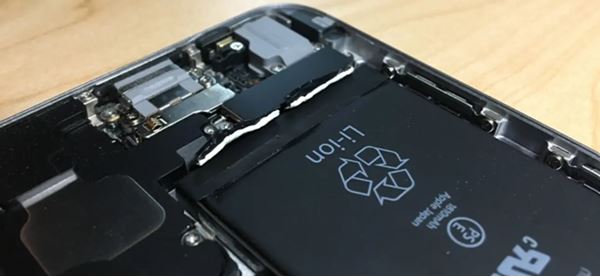
If you have an iPhone repair battery replacement issue or want to get your battery replaced you can get in touch with the experts today to arrange for a free pickup. Get the best iPhone, iPad, MacBook, and Apple Watch repairs from the quickest and most reliable Apple repair service near you. Call or WhatsApp now.

whatsapp logo