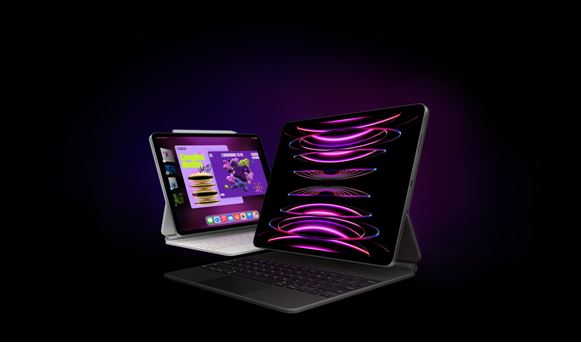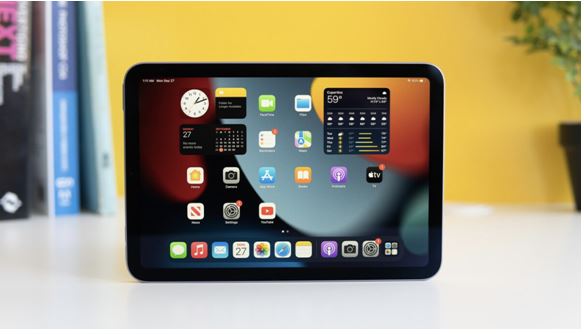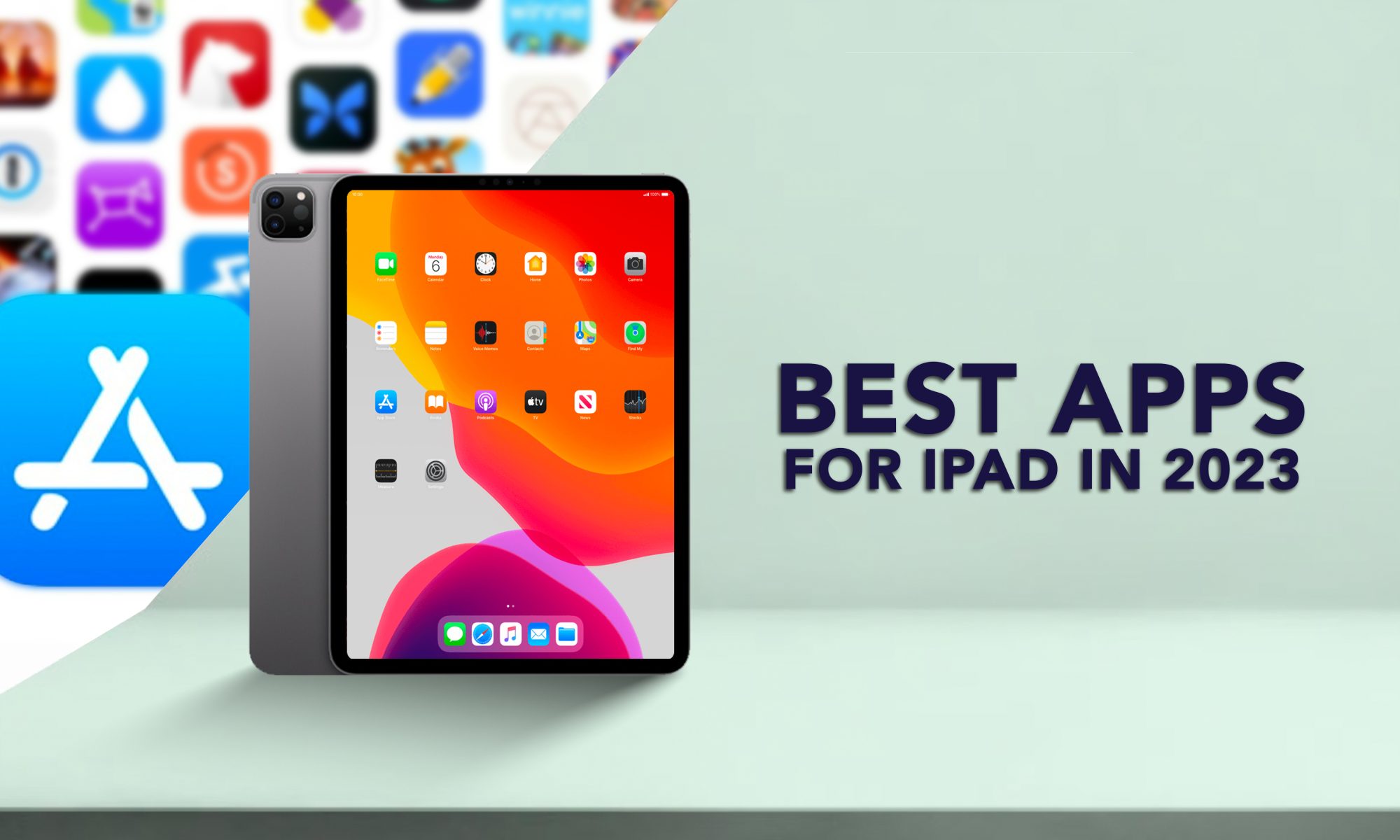
Congratulations! Finally, you have decided to make the most out of your iPad. You see, there are still people who think the iPad is just a bigger version of an iPhone. But clearly, that’s not the case. There are many things that an iPad can offer you. Install a few of the best apps for iPad and life will be much, much easier. Now, the question of the hour is, what are those apps?
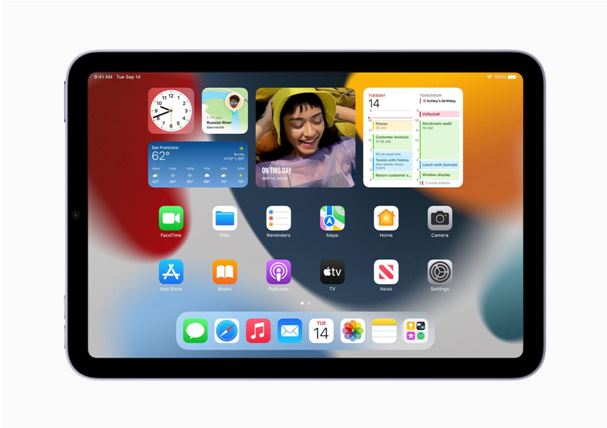
Source: Apple Newsroom
Well, to be honest, that depends on your need! You see, one size doesn’t fit all, at least not in this case. So here our tech experts listed a few apps based on some purposes that an iPad can serve. Naturally, they have avoided the inbuilt apps and the basic ones in this list. Because they don’t think that you need to hear why you must install Netflix to watch movies on your iPad, or in case you are a designer, why installing Adobe Illustrator will be helpful for you! No. You don’t need to read a blog for the basics! So, here in this list, you will find only those top apps for iPads that are the best for their purpose. But before beginning, let me tell you one thing there are other options also, for most of the apps listed here. Install and use at your own convenience.
Let’s start with some work & utility apps. After all, your iPad is not just for entertainment.
Best work apps for iPad
1Password – Now, one problem that we often face in this digital era is, keeping track of multiple passwords across various websites and apps. This app can help you to generate, store, and autofill passwords for all your online accounts. So, all you need to do after installing this app is, to remember the password to unlock this app. It also works on Touch ID. Cool, isn’t it?
Source: Apple Newsroom
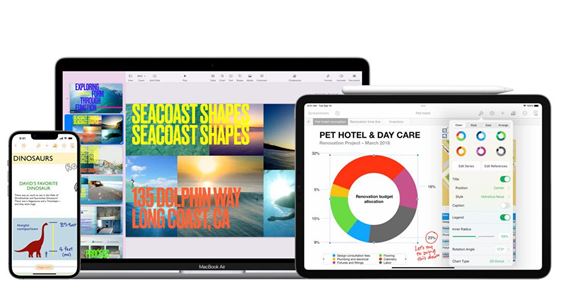
Apple iWork – If you are looking for the best office suite application for your iPad, Apple iWork is the best option. It comes with three separate apps, Pages, to create documents, Numbers, to build spreadsheets, and Keynote, to design presentations. Now, why is it best? First of all, it’s free. Secondly, the interface is more user-friendly. Then, it syncs automatically with iCloud. Also, it is compatible with Microsoft Office and other Office Suite applications.
Note Taker HD – There are multiple apps to take quick notes and each got its own unique feature. Add them all together, and you will get Note Taker HD. You can simply use your fingers to take a note, along with Apple Pencil or a keyboard.
Mint – People say earning money is tough, but managing it is even tougher! But not with this app on your iPad. Mint is an app that can keep track of your spending and advice you on savings! This one app can handle for you all things related to money, even though the app is free.
GoToMyPC – Imagine you are out on vacation, and suddenly while enjoying the view from your hotel room, you remember that you forgot to mail your client an important document that is there on your PC. Nightmare? Not any more. With this app on your iPad, you can access your PC or MacBook from anywhere.
Now, these were a few apps that our expert techies recommended to hardcore professionals. But what about those creative folks, who are still trying to figure out, how to make the best use of their iPads? Hang on! Here’s something for them.
Read – iOS 17 – Everything You Need To Know From Release Date, Leaks, And More
Best Creativity Apps for iPad
Adobe Photoshop Express Photo Editor – Adobe got a range of apps for designers & creators, and each got its own benefits. But here’s one Adobe photo editing app, that’s easy to use and comes with a lot of features. Install it on your iPad and you can create magic with it.
Apple iMovie – Editing a video is a hectic job! But with this one app on your iPad, at least you can do it from anywhere sitting in your own comfortable way. The user interface is easy and it comes with a lot of interesting features.
CapCut – There are a lot of Instagram influencers around us and a few more will not harm! So if you are planning to be a content creator, this one app will really make the process of editing short videos, shorter. Developed by the makers of the TikTok app, this app is built on the understanding of a reel creator’s need, with super cool effects.
Source: Imborrable
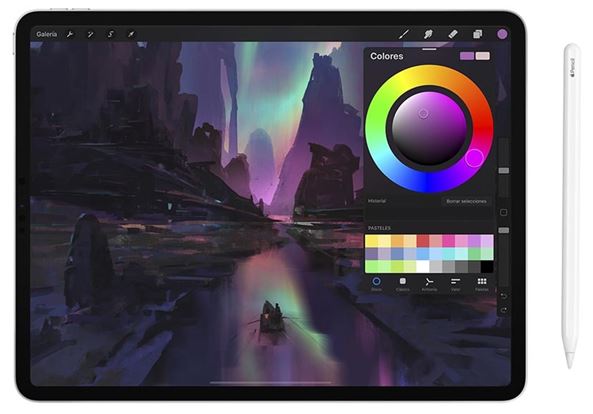
Procreate – Now this one app is built for iPad users. You can sketch, paint, or illustrate on it with an Apple Pencil, and the result is going to be outstanding, depending on your artistic skills, of course. So, if you are planning to start your artistic endeavours, then stop procrastinating and install Procreate on your iPad today.
But wait a minute! All these apps were for work and creativity purposes! What about the gamer in you? After all, all work and no play can make anyone a dull boy, or girl, not just Jack! Worry not, as our experts got some suggestions there.
Top Games Apps for iPad
Asphalt 9: Legends – Here’s a racing game that will serve your need for speed better! With its fleets of supercars and razor-sharp graphics, this game, as the name suggests, is for legends.
Bastion – The real world is often boring! So what’s the harm in dwelling in the fantasy world from time to time? Here’s an amazing way to do it. Download this game and set out on a fantasy adventure to test your skills.
Clash Royale – This one is our experts’ personal favourite! And there’s reason. When they get tired of challenging each other with tech hurdles, they challenge each other in this multiplayer game. So download it for free and wage a war against your gaming buddies.
Read – iPhone 15 Pro: Launch Date, Colours, & Features – Everything You Need To Know
Now, these were a few most useful apps for iPad in 2023. But it doesn’t end here. We have something more for you. Installing apps and using them is your personal choice, but here are a few useful tips, to get the best out of your iPads.
Source: TapSmart
Use Split View & Slide Over
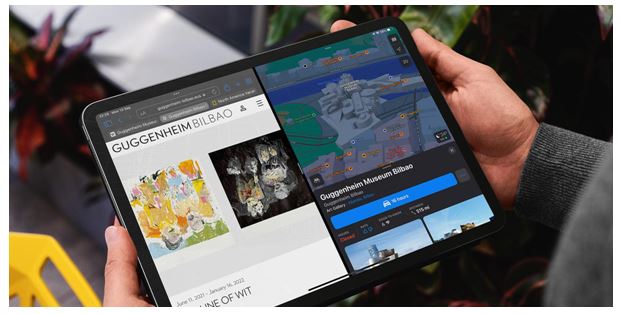
Through these iPad features, you can see two apps on your screen at a time. Split View, as the name suggests, will make two apps share equal halves of your screen. If you use Slide Over, one app will take the entire screen and the other app will be there on a smaller size in one corner of the screen.
How to do it? Simple.
- Open any app of your choice.
- If the app supports these features, you will see the three-dot button at the top of the app.
- Select the Split View button or Slide Over button as per your preference.
- You will be redirected to the Home Screen from where you can select the other app you want to use.
Source: Lifewire
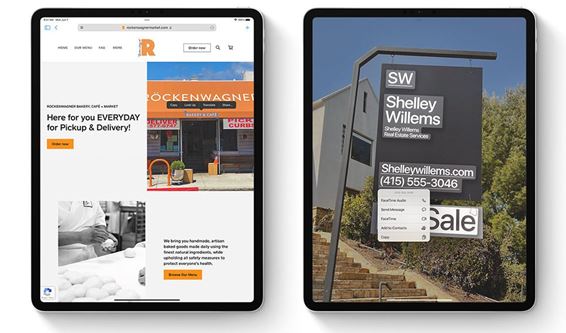
Copy any text with Live Text
Now this feature is magical. With this, you can copy text even from images. It’s an inbuilt iPad feature that not many people are aware of.
Here are the steps to do it,
- Go to the Settings app.
- Click on General.
- Tap on Language & Region.
- Turn on Live Text.
Source: Apple Support
Focus more
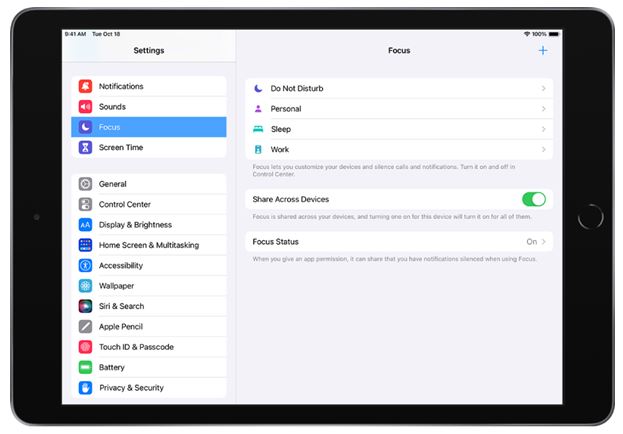
Some notifications are annoying, especially when you are busy with work or yourself. But your iPad got this amazing feature where you can simply block notifications if you don’t want them.
Here’s how to do it,
- Open the Settings app.
- Select Focus.
- Select the Focus mode of your choice, like Do Not Disturb, Editing, Sleeping, etc.
- For more mode options, tap the + icon to create your own Focus mode.
- Follow the onscreen instructions.
Now if you are done reading this, pick up your iPad and start installing your favourite apps!
Got issues with your iPhone, iPad, MacBook or OnePlus device? A trustworthy repair centre not in sight? Don’t worry, the experts can help you get a free pickup and drop service and provide the bright ipad repair solution for all your Apple woes. Call today for Apple screen replacement, battery replacement, and other top repair services.