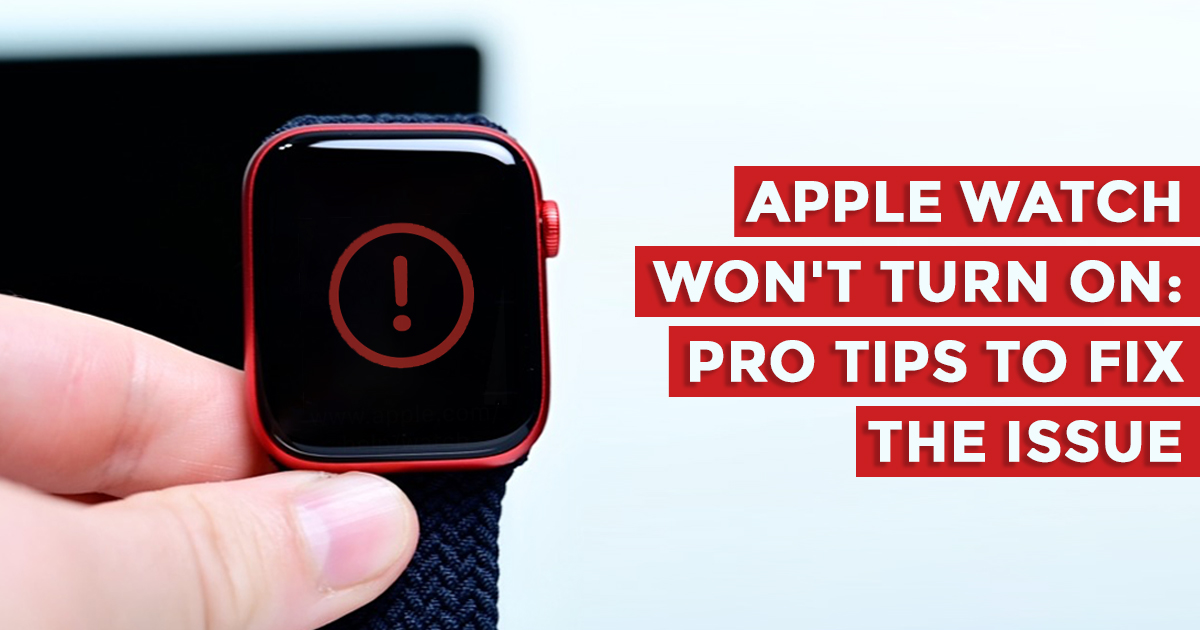
Apple Watch Won’t Turn On: Pro Tips to Fix the Issue

Imagine this – you are at the gym, just completed an awesome workout, and want to check how many calories you’ve burned for the day. You tap your Apple Watch and the screen doesn’t light up. You tap the button but still nothing happens. If you’re thinking about why your Apple Watch won’t turn on and are worried if it is damaged, then fret not, this article will help you.

While this is not a common issue that a lot of Apple Watch users face, there are several tips that you can use to fix this issue on your own. First, you need to understand that there can be several reasons why your Apple Watch screen won’t turn on even after repeated screen tapping and button pressing. It could be due to hardware problems, software issues, a faulty battery, or even cluttered storage. Let’s look at every possible reason one by one and try to turn on your Apple Watch.
Image credit: Lifewire

Force Restart Your Apple Watch

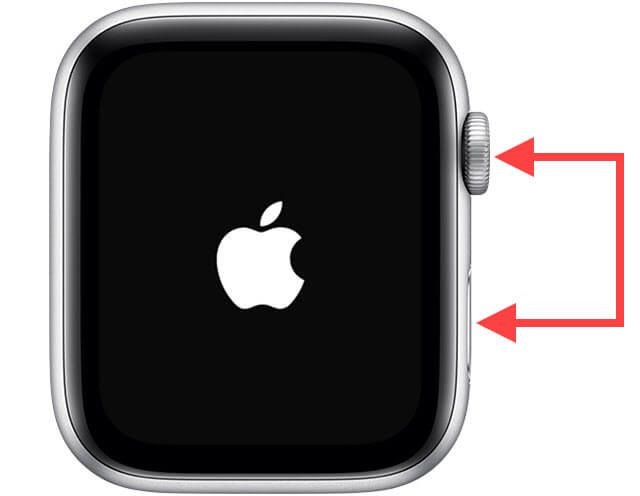
Force restart has long been the first step to try when it comes to dealing with most of the common issues. And guess what, we are not going to overlook it even this time around. Don’t know how to restart an Apple Watch? Don’t worry, it is quite simple and there is no harm in trying it out.
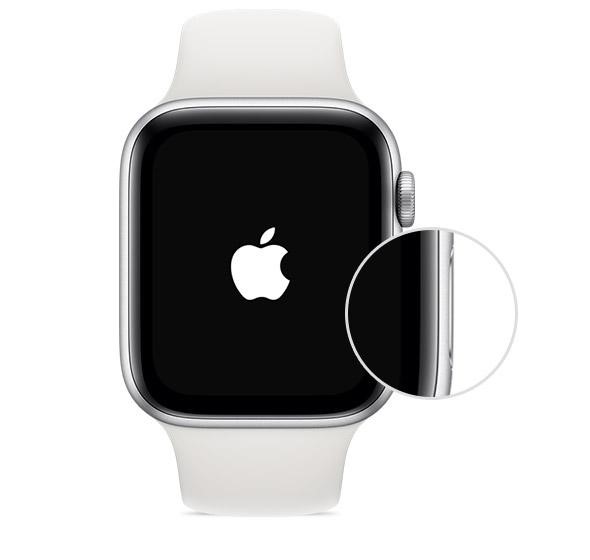
Image credit: Apple

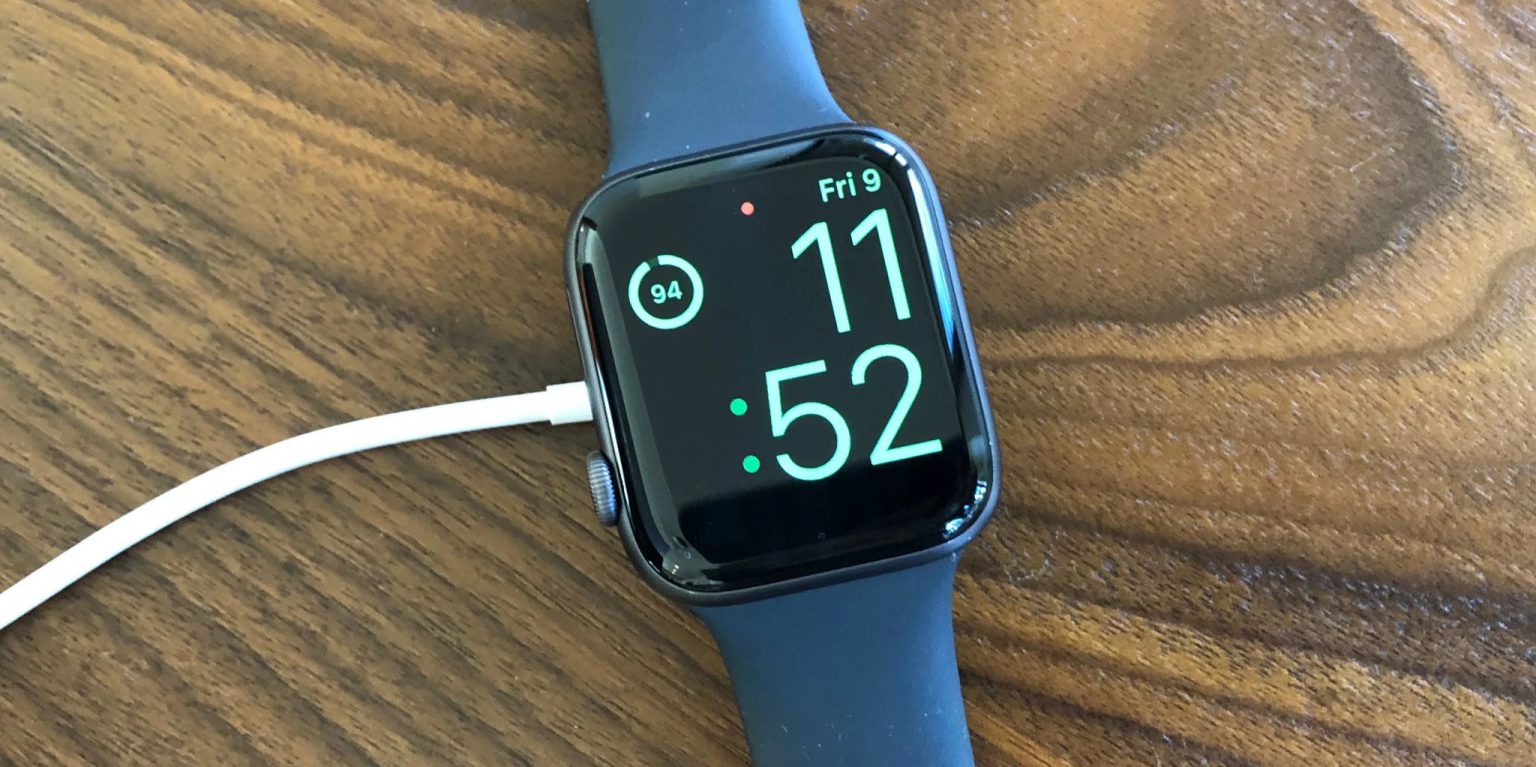
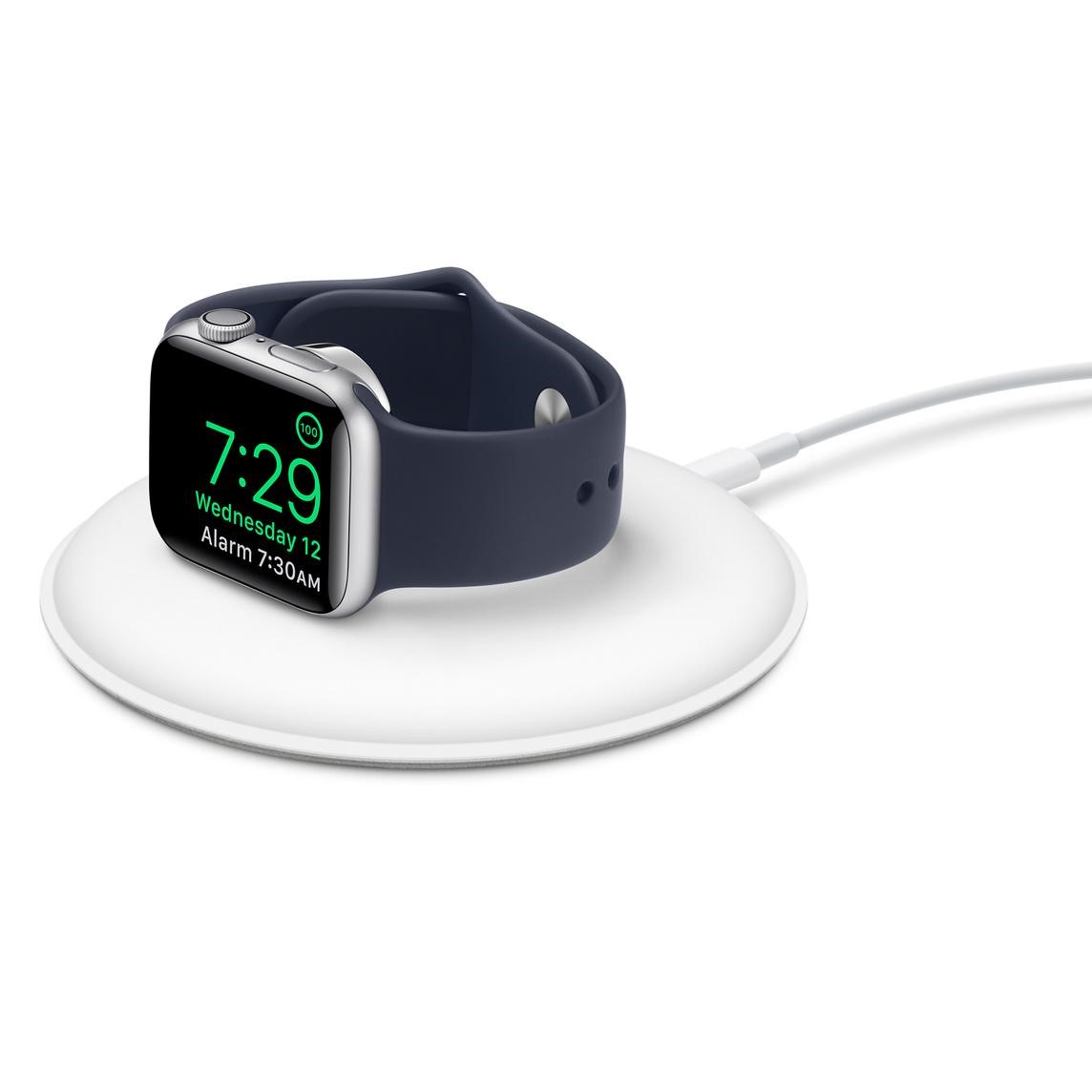
While it may sound silly at first, one of the biggest reasons why your new Apple Watch won’t turn on is maybe because your Apple Watch’s battery has run too low or drained out. Put your smartwatch on a charger and let it charge for some time. Once the smartwatch has got enough juice, it will boot up automatically.
If your Apple Watch turns on and starts behaving normally, you are good to go.

Put Your Apple Watch on a Charger

Maybe your Apple Watch’s battery has run too low and it is not turning on due to the drained out battery. Put your smartwatch on a charger and let it charge for some time. Once the smartwatch has got enough juice, it will boot up automatically.

Image credit: Apple

If your Apple Watch turns on and starts behaving normally, you are good to go.

Is the VoiceOver and Screen Curtain Turned On?

Apple Watch has a unique feature that a lot of users can find problematic. The Screen Curtain feature of your iPhone will turn off the screen even when the watch is turned on. In this case, the user can navigate the Apple Watch only through the VoiceOver feature.

If your Apple Watch screen won’t turn on, then these features might be the reason why. For the Screen Curtain feature to work, the VoiceOver feature must be turned on as well. You can go to the Watch app on your iPhone, navigate to General > Accessibility > VoiceOver and turn it off. You can go inside the VoiceOver menu to turn off the Screen Curtain feature as well.

Erase Your Apple Watch and Pair it with iPhone Again

Wondering why you should erase your Apple Watch if the device is unable to turn on? Well, the reason is that it is considered as a one-stop solution. What’s more? It has the knack for fixing even complex issues. So, go for this radical yet reliable troubleshooting option to resolve the “Apple Watch won’t turn on” issue.
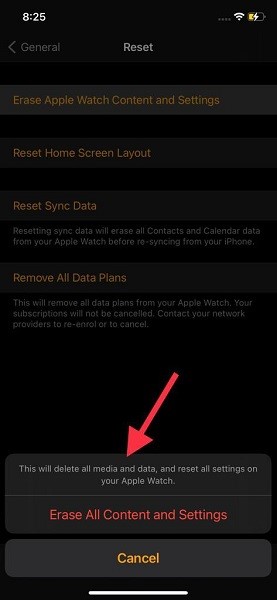
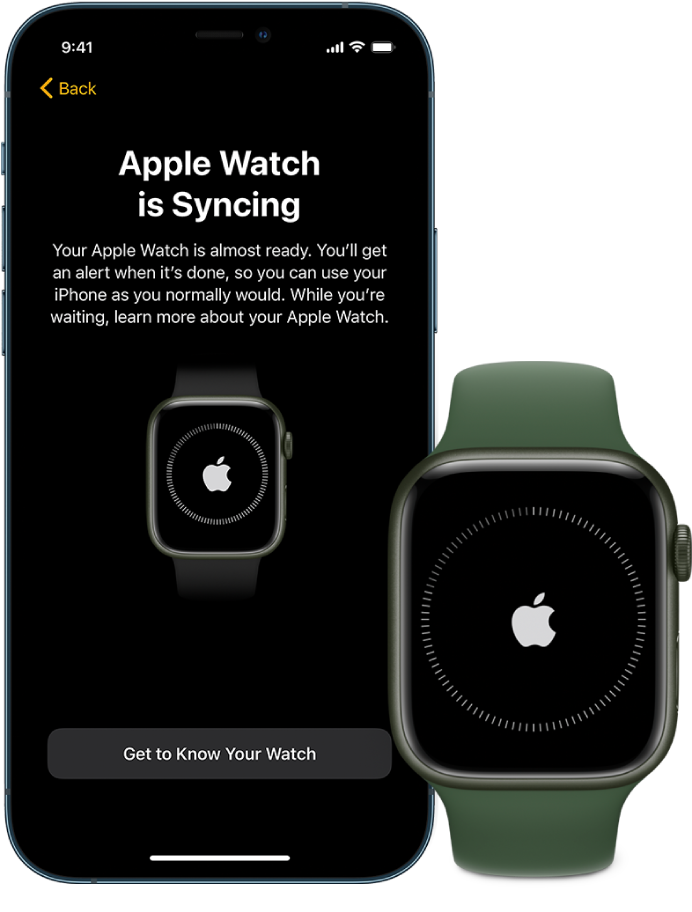
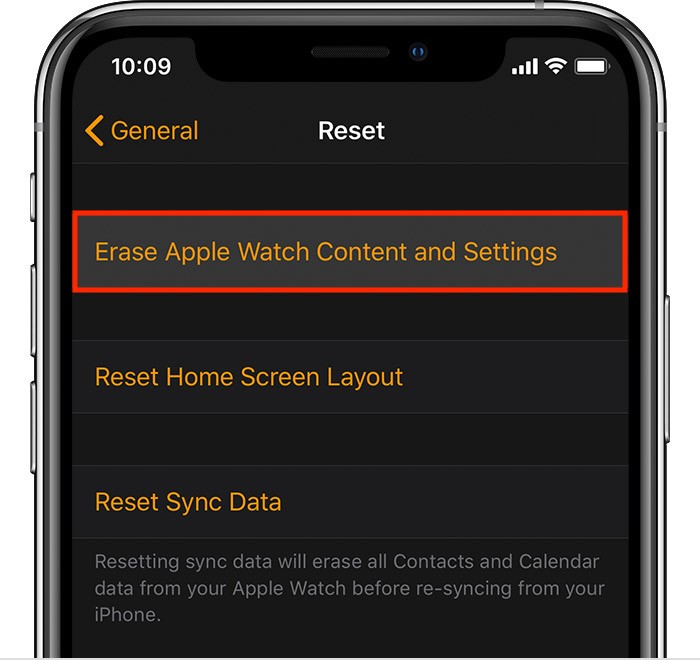
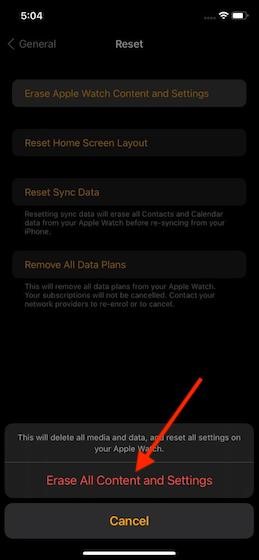
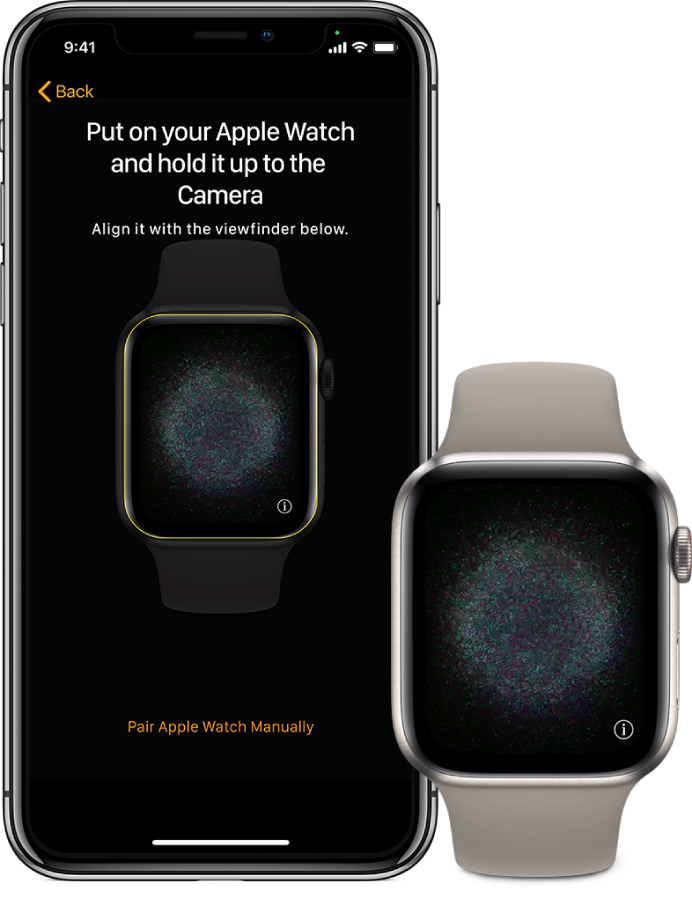
Navigate to the Watch app on your iPhone > General. Scroll down to the bottom and tap on Reset. Next, tap on Erase All Content and Settings. Once you have successfully erased your Apple Watch, reconnect it to your iPhone. If the Watch was not responding or display was dead due to some software bug, that is normally fixed by resetting and your Watch should be back on the setup screen, ready to be paired once again.
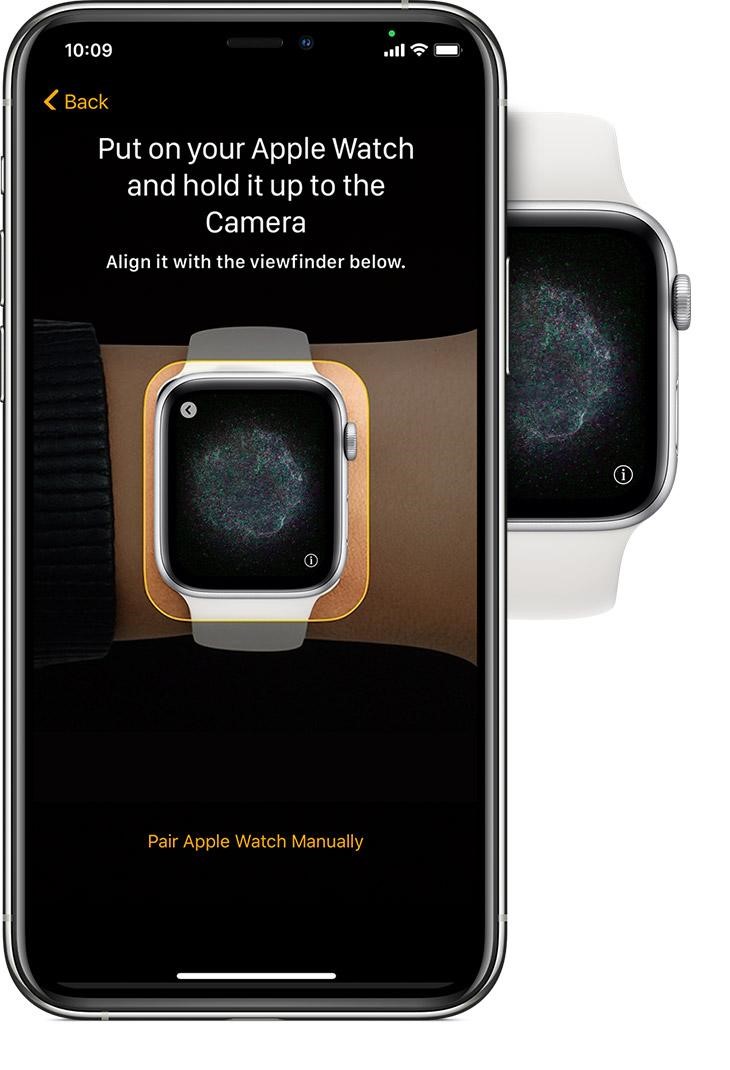
Image credit: Apple

Ensure that the Cable Works

One more reason why your Apple Watch won’t turn on could be because it has run out of juice and the magnetic cable is not charging it as well. This is a scenario that will require a bit of trial and error from your side. To pinpoint whether the charger is faulty or the Apple Watch, try charging it with the same cable but from different outlets. First from an Apple adapter, then your computer’s USB port, and then from another adapter. If it can’t turn on the Apple Watch, then the cable might be faulty. Try changing the cable and repeat the steps again.

If changing the magnetic charging cable works and your Apple Watch is covered by AppleCare+, you can apply for a free replacement or go to the nearest Apple Store and get it replaced right away.

Bonus Tips to Fix the Apple Watch running Slow or lagging while usage

  • Maybe your smartwatch is short of space; redundant photos (which you have synced from your iPhone) and a ton of music stored on your Apple Watch along with a plethora of useless apps may have clogged up the storage. Knowing that cluttered storage tends to create many issues, including unexpected battery drain and overheating, it will be best to declutter your Apple Watch.
  • To clean up your Apple Watch, eliminate everything that has eaten into the precious storage of your device unnecessarily. Once the smartwatch has been cleaned up, it should start functioning properly.
  • Bear in mind that the problem could also be due to outdated software, in which case you can solve the problem simply by updating the watchOS from Settings – General – Software Update.

If Nothing Works Contact Apple Watch Repair Centre

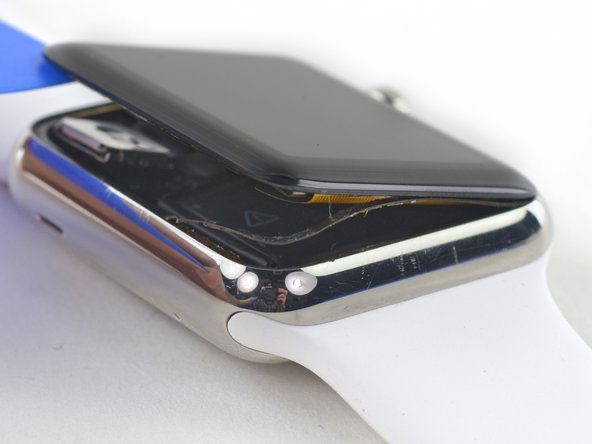
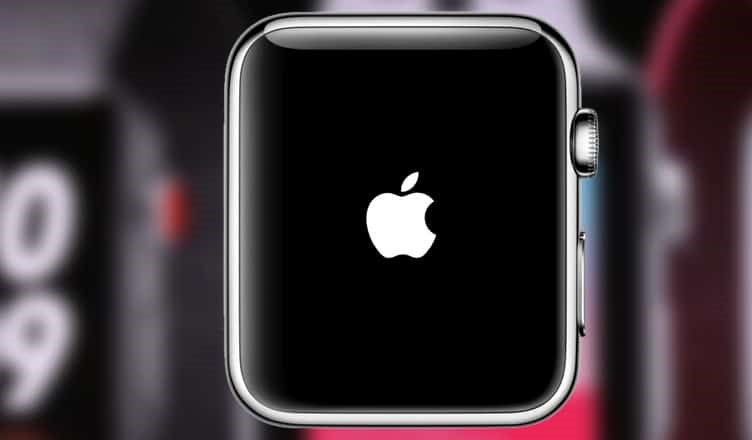
If you’ve changed the magnetic cable, re-paired it with your iPhone, and even tried turning off the VoiceOver and Screen Curtain features and still your Apple Watch won’t turn on, then there might be an internal hardware issue that is causing the problem. If the screen comes on but the Apple Watch is stuck on the Apple logo, it is best to take your Apple Watch to a trusted repair centre.

The experts at Rapid Repair can diagnose the problem with your Apple Watch and identify why your Apple Watch screen won’t turn on. Our super techies have years of experience working with Apple devices and can accurately detect if the watch requires a battery replacement, internal storage cleaning, or even a Apple watch screen replacement. Contact us if you want to turn on your Apple Watch and our logistics partners will be at your doorstep to pick up the damaged device and return it safely once it is fixed.

The ‘Snake of Death’ Issues & How To Get Rid of These Problem In An Apple Watch – A Guide

Are you someone who loves going about their daily jogs, runs, or cardio exercises? Are you someone who’s well-versed with the fitness trends that go around the world and love your Apple Watch for being the right fit for all your fitness trends? If yes, then you are someone who understands the capabilities of the new-age Apple watches and knows its true worth but sometimes even the best offerings from Apple can end up giving you nightmares. One such situation is when the Apple watch is stuck on the charging screen and that’s where you have reached the Apple watch’s green snake condition. This green snake of death Apple watch problem is not new and neither is it the only one.

As users experienced, there is another Apple watch red snake of death issue too. We will highlight both in the coming paras. Stay tuned.

Apple Watch Charging Icon Snake – Why Does It Appear?

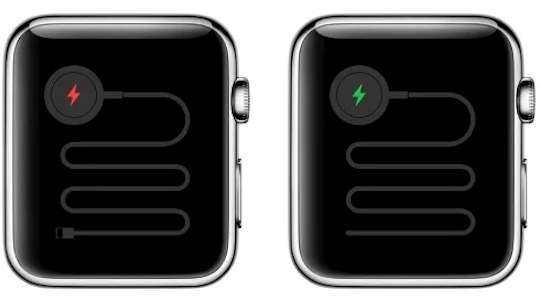
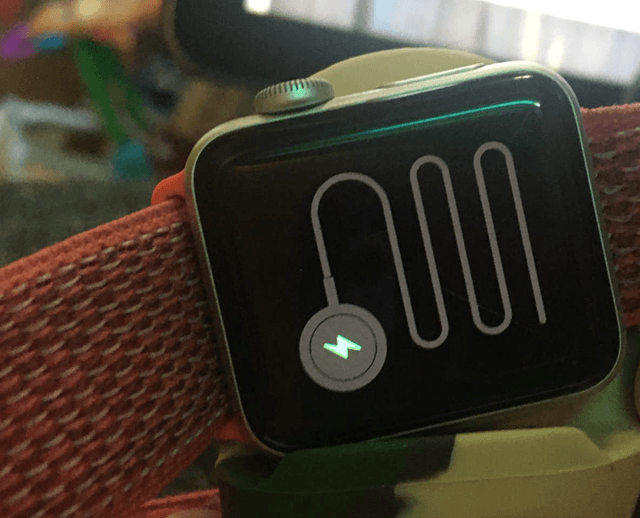
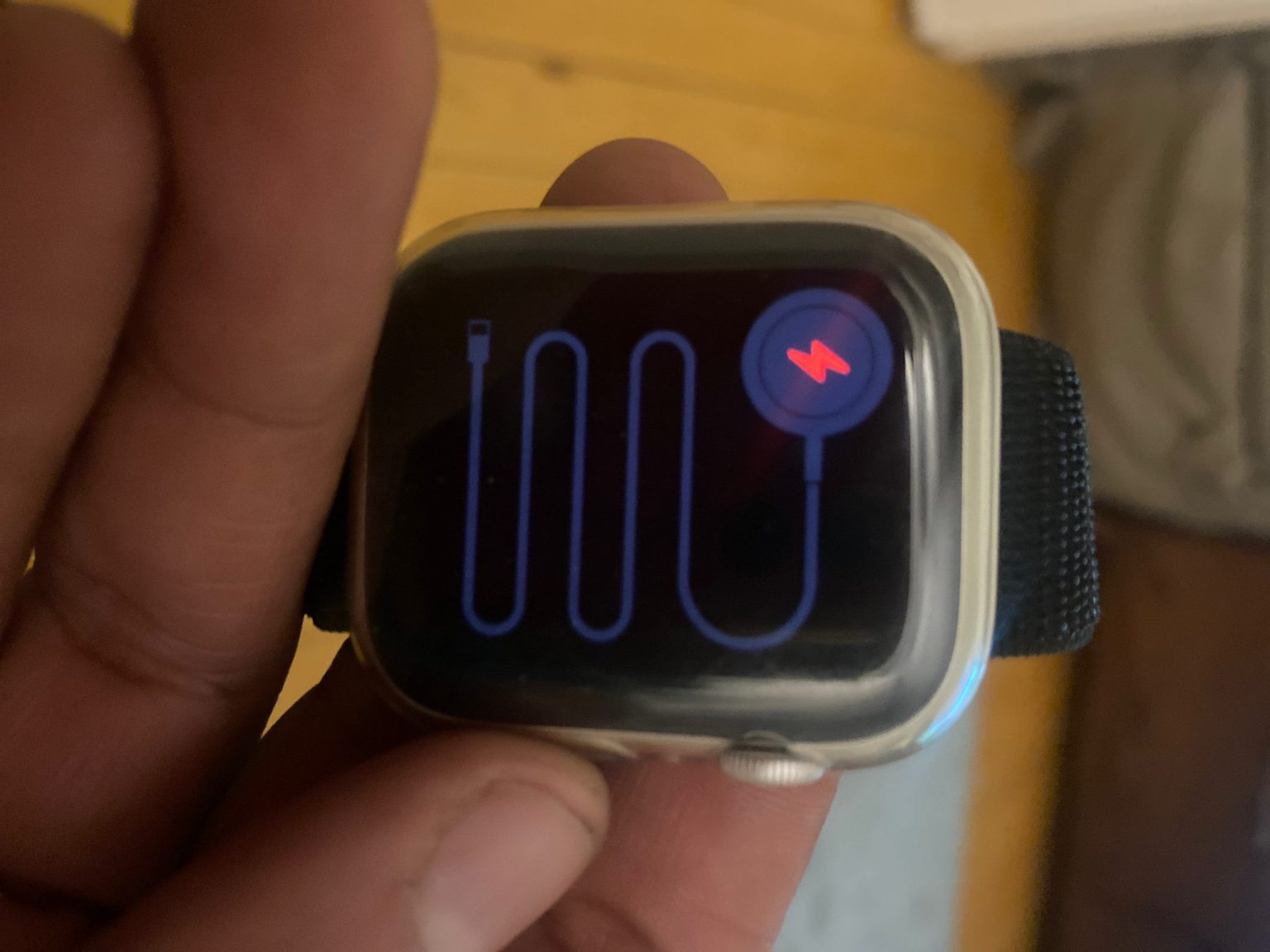
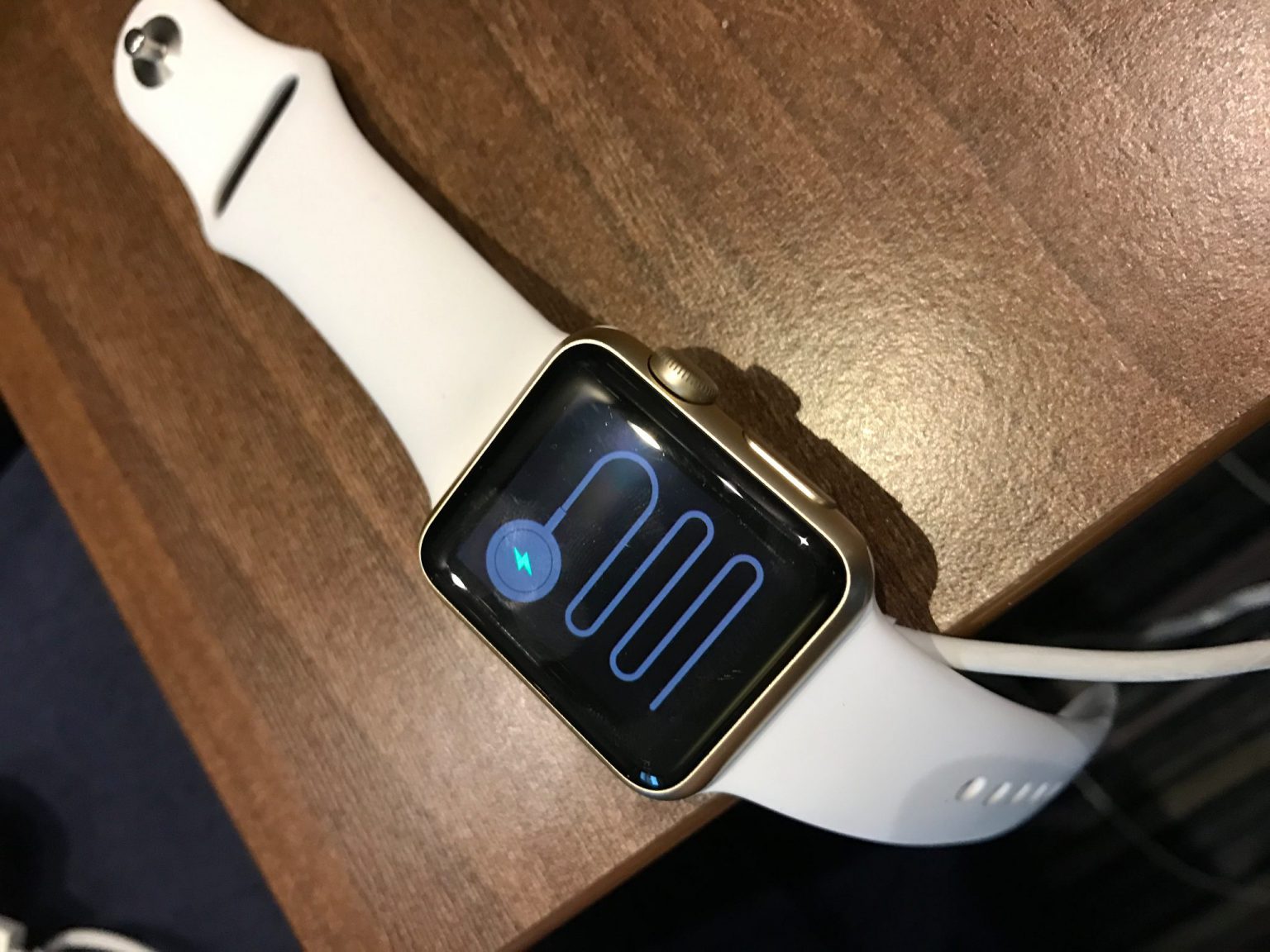
Are you getting the red or green snake screen error? Does your Apple watch display a charging cable that starts with an encircled lightning symbol? If yes, then the issue your WatchOS displays is the Apple watch snake screen error or the Apple watch red snake / green snake of death Apple watch error.

What is the Green Snake of Death Error?

Without having experienced it before, it was expected to be something great and opposite to the red snake of death apple watch problem. But in reality, the green snake of death error represents a scenario where your Apple Watch is charging but you cannot use your watch even after hours and hours of charging.

This usually appears once the red snake error has gone and your watch has started charging again giving you a lot of hope. But for some users, this was just another failed attempt. In reality, they waited for hours and even days but the Apple watch showed no progress whatsoever.

What is the Red Snake of Death Error?

The red screen of death error indicates that there is no battery left in your Apple Watch and that you will have to reboot after charging for some time. But here, the problem starts from the very beginning when you turn on the charger and nothing changes.

Thus, you’re stuck in both cases and need urgent help.

Here the colour of the charging cable and even the lightning symbol within the circle is red, specifically meaning that your Apple watch is suffering from a critically low battery and cannot even display the time and other basic essentials in the Power Reserve mode.

Troubleshooting Options – How To Fix The Problem At Home?

Panicking is not an option and when you’re facing the Apple green snake of death issue, patience is all you need apart from good guidance. Hold your horses steady as we provide you with that guidance through this blog. Let’s continue.

  • Charging Apple Watch (for 4 hours or more)

First and foremost, give your Apple watch some time to recover from the slump. This means having to charge it and wait for the Apple watch green snake of death to appear. But that might take some time – from a few minutes to even a couple of hours and more. And this only happens if you haven’t been hit by the Apple watch red snake problem.

Once the red snake disappears and the white snake appears you might still have a great chance of getting back to normalcy. But in some cases even a day or two aren’t sufficient to change anything. And that’s when you must check your charging cable.

  • Changing the Charging Cable

The charging cable is a problem only if you’re stuck with the Apple watch red snake problem. Because if your Apple watch has started charging and the colour changes to green it usually means there is no fault with the charging cable whatsoever.

  • Finding An Expert Hand To Assist You

If your problems still persist while you have reached this part of the blog, you have very few options left in your kitty. One of the best options is to call the top experts in town or the best Apple repair and service agents near you. These experts can go to the very root of the problem and fix your Apple watch for you.

In a majority of cases where the Apple watch is stuck with the green snake of death problem, changing the battery via a replacement unit is the best bet and one of the options that experts will suggest upfront.

This is your last retort to this problem after having tried remedies like a ‘Soft Reset’ or letting the ‘battery drain out’ completely before restarting (which of course didn’t work well, making you sweat out till the very end.)

Precautions

Now that you know the symptoms of the red and green snake of death issue, you must also know the way to prevent such crashes on your Apple watch. That’s because precautions or preventions are always better than the cure.

  • Check Voltage

It has been noted that most green snake of death problems occur because the charging voltage is not steady or is fluctuating constantly. The flow of power is not consistent and that can hamper the Apple Watch’s battery.

  • Check for faulty chargers

Faulty, damaged, and worn-out chargers can also lead to this problem because they, too, aren’t in a condition to provide the right power supply and in a consistent manner. How to know if the Apple Watch is charging? Check for the screen and you will know if it has effectively been charging all this while or not.

Also Read: Apple Watch Won’t Turn On: Pro Tips to Fix the Issue

  • Never Let Your Watch Die

That’s easier said than done but make sure you’re not letting the Apple Watch battery to hit zero. Maintain your watch’s health by keeping it adequately charged and to prevent the chances of getting an Apple watch charging icon snake.

  • Get in touch with Experts Only

Last but not the least, always trust experts who use OEM parts for all repairs and servicing procedures. The top experts in town, dealing in everything Apple, have the right technicians to help you fulfil your sturdiest repairs without paying anything over the top.

How To Reset Apple Watch?

In case the Apple watch green snake charging issue persists you can try to reset your Apple watch before taking it to an expert. Here are the steps on how to reset your Apple watch. If your Apple Watch is completely unresponsive or “dead,” you can try the following steps to reset it:

  1. Connect your Apple Watch to its charger. Make sure the charger is plugged into a power source.
  2. Wait for a few minutes to allow the watch to charge. Sometimes, if the battery is completely drained, it may take a little while for the charging symbol to appear on the screen.
  3. Once the charging symbol appears on the screen, press and hold both the side button (located below the Digital Crown) and the Digital Crown at the same time. Hold them for about 10-15 seconds.
  4. Keep holding the buttons until you see the Apple logo appear on the screen. This indicates that the watch is restarting.
  5. Release the buttons and wait for the watch to finish restarting. This process may take a few minutes.

If you have an Apple Watch you would like us to fix, you can call us or WhatsApp us today. We’re the top technicians in town who provide wholesome repairs for Apple products by using the leading OEM parts only. Try the top repairs and never regret again.

whatsapp logo