How to Recover Deleted Text Messages on iPhone and iPad

Did you accidentally delete important text messages from your iPhone? Worry not. Most of us have done it at some point or the other. So yes, we can feel your pain.

Fortunately, there are many ways to recover deleted text messages from an iPhone or iPad. So, you may now stop cursing yourself for the mistake and go through this detailed guide to learn the most reliable ways to restore deleted iPhone/iPad text messages.
Image credit: iPhone Backup Extractor

Restore Deleted iPhone/iPad Texts Using iCloud Backup

One of the most reliable ways to retrieve deleted iPhone/iPad messages is through the iCloud Backup. Yes, you read it right. If you had an iCloud backup before the accidental deletion of the messages then you can get them back with ease.

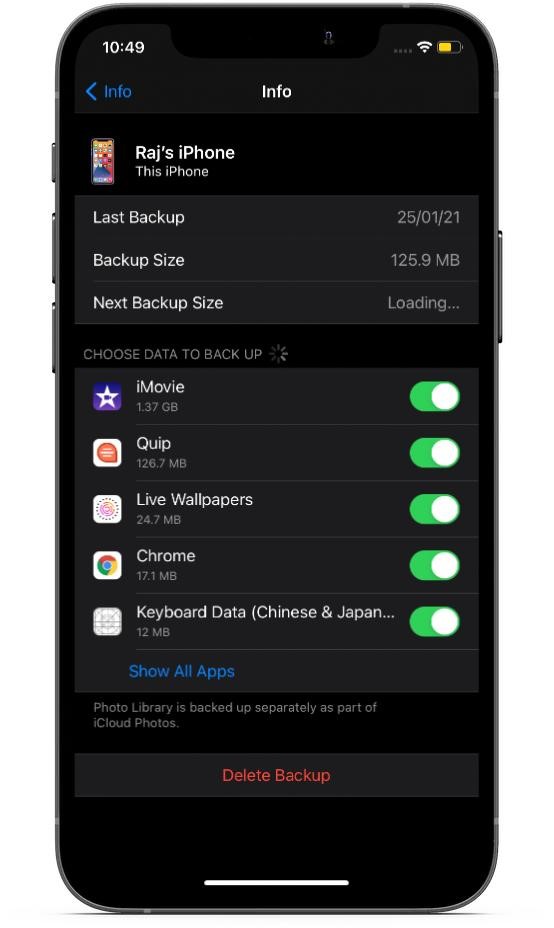
First, navigate to the Settings > Profile > iCloud > Manage Storage > Backups. Now, check the date of the iCloud backup to ensure you have the right back.
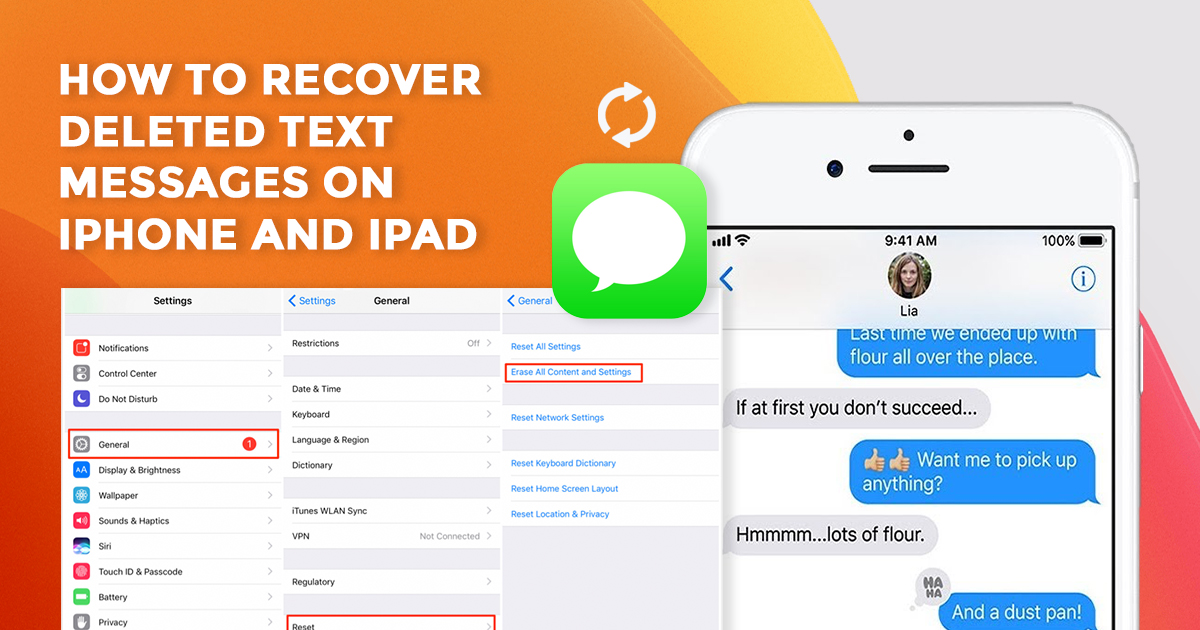
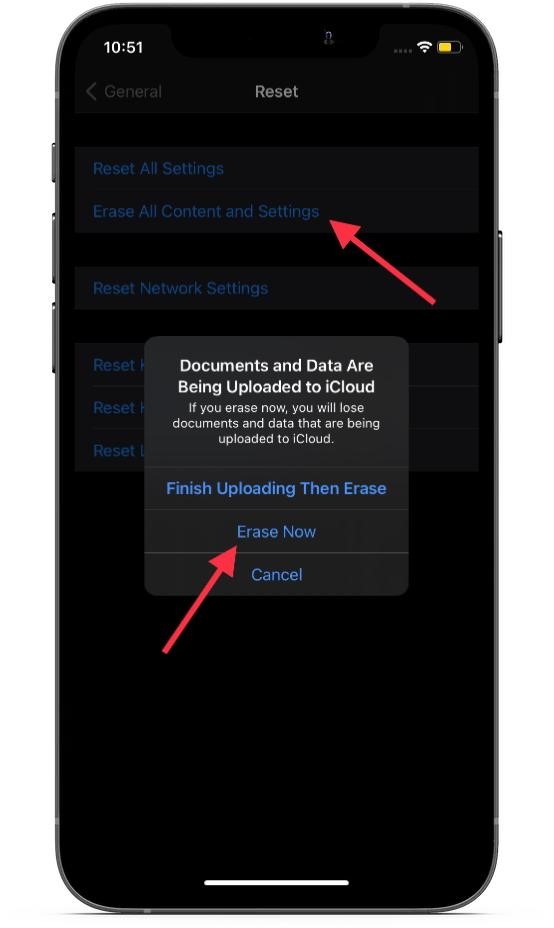
After that, head over to Settings > General > Reset. Now, tap on Erase All Content and Settings to wipe off all the existing data on your device.
Next, set up your device as usual. During the setup, restore your device from the iCloud backup. Once your device has been successfully restored, the deleted messages will be back on your iOS/iPadOS device.

Restore Deleted iOS/iPadOS Texts Using iTunes/Finder Backup

Another easy way to restore deleted texts is by using iTunes or Finder backup on your iPhone. Again make sure you have the backup before the messages were deleted.

It is worth noting that you will need iTunes on your Mac running Mojave or earlier or Windows PC. And if your Mac is powered by macOS Catalina or later, you will need to use Finder to restore your device from the backup.

Connect your iPhone to your computer and fire up iTunes/Finder. Then, select your device and hit Restore Backup. After that, select the preferred backup to restore your device.
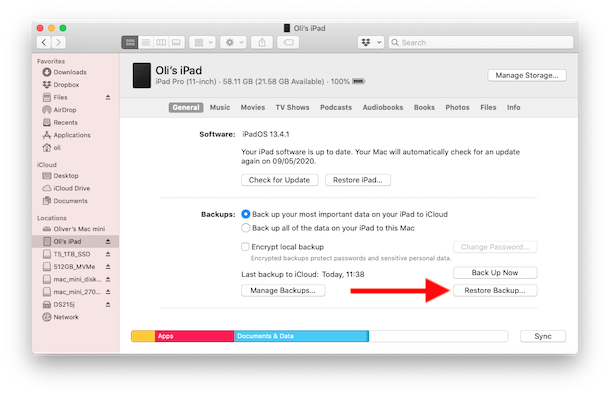
Image credit: OSXDaily

Recover Deleted iOS/iPadOS Text Messages By Using Third-Party Data Recovery Software

Last but not least, you can recover deleted texts on your iPhone by using third-party data recovery software. Most of the time, a deleted message remains in the flash storage of the device until it is overwritten by new data. Hence, data recovery software can retrieve data.

Keep in mind that the iPhone/iPad data recovery software requires you to spend some bucks before being able to retrieve your lost data, including the text messages. Some of the tools that we have tried and found quite reliable are Tenoshare UltDataWondershare Dr. Fone, and PhoneRescue.

Notably, most data recovery tools offer a free trial so that you can try them without having to dole out any money. And, if the freemium version lives up to your expectations, you may even upgrade to the premium version.

Bottom Line:

So, here are some viable ways to recover accidentally-deleted text messages on iOS or iPadOS. Now that you know how this hack works, make the most of it and never lose any important messages.

Based on several years of expertise in dealing with Apple devices at Rapid Repair, we can tell you that iTunes/iCloud backup often works in restoring the deleted data. That is why we always recommend our readers keep the latest backup of the device.

Though rarely, but still iPhone is not immune to hazards or sudden crashing that may result in data loss. Therefore, it is apt to go for the additional layer of safeguard in the form of a timely backup.

Retrieving deleted data seems quite straightforward when you have a backup. As for using third-party data recovery tools, you should try them as last resort. And that too after giving a close look at the freemium offerings.
iPad Battery Draining Too Fast? Here’s How You Can Prevent It

The iPad came to symbolise a new era of mobile computing. It forced users to look beyond the PC in a big way, and one reason for that is the excellent user-experience that the Apple tablet has to offer.

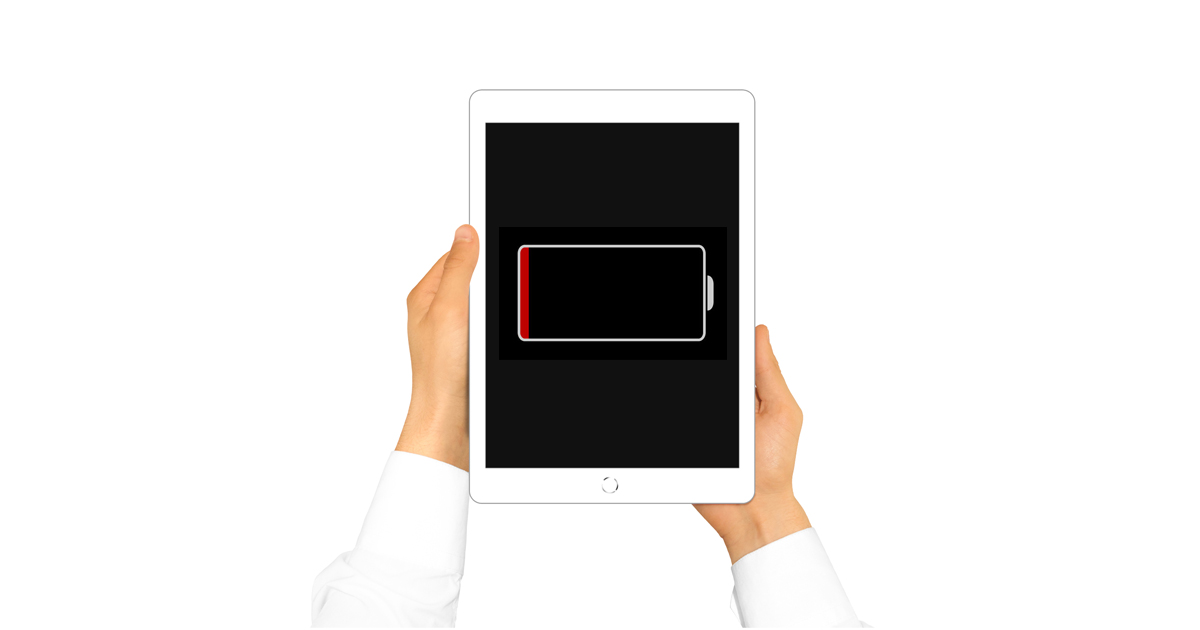
Unfortunately, that isn’t the case at all times as the iPad has been found to suffer from unexpected battery drain. This is the least desirable aspect of any device that boasts of mobility, and having to rush to the nearest charging outlet ever so often beats that very advantage.

Having said that, there are a number of ways battery life can be improved to ensure a more optimised experience with the iPad at all times.

Here are the ways battery life on the iPad can be improved.

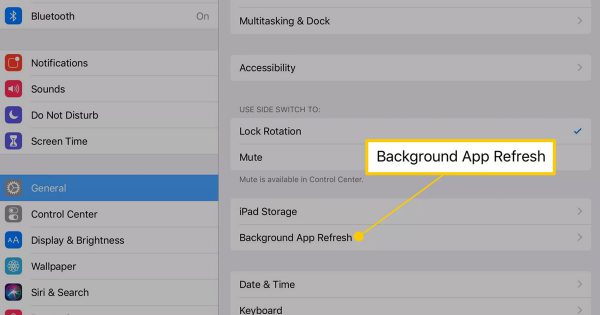
1. Turn off or limit app getting refreshed in the background

This is a very convenient feature where all apps automatically download the data needed for them to remain updated at all times. Unfortunately, the convenience comes at the cost of battery drainage. So, the best thing to do here is to limit background refreshes to only essential apps.

  • To do this, go to Settings>General >Background App Refresh.
  • Turn off app refresh for each app that you think you can do without.

2. Limit apps accessing location services

Location service is a great feature that keeps a tab of exactly where you are located, and the various apps that use location data will provide you with information relevant to that location. Unfortunately, the feature is also a battery hog, and can drain the battery quickly if not used wisely.

So, here too, the best option will be to ensure only the apps that you need are granted location service permissions.

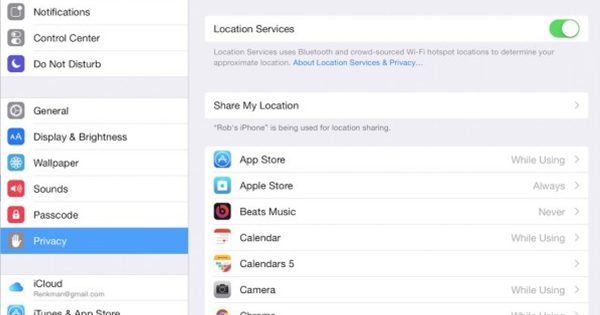
  • You can do that from Settings>Privacy>Location Services.
  • Manually select the apps that should have access to your location data.
  • Or, you can simply turn on Airplane Mode as this will turn off Wi-FiBluetoothGPS and cellular functions at one go.

3. Limit app notifications

Notifications are a necessary evil. While it is a great feature to keep abreast of recent happenings or to be aware of the latest developments, companies often push out notifications to ensure they remain relevant to you.

Again, limiting notifications to just the essential apps is often the best solution.

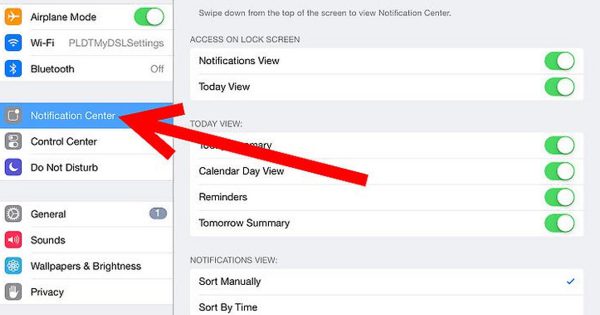
  • To do so, turn to Settings>Notifications.
  • Select an App you want to turn off the notifications for.
  • Tap on the toggle switch for Allow Notifications to stop receiving alerts from that App.

4. Switch on Wi-Fi and Bluetooth only when needed

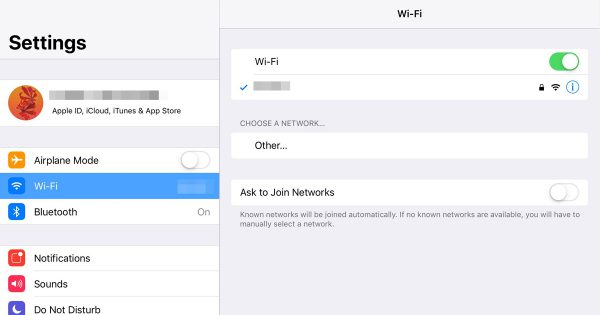
Wi-Fi and Bluetooth are the sort of connectivity technologies that let you enjoy the portability that a mobile device like iPad stands for.

However, those can be a drain on your battery if kept on even when not needed.

As such, the best practice will be to switch them on only for the duration they are needed.

5. Limit exposure to too much heat or cold

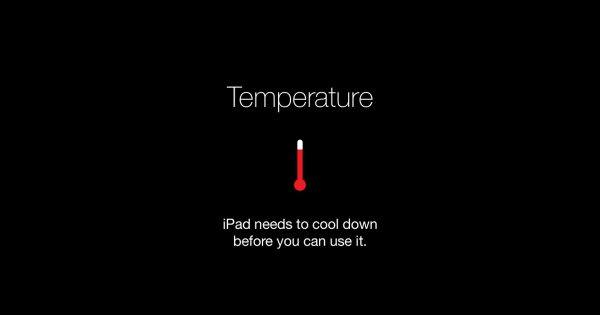
Apple recommends using your iPad where the ambient temperature is between 0º and 35º Cas anything beyond those can affect the performance of the iPad on the whole, including the battery life of the device. In fact, the company specified optimum temperature for your iPad is between 16º and 23º C. So, if you are using your iPad outdoors, ensure that it isn’t exposed to direct sunlight. Similarly, it shouldn’t be exposed to direct heat sources during winters as well as that can limit battery performance.

6. Ensure your iPad is updated to the latest software

Companies constantly strive to provide its users with the best possible experience with their devices. One way of doing so is to make available software updates that improve performance, eradicate bugs and improve stability.

Make sure you are always updated as this is a proven method to make the most of the battery life.

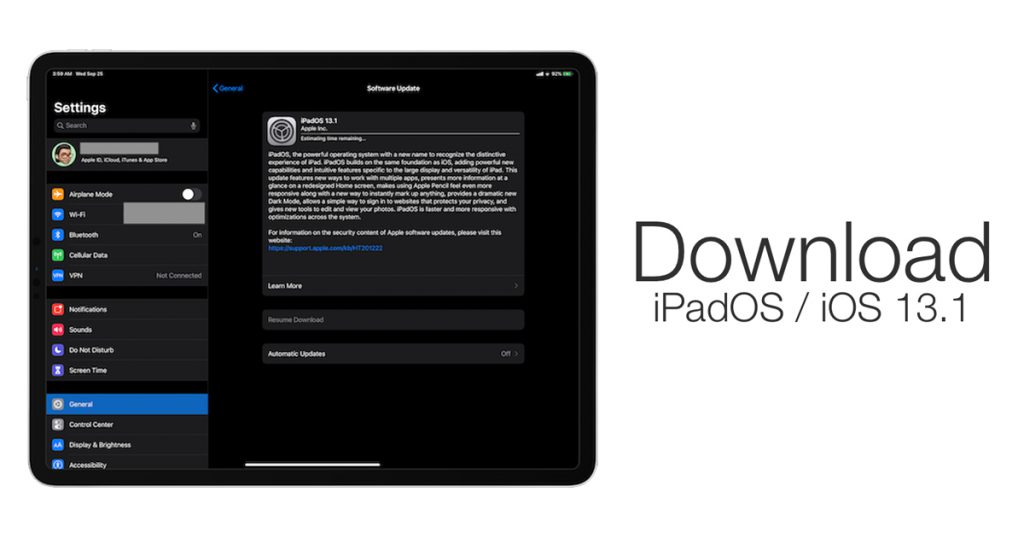
To update to the latest software, go to Settings>General>Software Update. Also, ensure that all your Apps are also up to date after you have updated the iPad OS.

7. Keep off apps that drain battery

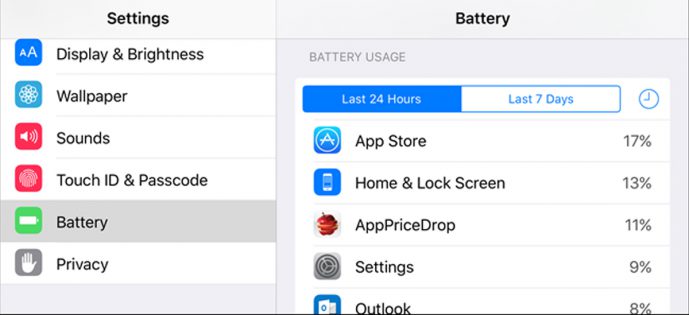
Some apps can be punishing on the battery. You can easily single out such apps from the Battery page under Settings that lists out the battery consumption of all the apps over the last 24 hours and the last seven days. If you think you can do without the apps that drain your device battery the most, it is time to get rid of those.

8. Use Fetch instead of Push when using Mail services

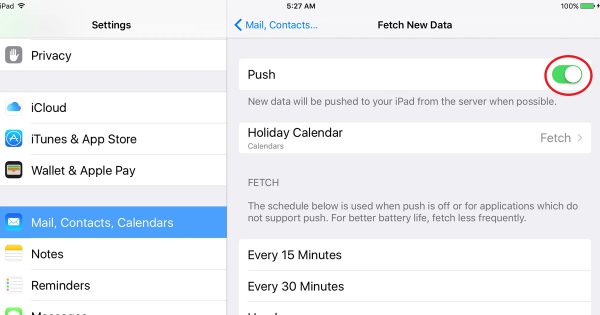
Mail settings can drain battery life quite fast, particularly when the push feature is enabled on your iPad. However, if you aren’t using the iPad as the primary device to keep a tab on your inbox, it is recommended you turn off the Push feature in favour of Fetch.

Here too, for maximum benefit, turn the Fetch feature to manual mode to save battery.

Here is how you do it: Go to Settings>Mail, Contacts, Calendars>Fetch New Data.

Here you will also have the option to have your mails fetched to your iCloud account as well as any other email account associated with the Mail app, besides choosing the frequency of fetching new mails as well.

Also Read: 5 Tips to Stop Your iPad from Shutting down Randomly

Battery life has always been one of the star features of the iPad, reasons that also propelled it towards dizzying heights of success. However, there can be times when battery life gets affected adversely, leading to sub-par user experience. Following the above mentioned steps can go a long way in improving the battery life of your iPad. And in the future, if you required iPad battery replacement then must visit Rapid Repair.

whatsapp logo