Apple’s New 14-Inch iPad Ultra Things To Know

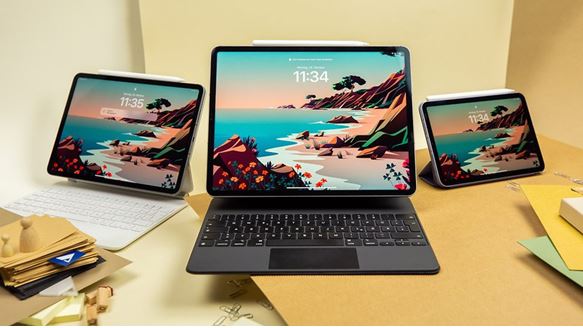
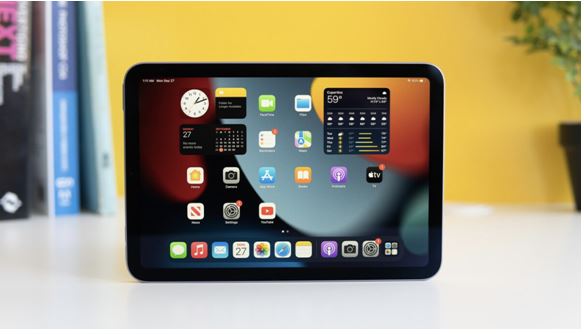
Ever since the craze of the iPad Pro enthralled the youth and aged alike, most techlicious people have been dreaming about the Apple iPad Ultra. According to reports, Apple is considering releasing an even more powerful iPad Pro tablet, which will also be significantly larger than recent 12.9-inch models. Dubbed the iPad Pro Max or the iPad Ultra, the tablet is rumoured to feature a 14.1-inch display and an Apple M3 Pro chipset. The device is thought to be the closest alternative to a MacBook yet, in part thanks to Apple porting many macOS features to iPadOS.

Source: NextPit

New Release in 2024 – Apple iPad Ultra & Upgraded Apple iPad Pro

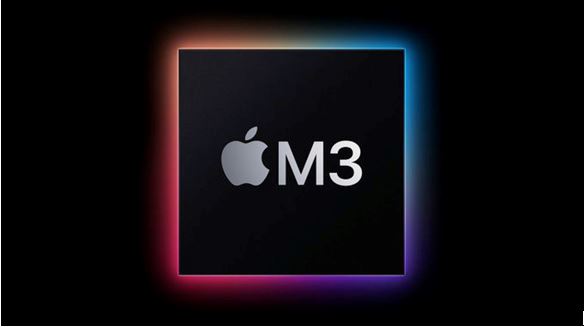
Apparently, Apple is working towards releasing a third iPad Pro model that will be even larger than the current 12.9-inch edition. Reports say the company continues to develop a 14.1-inch version. Contrary to earlier leaks, this 14.1-inch model will house the Apple M3 Pro and not just the entry-level Apple M3.

Source: Twitter

Currently thought of as the Apple iPad Pro Max or the iPad Pro Ultra, the tablet is not expected to land until 2024. In principle, recent iPad Pro tablets could serve as effective MacBook replacements, but for iPadOS. The same leaker adds that Apple will seek to rectify these shortcomings by porting ‘many features from macOS’. Unfortunately, it remains to be seen what Apple has planned for future versions of iPadOS, other than making it work more like a conventional desktop operating system in docked mode.

Source: The Independent

Apple will hold off from delivering these major iPadOS changes until 2024. Purportedly, Final Cut Pro could be headed to Apple’s tablet OS next year, as well as dual 6K/60 Hz external display support. Logic Pro may not arrive for another year, though. As always, we would recommend exercising some scepticism over these rumours for now, given that some are over a year away. In the meantime, Apple is expected to introduce iPadOS 17 next month at WWDC 2023, which will run between June 5 and June 9.

Apple iPad Ultra – Specifications & Probable Release Date

According to a source, the Apple iPad Ultra is priced at Rs. 126,900 as the official launch price. This is of course subject to change as the official date of release is confirmed depending on external factors. Right now the official estimated date is said to be September 20, 2023 but sources have lobbied saying that the release will be somewhere in 2024 and definitely not in 2023.

Specifications –

Display: Of course, we start with the 16.0 inch (40.64 cm) OLED display with 257 pixels per inch (PPI).

Camera: The primary camera boasts 12MP + 12MP dual mode with the possibility of Autoflash and LED flash optimization.

Battery: The new Apple iPad Ultra will have a 12500 Li-polymer mAh battery with the option of fast charge.

Performance: In terms of performance there’s galore to celebrate as you get the Octa core (3.49 GHz, Quad core + 2.4 GHz, Quad core) processor with the Apple M2/M3 Chipset (M3 if some sources are to be believed) and 16GB RAM.

Source: Apple

iPad Prices In The Market – How Top iPads Rank In The Indian Market?

The top iPads typically rank based on their features and specifications, as of my last update.

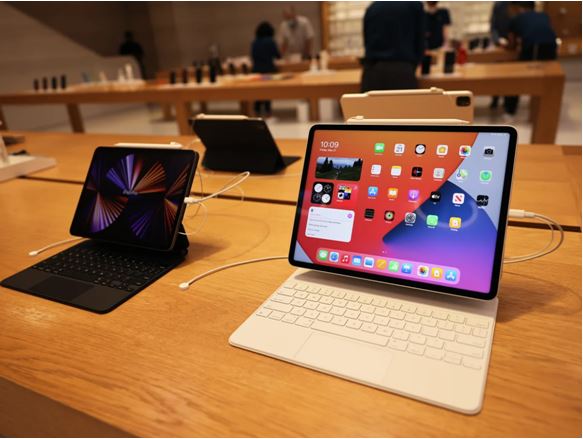
  1. iPad Pro: The Apple iPad Pro is Apple’s most advanced and powerful tablet. It is available in two sizes, 11-inch and 12.9-inch, and offers features like the A-series processor (the latest being the M1 chip), a high-refresh-rate ProMotion display, Face ID, and support for the Apple Pencil and Magic Keyboard. The iPad Pro is aimed at professionals and demanding users who require top-notch performance.
  2. iPad Air: The Apple iPad Air sits between the iPad Pro and the standard iPad in terms of features and pricing. It offers a balance between performance and affordability. The iPad Air features a powerful A-series chip (such as the A14 Bionic at the time of my knowledge cutoff), a laminated display, support for the Apple Pencil, and compatibility with the Magic Keyboard.
  3. iPad (standard model): Apple’s entry-level iPad is designed for everyday use and offers a more affordable option for casual users. It features a 10.2-inch Retina display, support for the Apple Pencil, and a relatively lower-priced A-series chip (e.g., A12 Bionic at the time of my knowledge cutoff). The standard iPad is suitable for general tasks like web browsing, media consumption, and light productivity.
  4. iPad mini: The iPad mini is the smallest tablet in Apple iPad’s latest lineup, featuring a compact 7.9-inch display. It offers portability and is often preferred by users who prioritise mobility. The iPad mini includes features like the A-series chip (e.gA12 Bionic at the time of my knowledge cutoff), support for the Apple Pencil, and a Retina display.

Source: PhoneArena

Got issues with your iPhone, iPad, MacBook or OnePlus device? A trustworthy repair centre not in sight? Don’t worry, the experts can help you get a free pickup and drop service and provide the bright repair solution for all your Apple & OnePlus woes. Call today for iPhone screen replacement, battery replacement, and other top repair services.

iPhone Microphone Not Working – Quick Fix Options You Have

iPhones are smartphones, which form the most premium segment of our smartphone market in the country. Barring a few base models, most iPhone Pro and Pro Max models are revered as the top devices in terms of usage, battery, performance, and security. What tops all this is the legit Apple care and other Apple-associated services that users get overtime. The fact that most iPhones don’t deteriorate even after being used extensively for 2-3 years makes them worth the price and there are hoards of people actively investing in an iPhone compared to those who go for other devices because of their low price points. But at times, it is difficult to get your point across during a phone call because of a microphone issue. A lot of users face this issue because of a faulty microphone or because there is an accumulation of dirt, dust, and other natural agents causing the microphone sensor to get blocked or damaged. But the iPhone microphone not working problem may not be limited to just that – there are other reasons why this error pops up frequently in iPhones.

Source: OSXDaily

In this blog, we are going to talk about some of the reasons why iPhone microphones are not working or why there is an issue of microphone low sound output while listening to songs, surfing the net, or casually watching YouTube. Let’s get going.

Source: Business Insider

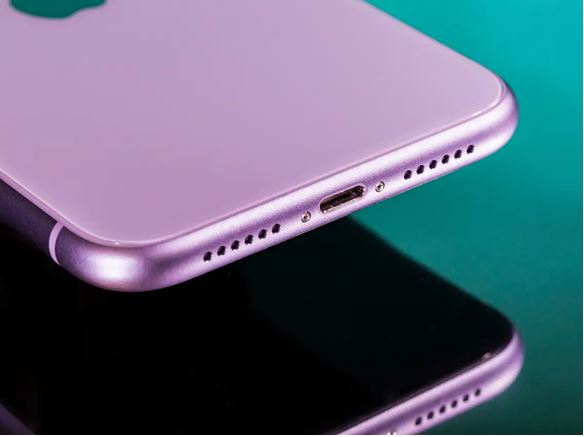
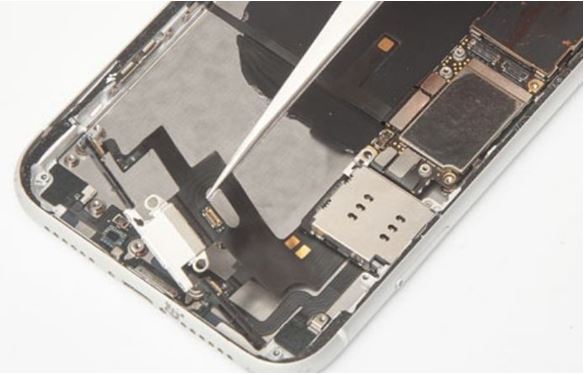
Before moving on to the troubleshooting options and costing, you must figure out which microphone is causing the problem. For example, the iPhone 11 Series has 4 distinct microphones – 2 on the charging jack (for taking normal calls or when on loudspeaker), one on the ear speaker (gets activated for taking video calls from front cam), and the last one in the power flex cable (gets activated to record voice when you record videos from the back camera)

Why Your iPhone Microphone Not Working?

There are several reasons why your iPhone microphone is not working. Here are some common reasons:

  1. Physical damage: If your iPhone has been dropped or subjected to physical trauma, the microphone may be damaged and not working properly.
  2. Software issues: A software glitch or bug may be causing the microphone to malfunction. This can sometimes be fixed by restarting your iPhone or updating the iOS software.
  3. App settings: If the microphone is not working in a particular app, it may be due to the app’s settings. Make sure the microphone is enabled in the app’s settings.
  4. Blockages or debris: The microphone hole on your iPhone may be blocked by debris or other objects, preventing it from working properly.
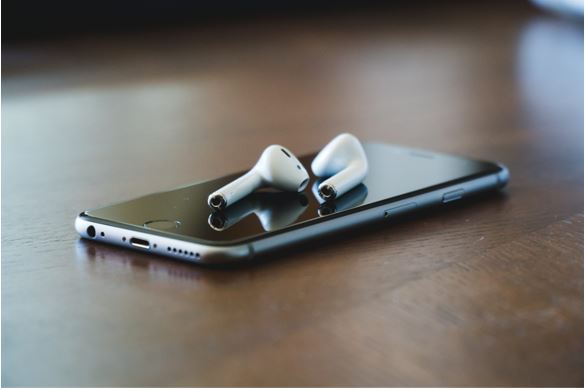
  5. Bluetooth interference: If you have a Bluetooth headset or other audio device connected to your iPhone, it may be interfering with the microphone.
  6. Restrictions settings: The microphone may be disabled in your iPhone’s restrictions settings. Make sure it is enabled.
  7. Hardware issues: In rare cases, there may be a hardware issue with your iPhone’s microphone that requires repair or replacement.

How to fix iPhone Microphone Not Working?

When your iPhone is not working, try these troubleshooting options before visiting an expert if the problem persists:

Source: User Guide

  1. Restart your iPhone: Sometimes a simple restart can fix the issue. Press and hold the power button until the “slide to power off” option appears. Slide the button to turn off the iPhone, and then turn it back on again after a few seconds.
  2. Check the app settings: If the microphone is not working in a particular app, check the app’s settings to make sure the microphone is enabled.
  3. Update iOS: If your iPhone is running an older version of iOS, updating to the latest version may fix the microphone issue.
  4. Reset all settings: If none of the above options work, try resetting all settings on your iPhone. This will not erase any data, but it will reset all settings to their default values.
  5. Contact Apple Support: If the problem persists, you may need to contact Apple support for further assistance. This is more helpful when your iPhone is under warranty otherwise you might have to spend a hefty price for availing their repair services.

Apart from this, you can also try the iPhone microphone setting test. This test is a feature within the iPhone’s settings that allows you to test the functionality of your microphone. This can help diagnose any issues you may be experiencing with your microphone, such as low volume, distortion, or no sound at all.

Source: 9to5Mac

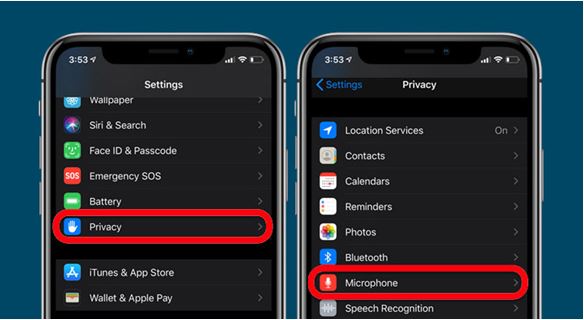
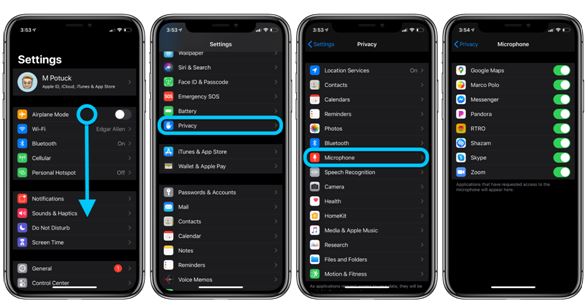
To access the microphone setting test, follow these steps:

  1. Open the “Settings” app on your iPhone.
  2. Scroll down and select “Privacy.”
  3. Tap on “Microphone.”
  4. You will see a list of apps that have requested access to your microphone. Make sure that the switch next to each app is turned on if you want to allow the app to access your microphone.
  5. At the bottom of the screen, you will see a section labelled ‘Allow Access When Locked.’ Turn this switch on if you want to allow apps to access your microphone when your iPhone is locked.
  6. To test your microphone, exit the ‘Settings’ app and open the ‘Voice Memos’ app.
  7. Tap the red record button and speak into your iPhone’s microphone.
  8. After a few seconds, tap the stop button and play back the recording to check the quality of the sound.

If you hear clear and audible sound in the playback, your microphone is working properly. If the sound is distorted or there is no sound at all, there may be an issue with your microphone that requires further troubleshooting or repair.

iPhone Microphone Repair Costs

On an average, iPhone microphone repair price or the cost of repair can vary depending on the model of the iPhone and the location of the repair service. Generally, the cost can vary depending on what service you’re availing. If you’re going for an iPhone charging jack replacement then the cost can be anywhere between Rs. 3000 to 10,000. This may not include GST and that may be levied separately by an authorised repair service.

If the problem exists in the earpiece of the device then you may have to go for an ear speaker replacement.

Source: SlideShare

It is recommended that you contact an authorised Apple service provider in your area to get an accurate estimate for the repair cost. You can also check with third-party repair shops, but be sure to choose a reputable and reliable service that guarantees the use of only Apple-certified OEM parts.

Get In Touch With The Experts

The top experts make sure your iPhone gets the top service it needs and they provide the right acumen as well as the quality part that can make the whole experience impeccable and hassle-free. Trust the top service in the city that can reach your doorsteps, get your device collected, get it fixed, and then return it back to you by reaching your doorsteps. Get in touch with an expert today to get your iPhone free of any physical or technical problem.

Got issues with your iPhone, iPad, MacBook or OnePlus device? A trustworthy iPhone repair centre not in sight? Don’t worry, the experts can help you get a free pickup and drop service and provide the bright repair solution for all your Apple & OnePlus woes. Call today for Apple screen replacement, battery replacement, and other top repair services.

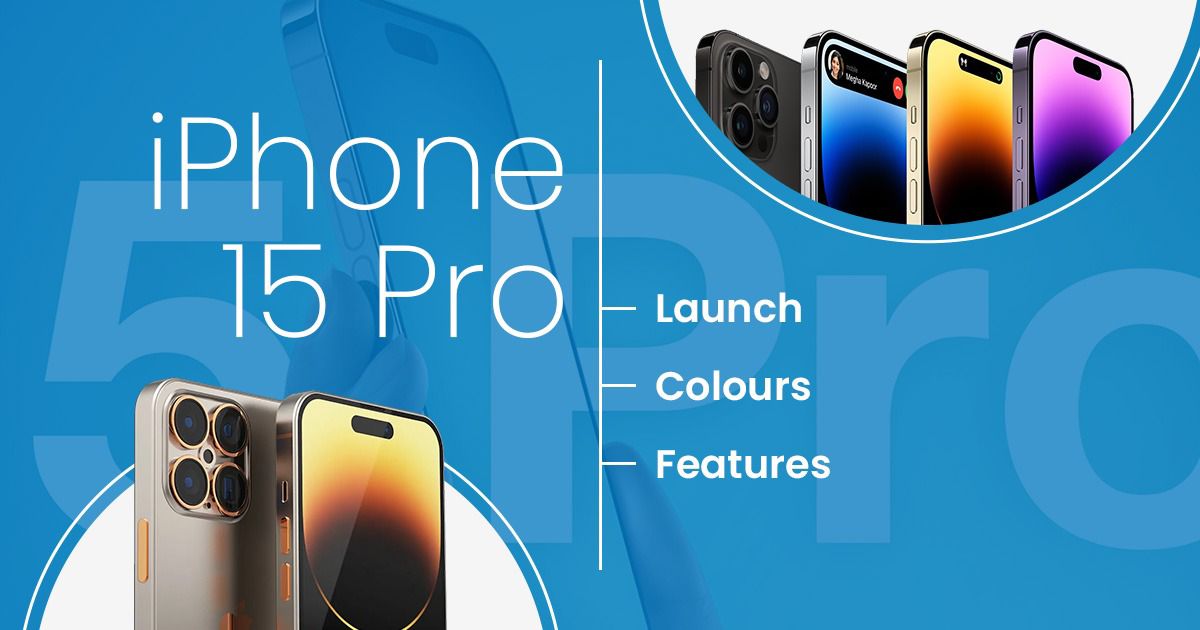
iPhone 15 Pro: Launch Date, Colours, & Features – Everything You Need To Know

Netizens gear up, it is that time of the year again! Yes, the time to run into iPhone 15 Pro leaks, gossips, and everything that seems reliable enough. Don’t worry, in this blog we’ve got you totally covered and we will specifically talk about only the verified updates so don’t worry about being misled by anything that’s written here; we quote our sources well.

Source: HT Tech

Talking about the arrival of the iPhone 15, iPhone 15 Pro, and of course the iPhone 15 Pro Max in September 2023, we’re excited and we know you too are! This comes after we talked about the iOS 17 release date in 2023 in our previous article. That means a brand new iPhone series to review, test, experience, and drop (for those sturdy physical tests or challenges) along with a brand new iOS in the form of iOS 17.0. Before we jump into the specifics let us first give you a heads up on some of the FAQs around iPhone 15 Pro to get the latest iPhone 15 and iPhone 15 Pro updates.

iPhone 15 Pro Series Buzz

 When will the iPhone 15 series be released?

A: Based on previous release patterns, it’s expected that the iPhone 15 series will be released in the fall of 2023.

What new features can we expect from the iPhone 15 series?

A: It’s difficult to predict specific features for a product that hasn’t been released yet. However, some rumoured features for the iPhone 15 series include a folding design, improved cameras, faster processors, and potentially even a portless design.

Will the iPhone 15 series be 5G compatible?

A: It’s highly likely that the iPhone 15 series will be 5G compatible, given that 5G has become increasingly common in smartphones.

How much will the iPhone 15 series cost?

A: It’s hard to predict the exact price of the iPhone 15 series at this time, as Apple typically announces pricing closer to the release date. However, it’s expected that the iPhone 15 series will have a similar price range as previous iPhone models.

Will the iPhone 15 series have a headphone jack?

A: It’s unlikely that the iPhone 15 series will have a headphone jack, as Apple has been moving towards a more wireless future in recent years.

Will the iPhone 15 series come with a charger?

A: It’s unknown at this time if the iPhone 15 series will come with a charger, as Apple has recently stopped including chargers with some of its products.

Source: Yanko Design

iPhone 15 Pro Series Release Date

Quite a few questions are asked only to enquire about the specific date of the iPhone 15 series hitting the stores in India. Now with 2 additional Apple stores, 1 in the Bandra-Kurla complex (BKC) in Mumbai and the other in Select City Walk, Saket in Delhi, the craze to line-up for the spiciest update of the year is going to be a thing of the future.

Source: Business Today

But as per MacRumors, it is going to be somewhere around 20-23 September in 2023. That’s when we know Apple goes about their annual event where new products are launched and upcoming ones are announced. It is expected to roll-out with the all new iOS 17.0 update.

iPhone 15 Pro Series Features

After the technicalities and launch date formalities, let us move to the fun part! That’s about the iPhone 15 series – iPhone 15 Pro, iPhone 15 Pro Max, and the basic iPhone 15 – and what can you expect from these upcoming models from Apple. These are some of the adjusted or new iPhone 15 Pro features.

Size

In terms of look and size, we’re expecting a  total of four iPhone 15 models in the same sizes as the iPhone 14 models, including two 6.1-inch iPhones and two 6.7-inch iPhones. One of the 6.1-inch iPhones will be the standard iPhone 15, while one of the 6.7-inch models will be an iPhone 15 ‘Plus.’ The other 6.1 and 6.7-inch iPhones will be higher-end and more expensive “Pro” models.

USB-C

The biggest change will come with the lightning connector going out of the picture and will be replaced with a universal USB-C type charging port to be in accordance with the new ruling passed for iPhones in Asia and Europe.

Technical Updates

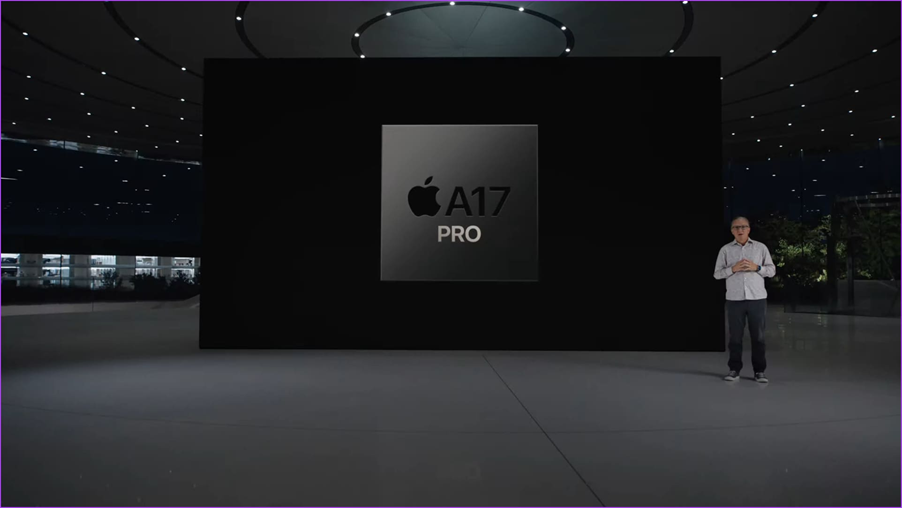
Apple also plans to use Qualcomm modem chips for the new devices as its own modem chips that are in development won’t just do the job this year at least. The standard iPhone 15 models will get an upgrade to the A16 chip that was in the iPhone 14 Pro models, while the iPhone 15 Pro models will use faster and more efficient 3-nanometer A17 chips.

Source: Tom’s Guide

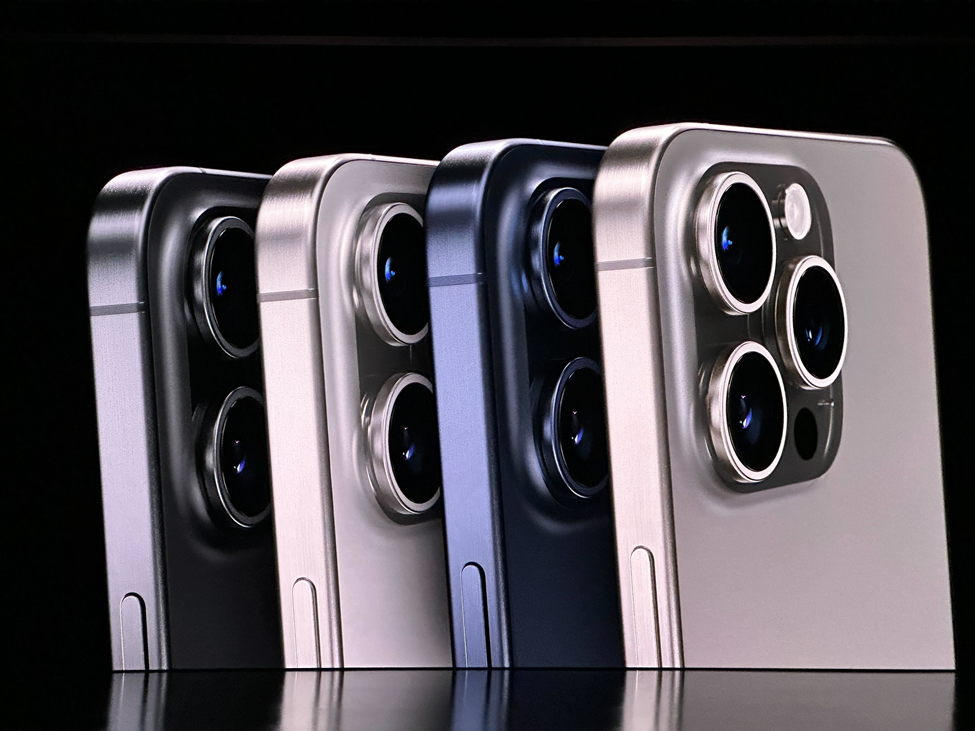
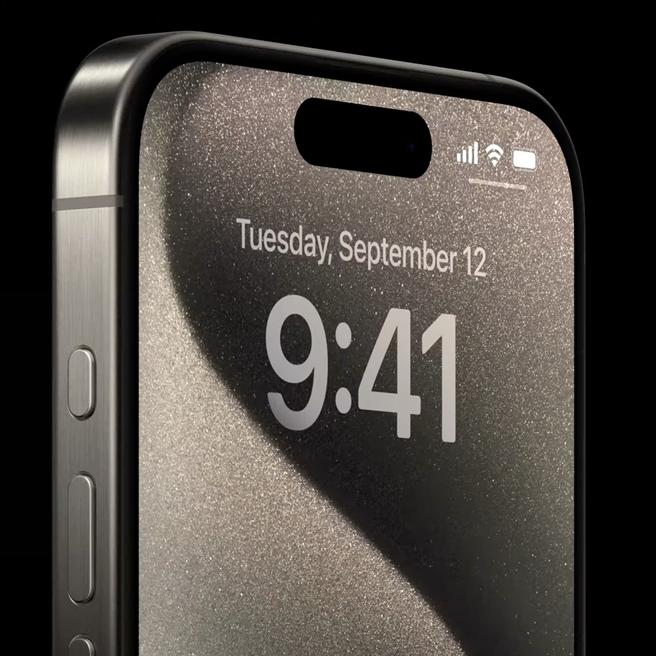
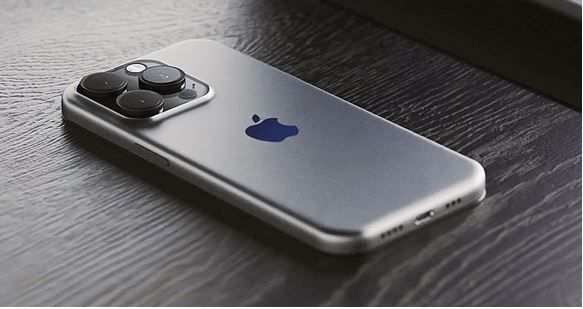
The Pro models could see an upgrade to titanium frames, slimmer bezels, and some minor design changes with more curved device edges, and the iPhone 15 Pro Max is also expected to get periscope lens technology for enhanced zoom capabilities.

What Is Likely To Be Included in iPhone 15 Pro?

  • Dynamic Island update & availability for iPhone 15
  • OLED display driver chip
  • Integrated Proximity sensor
  • Frosted Glass back
  • Periscope Zoom Lens
  • Qualcomm Modem chip

What Is Likely To Be Excluded in iPhone 15 Pro?

  • Always-on Display
  • ProMotion Technology (on base iPhone 15 models)
  • Unified Volume button

iPhone 15 Pro Series Colours

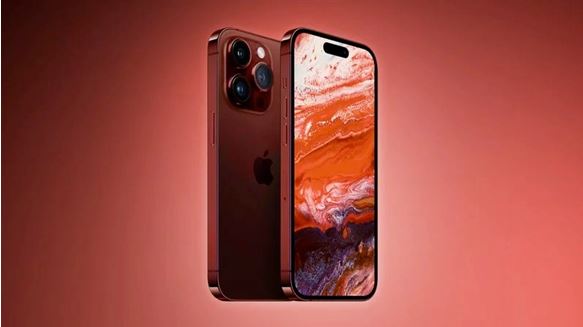
If the design and features are the top searched query, the iPhone 15 Pro colours are next favourite ask from netizens. As per MacRumors, the iPhone 15 Pro and iPhone 15 Pro Max could be unveiled in a dark red colour. This is expected to be close to a maroon or burgundy colour. The other standard colours silver/gold and space grey are also expected to be the available options for Apple fans.

Source: 91 Mobiles

Is There A Flip iPhone On The 2023 Menu?

Well, last year there were claims that the iPhone’s future could uphold a flip version of the classic iPhone we saw years ago or a reboot of the iPhone X or XR. But contrary to these rumours, there’s no development in this space and nothing can confirm so far that a flip iPhone is on its way in 2023. Add to that the fact that Apple has never officially commented or given information about any plan to enter the race for a slot with a foldable technology. But on the flip side, they’ve filed a few patents for foldable and flippable tech, meaning they’re experimenting with the idea if not anything more.

As per Android Authority, renowned tech analyst Ming-Chi-Quo has claimed that a foldable iPhone is very much a possibility in the year 2025 if not today. What the future beholds is difficult to say but one thing is for sure that netizens are clearly very excited for the iPhone 15 series to make its way to the top stores.

Got issues with your iPhone, iPad, MacBook or OnePlus device? A trustworthy iPhone repair centre not in sight? Don’t worry, the experts can help you get a free pickup and drop service and provide the bright repair solution for all your Apple & OnePlus woes. Call today for Apple screen replacement, battery replacement, and other top repair services.

iOS 17 – Everything You Need To Know From Release Date, Leaks, And More

When it comes to the sauciest and the juiciest gossip from the world of Apple and iPhones, there’s nothing bigger than an incoming iPhone operating system (iOS) or a new version’s release coming round the corner. The world of iOS and Apple in general is so specific with their updates, additions, and new versions that there’s an excitement within the Apple community and even outside where news portals are full of gossip, leaks, and whatnot! That is now the case as we draw closer to the release of iOS 17.

Source: MacRumors

But then how do you know what to believe and what not to believe? What are the trustworthy sources you can believe and which ones should be avoided completely? Well, for starters you can read this blog and find out the genuine news related to iOS 17. So let us begin!

First things first, what’s the iOS 17 Release Date in India?

iOS 17 Release Date

The iOS 17 release date was expected to be somewhere in the month of June after the WWDC conference gave us enough hints and now we know for sure that iOS 17 will be launched at the annual Worldwide Developer Conference from June 5 to June 9. This will be done via a special one-person event where a dignitary or Apple official, most probably Tim Cook, will come forward to release the new iOS 17.

Source: Digital Trends

Though iOS 17 beta access will roll-out immediately, believes iMore, it is said that the official version of the iOS 17 will only be available for users later this year in September. It is understood that the iOS 17 will roll-out only after the launch of the iPhone 15 series so that automatically means September.

iOS 17 Supported Devices

After the release date, the most worrisome piece of news for Apple users is to find out whether their older devices will be able to support the new iOS 17 update or will there be a pressure from Apple to get users to upgrade to newer models. Might work as a tactical move but might also fall flat considering how Apple moves from one flagship to the other in a matter of 365 days flat.

So if you’re worried about the iOS 17 supported device list, you should start by knowing that the iOS 17 will be readily available on the yesteryear iPhone 12 and 13 series and will function full-throttle in the flagship iPhone 14 series and the upcoming iPhone 15 series. We saw that Apple discontinued support for a few iPhones after the launch of iOS 16, namely the iPhone 6S and iPhone 7 series and it is believed that they might go a step further when they finally decide to launch iOS 17.

Source: Digital Trends

This might see Apple pull their support from the iPhone 8 or iPhone X series. Though Apple may pull away from all models with the A11 bionic chips, it may still be possible that they roll out the latest iPhone Operating System for these models.

iOS 17 Features (Probable)

According to sources, these are some of the reliable features that will most probably come out with the release of iOS 17. Some features might be subject to changes after Apple completes their trial, testing, and error tests in their bunkers. These are the iOS 17 features you can look forward to:

Side-Loading Third-Party Applications

Though this feature might be delayed in India, European and American users may get side-loading options for third-party applications like the Alt Store in iOS 17. This comes after European legislation made it mandatory for Apple to open their operating-systems to third-party applications.

Source: NextPit

VR Reality Pro Headset Support

Next up, it was rumoured that Apple’s VR Headset is prepping for a big launch, it is expected that Apple will provide support for its newest offering to gel well with the everpresent iPhones.

Source: Gadgets 360

Third-Party Browsers

Apart from side-loading third-party applications, there’s more fun for third-party platforms as Bloomberg reports that Apple can remove the requirement for third-party browsers to use WebKit. Under the new mandate, Apple may very well remove this obligation to use WebKit.

CarPlay

The next generation Car-Play will likely be released in September as the iOS 17 will be rolled out. The 2023 update will allow Car-Play to provide multi-display support, instrument cluster integration (info on speed, fuel level, engine temperature, oil pressure, and other navigational features), and other widgets for Climate control, FM radio, etc.

Others Fixes and Updates

Goes without saying Apple will release updates for all the bugs and glitches that people experienced with iOS 16 and with these there will be a lot of optimizations that are being rumoured. You can look for other updates in your iPhone to know what to expect from the release of iOS 17.

There are other CarPlay updates, revamping of the Control Center, and other such additions that will be a part of iOS 17, reports MacRumors . You can stay tuned and continue to read our blogs for the latest updates, happenings, and announcements related to Apple and OnePlus.

Got issues with your iPhone, iPad, MacBook or OnePlus device? A trustworthy iphone repair centre not in sight? Don’t worry, the experts can help you get a free pickup and drop service and provide the bright repair solution for all your Apple & OnePlus woes. Call today for Apple screen replacement, battery replacement, and other top repair services.

Quick Fix to “iPhone is Disabled Connect to iTunes” error in iPhone or iPad

It feels frustrating indeed when your iPhone gets disabled suddenly and you find yourself locked out of the device. However, just like any other issues such as iTunes sync error 54 and No Service, it also has a quick fix. If you are on the lookout for helpful solutions to get rid of this annoying problem on your device, we’ve got you covered. Let’s get to the root of the problem and fix the ‘iPhone is disabled connect to iTunes’ error!

Why is the “iPhone is disabled. Connect to iTunes” Error appears

Before trying to resolve the “iPhone is Disabled” error, it would be apt to briefly discuss the reasons that might lead to this problem for a better understanding.

As part of the security feature designed to safeguard your data, iOS automatically disables your iPhone if wrong passcode attempts are made more than five times.

To be more precise, when you enter the wrong passcode six times, your iPhone is disabled for one minute. From then onwards, the time increases with every wrong passcode attempt.

When you input the wrong passcode 10 times, your iPhone gets completely disabled, and you are asked to connect to iTunes to restore the device.

Error Messages that Appear After each Wrong Passcode Attempt – iTunes iPhone Disabled

  • 6 failed passcode attempts: iPhone is disabled. Try again in 1 minute
  • 7 failed passcode attempts: iPhone is disabled. Try again in 5 minutes
  • 8 failed passcode attempts: iPhone is disabled. Try again in 15
  • 9 failed passcode attempts: iPhone is disabled. Try again in 60 minutes
  • 10 failed passcode attempts: iPhone is disabled. Connect to iTunes

Side note:

  • You need to keep in mind that if you have enabled Erase Data setting in the Face/Touch ID section (Settings > Face/Touch ID), all your data will be wiped out when you enter the wrong passcode 10 times.

Another reason why the ‘iPhone is disabled’ error occurs is the screen damage. If the screen is damaged either physically, or sometimes even internally, it tends to develop ghost touch, which causes various sections of the screen to be pressed automatically. As a result, the wrong passcode is entered multiple times, which results in the iPhone getting disabled.

What are the solutions to resolve the iPhone is disabled error?

If your iPhone is disabled due to the entry of wrong passcodes multiple times, you can solve the problem by using these three methods.

  • Restore the iPhone using Recovery Mode
  • Use iCloud.com to recover the iPhone
  • Use the Find My App on Other Apple Device

Note:

  • If the screen of your iPhone is damaged and it often develops ghost touch. So, you need to repair the screen.
  • Backed by several years of experience, Rapid Repair is a noted iPhone repair centre. So, contact us to get the screen repaired fast at a reasonable cost.

How to recover disabled iPhone using iTunes

Step 1. To get started, connect your iPhone to your computer and open Finder or iTunes. In macOS Catalina or later, open Finder on your Mac. In macOS Mojave or earlier or Windows, launch iTunes.

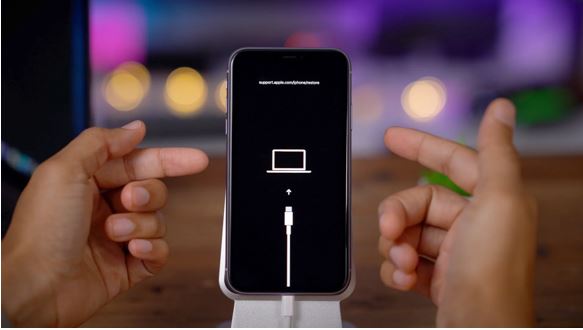
Step 2. Now, put your iOS device in Recovery Mode.

On iPhone 14 and 14 Pro Series

Do you have the latest iPhone 14 series and does your iPhone say it is disabled connect to iTunes? Follow these steps:

  • Connect your disabled iPhone 14 or iPhone 14 Pro to the device you last synced via iTunes. Once you do this, iTunes should launch automatically.
  • Go to iTunes and tap your device icon. Next, tap on Summary, and choose Restore.
  • Follow the instructions on the screen of the device to complete the unlocking process.

On iPhone 13 and iPhone 13 Pro

The iPhone disabled connect to iTunes solution can also work for your iPhone 13, iPhone 13 Pro, and iPhone 13 Pro Max.

  • Connect your disabled iPhone 13 to the device you last synced via iTunes. Once you do this, iTunes should launch automatically.
  • Go to iTunes and tap your device icon. Next, tap on Summary, and choose Restore.
  • Follow the instructions on the screen of the device to complete the unlocking process.

On iPhone XR & iPhone 11

How to connect to iTunes when iPhone is disabled – iPhone XR and iPhone 11 Series –

  • First turn off your iPhone XR, even if it has a disabled connection to iTunes screen. Press and hold both the Side button and either Volume button until the slider comes up. Drag the slider you normally did to power it off.
  • Keep holding the side button and get a USB cable to connect your iPhone with the computer. Don’t release the Side button until it displays the recovery mode screen.
  • Launch iTunes or Finder, and when the prompt comes up, choose Restore.

On iPhone 8 and later models, including SE 2020

  • Hold down the Side button and Volume Up/Down buttons at once and then slide to power off.
  • Next, press and hold the side button until the recovery screen shows up.

iPhone 7, iPhone 7 Plus, and iPod touch (7th gen)

  • Hold down the sleep/wake button and then drag the power off slider to shut down the iPhone.
  • Next, press and hold the volume down button until you see the recovery mode screen.

iPhone 6s or earlier

  • Hold down the sleep/wake button until the power off slider appears. Then, drag the slider to turn off your iOS device.
  • Now, hold down the home button until the recovery mode is activated.

(image credit: Apple Support)

Step 3. Next, select your iOS device and click on Restore iPhone. Now, iTunes/Finder will start downloading the relevant iOS version for your iPhone.

Note: Post restoration, you will be prompted for your Apple ID and Password or your device passcode. If you do not have your Apple ID or Passcode, or don’t remember it, visit icloud.com and reset your password before attempting recovery. Otherwise, your device will be stuck at activation and there will be no way to bypass it except by entering the correct Apple ID and Password.

Also, your data on the device will be lost after recovery as the phone is reset to factory defaults. You can restore data either from iCloud or from iTunes, if you have taken a backup of your phone.

How to fix iPhone is Disabled error without iTunes/Finder

Step 1. Navigate to iCloud.com and sign in with the help of your Apple ID and password. After that, click on Find iPhone.

Step 2. Next, click on All Devices and choose your iPhone.

Step 3. Click on the Erase button to wipe out all the data of your device.

Now, you can take the help of the setup assistant to set up your device. Along the way, iOS will offer you the option to restore the device from the backup. Once you have restored the device, set up a new passcode which you can remember.

Use the Find My App on Other Apple Devices

Save this hack for those times when you don’t have access to your computer, and you wish to take the help of a friend who has an iPhone, iPad or Mac.

  1. Launch Find My App on your other Apple device such as an iPhone, iPad, or Mac. In this guide, we are going to use another iPhone. Tap on the Me tab and then choose Help a friend. Then, sign into your iCloud account.

2. After that, tap Devices. Next, choose the disabled iPhone.

3. Next, scroll down and hit Erase This Device. Then, go through the instructions to erase your device.

Once your iPhone has been erased, follow the setup process to set up the device.

Resetting iPhone When ‘iPhone Is Disabled Connect To iTunes’ is Not Working

While we have a certain step to connect each iPhone to iTunes when it is disabled, sometimes the ‘iPhone is disabled connect to iTunes’ option is not working. What to do then?

Reset Disabled iPhone with iPhone Unlocker

iPhone Unlock is a lightweight unlocking application for Apple iOS devices, capable of unlocking any model of iPhone, iPad and iPod quickly if you have forgotten the screen passcode. It can do much more than just remove the passcode for you; it can also bypass iCloud activation lock and reset Screen Time passcode with a few clicks.

The Steps:

  • Connect the iPhone with your computer but don’t click on iTunes.
  • Launch iPhone unlocker from your desktop. Select ‘Wipe Password’.
  • Check the device information and click to download iOS software.
  • This will remind you of restoring factory settings. Enter 0000 to continue.
  • Click Unlock and you’re there.

Bottom Line      

That’s all there is to it! Hopefully, you will be able to successfully fix the “iPhone is disabled connect to iTunes not working” issue with the above hacks. So, which one of the above solutions did you finally try to solve the problem? Make sure to share your feedback or let us know any related questions you might have.

And remember, well-known for resolving both complex software and hardware issues, Rapid Repair, India’s most preferred Apple repair centre, is just a call away if you need help. So, if your iPhone or iPad ever runs into any problem, do not fail to seek help from our super techies.

Common iPhone 12 Camera Issues & How to Fix Them

What happened, your iPhone 12 camera is not working?

Which model from the iPhone 12 series do you own – iPhone 12 Mini, iPhone 12, iPhone 12 Pro, or iPhone 12 Pro Max?

Don’t Worry! Whichever model you are facing trouble with, we have got some DIY troubleshooting tips which can help you resolve common issues which arise with iPhone 12 cameras. These hacks are workable for any model from the iPhone 12 series.

After executing these hacks mentioned below if you continue to face problems with your device then “Click here” for the most rapid repair solution at your fingertips.

Let’s KYC – Know Your (iPhone 12) Camera!

Before jumping straight into DIY let’s get an overview of the cool tech specs your device comes with so you understand why certain camera issues arise in a specific model only and how your model of iPhone 12 varies from the other models in this series in terms of its camera?

There are possibilities when an issue arises in a specific model only and that’s because of the variations such as –

  • iPhone 12 Mini and iPhone 12 come with 2 cameras, on the other hand, iPhone12 Pro and iPhone 12 Pro Max have 3 cameras with the latter having telephoto cameras too.
  • iPhone 12 Mini and iPhone 12 camera come with only optical image stabilisation, but iPhone 12 Pro camera comes with dual optical image stabilisation and the iPhone 12 Pro Max camera with sensor-shift optical image stabilisation. More image stabilisation ultimately leads to less image blurriness and fewer camera shaking issues.
  • iPhone 12 and iPhone 12 Mini come with 2x and 3x optical zoom in their cameras on the other hand cameras of iPhone 12 pro and iPhone 12 Pro Max have 5x and 6x optical zoom.

The iPhone 12 Pro and iPhone 12 Pro Max camera, unlike its low-end models, come with a Lidar Scanner which for Night mode portraits give you faster autofocus in low light and an amazing Augmented Reality (AR) Experience.

iPhone 12 series – Common Camera Issues

When you say my iPhone 12 camera is not working then most probably you would refer to one of the issues mentioned below-

  • The camera appears black.
  • The camera is lagging.
  • Camera looks grainy or noisy even without zooming in.
  • The Front & Rear cameras are not working.
  • The camera is not focusing or zooming in & etc.

These problems may arise due to the following reasons-

  • App crashes.
  • Dusty Lenses.
  • Software Malfunctions.
  • Settings miss-configuration.
  • Hardware problems.
  • Use of magnetic Accessories & etc.

DIY Troubleshoots to fix your iPhone 12 camera issues –

These hacks will work for camera problems in any iPhone running on iOS 15 or later. Out of these below-mentioned hacks, one of them could plausibly fix issues with your iPhone camera, so make sure to try them all one by one.

1. An extremely common iPhone 12 camera issue reported by users is that the camera continuously loads the black screen or becomes sluggish i.e., slow or inactive.

Black Screen: If camera loads to a black screen, rule out the obvious first. Check if anything is blocking the camera sight. If any accessory is hindering, remove it and check the camera again.

Toggle between the front and back camera to check if issue is with both or a single camera. If your device hangs during the toggle, force close the camera app, restart the device and try again. If the issue persists with both cameras, chances are it is software related.

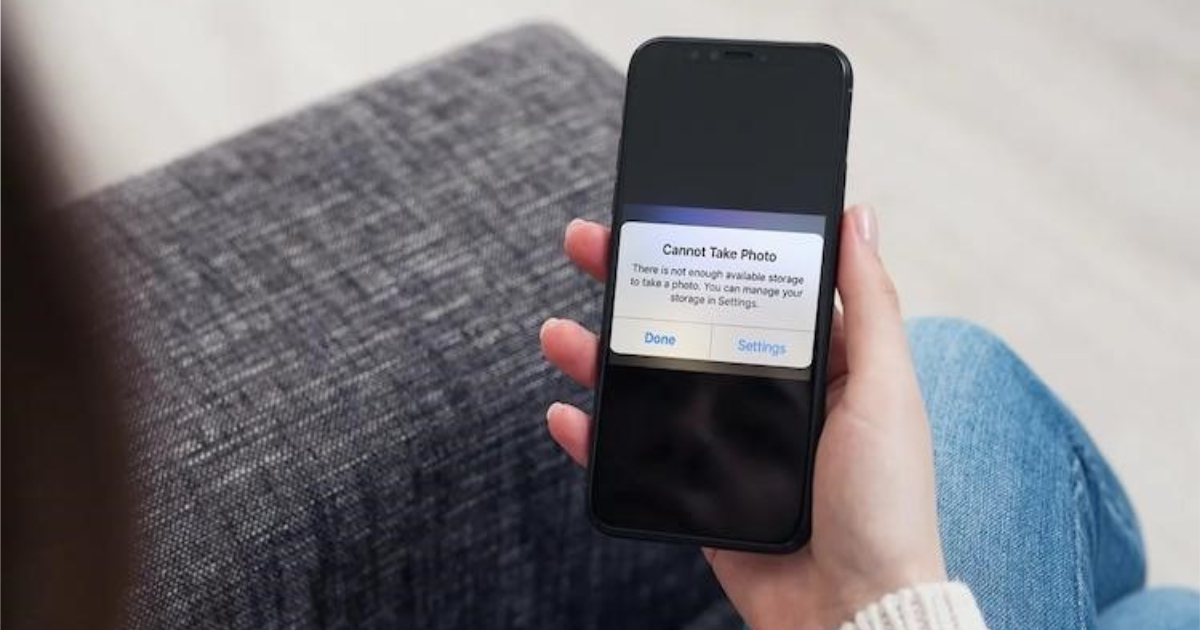
Camera being sluggish or delayed response or app crashes: most likely are software related. First check if there is enough space on your device. If not, free up some space on your device and try again.

Steps that can help resolve software-related issues are explained below.

If these issues persist on your device even after following these hacks, then do not mess up with any other settings rather contact an expert and get a rapid solution to your problem.

To get in touch with a #supertechie Click here.

To force close the apps in any of your iPhone 12 model, follow these steps –

a) Swipe up from the bottom centre of the screen.

b) Hold the app in the Middle.

c) Then swipe up the camera app to remove it. Do the same with other apps too.

2. Camera being grainy, noisy and blur.

Let’s break this down.

If camera is making a noise, it most certainly is because the camera components are not able to moving freely during zoom because the springs are jammed. This usually happens when the movement of components is restricted because of external magnetic effect. Check if any magnetic element is near the camera, if yes remove it. It is advisable to get you camera checked by experts to ensure no long term damage ASAP.

Grainy/Blur:

-If camera is grainy/blur, check for obstructions. A dirty or worn-out screen protector is a very common reason for blur in front cameras.

-Make sure the camera surface are clean and there are no smug marks, dust or otherwise dirty.

-If you see foreign particles inside the glass, it is advisable to take the device to get the cameras and camera lens covers cleaned or it can cause permanent damage to camera lens.

-This could be settings issue as well. Check if your focus settings are the way you want them to be. It is advisable to keep auto focus ON. Make sure you have right exposure and effect settings.

-If none of above helps, call the experts.

3. Is your iPhone 12 camera freezing i.e., while capturing an image or a video your device gets stuck on a screen for a few seconds?

This could be a software issue.

Recommendations:

  • Make sure you have enough free space on the device. Not enough free space can result in frequent crashing of your camera app.
  • Using the native app is highly recommended. The iphone camera app is very intuitive, easy to use and is best suited for the corresponding hardware.

Actions

  • Close the camera app and start it again. If it is just an app glitch, this will take care of it.
  • If issue persist, restart the device.
  • Check for updates. Apple constantly rolls out updates to fix the known bugs and rollout enhancements and new features. We highly recommend to keep the iOS updated always. If there is an update pending, updating can help resolve most of the software issues.
  • Lastly, we can try restoring the device to factory settings. Please do take a backup of required data before performing this step otherwise you will lose it. If your camera is malfunctioning because of a software glitch, restoring the OS to factory settings will most definitely resolve the issue.
  • If camera issue still persist, it most definitely is a hardware issue. Call the experts.

To restart any iPhone 12 model, follow these steps mentioned below-

  • Tap the Volume up button.
  • Tap the volume down button.
  • Hold the power button up to 3-4 sec until the apple logo appears and then wait for the iPhone to restart.

4. Many bugs and glitches can be fixed by updating your iPhone 12 to the latest iOS. But don’t interfere much with the settings as it may lead to settings misconfiguration. Rather contact an expert if the situation is getting too messy for you to handle.

To update to the latest iOS in your iPhone 12 follow these simple steps.

  • Go to Settings app.
  • Click Software Updates.
  • Wait for a few seconds for device to check for updates.
  • Then tap on download and install.

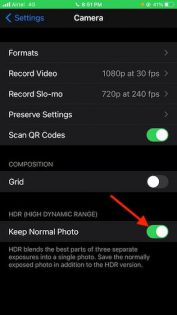
5. If the above-mentioned hacks didn’t work out for you then tweak a bit into camera settings and turn on the Smart HDR. To do so follow these steps-

  • Open SETTINGS.
  • Navigate to the CAMERA
  • Turn on Smart HDR using the toggle button on the right side. This can fix certain issue.
    Follow these steps to turn on Smart HDR.

    The last hack which most people would recommend you to do is, to reset or restore your device which may fix the issue with your camera but we won’t recommend it to you until and unless you have a proper data backup as it may cause a permanent loss of your data.

    If the issues with your camera persist despite following all the hacks and you find yourself in a mess then first don’t panic, and just relax! When a hassle-free service like “RapidRepair” is just a click away then you don’t have to either run to an Apple service centre and wait in a long queue or take the risk of getting low-quality services from a local repair shop near your house. Cheer up! and contact RapidRepair for the quickest iPhone 12 repair / iPhone 12 camera repair service, and not only this we are a one-stop repair solution for all your Apple devices. To enjoy a world-class device repair experience at your doorsteps Contact us right away!

What’s Screen Mirroring iPhone and How Does it Work?

If you’ve ever wondered how screen mirroring in iPhone works and how you can do screen mirroring from iPhone to a smart TV, then you are at the right place. Read on.

What is Screen Mirroring in iPhone

Screen mirroring is the process when you replicate your iPhone screen onto a Mac, Apple TV or Smart TV. In screen mirroring, whatever you are playing or doing on your smartphone is displayed on the TV over a Wi-Fi connection.


(Image Credit – Images.idgesg.net)

There is a difference between mirroring and AirPlay. While mirroring creates a duplicate of what you are doing on the iPhone, AirPlay lets you share any image, audio, or video being played on your iPhone to a TV without any loss in quality.


How to Screen Mirror Your iPhone to a TV or Mac

Follow these steps for screen mirroring iPhone to a TV or Mac:

Step 1: Connect your iPhone to the same Wi-Fi network that your Mac, Apple TV or an AirPlay 2 Compatible smart TV is connected with.

Step 2: Open the control centre on your iPhone.

  • For iPhone 8 or earlier, swipe up from the bottom of the screen.
  • For iPhone X and later, swipe down from the upper right of the screen.

Step 3: Tap on the Screen Mirroring icon.

Step 4: Select your device—Mac, Apple TV or smart TV—as shown on the list.

Step 5: Enter the passcode if it appears on your iPhone. Your iPhone screen will now be mirrored on the big screen.

Step 6: Open the Control Center again and then tap on Screen Mirroring > Stop Mirroring to stop the screen mirroring from your iPhone. If you are using an Apple TV, pressing the menu button on the remote will also stop mirroring.


(Image Credit: iStreamer)

How to AirPlay a Video from your iPhone to a TV

Step 1: Make sure that your Apple TV or AirPlay 2 compatible smart TV is connected to the same Wi-Fi network as your iPhone.

Step 2: Play any video or audio you want to stream.

Step 3: Tap the AirPlay icon. In some apps, you would have to tap on Share first to access the AirPlay option.

Step 4: From the list that pops up, choose your TV.

Step 5: To stop streaming, simply tap the AirPlay icon in the app you are streaming from.

Read – ‘No Service’ on iPhone? Try These Quick Hacks

How to Connect My iPhone to a non Smart TV

While screen mirroring is an easy and fast way to play content from your iPhone on a bigger screen, not everyone has an Apple TV. If you want to screen mirror your iPhone to a standard non-smart TV, there are several ways of doing that.

Mirror iPhone using Apple’s Digital AV Adapter

Apple’s Digital AV Adapter is lightning to HDMI and Type C converter that allows you to connect your iPhone to any TV with an HDMI port. You just need an HDMI cable to connect both the devices and you can then easily see content on your iPhone in 1080p picture quality and sound on a much bigger screen.

The only drawback of this method is that you’d need to keep your phone connected with the adapter at all times.


Mirror iPhone Using Google Chromecast

Chromecast is a streaming device that can turn any TV into a smart TV capable of connecting to any phone or tablet. It is a small dongle like device that connects to your HDMI port and lets you do screen mirroring of iPhone to any TV granted you are both connected to the same Wi-Fi network as well. Apart from the device, you’ll also need to download the Chromecast app on your iPhone.

Mirror iPhone Using Third-party Apps

There are several third-party apps such as LetsView and AirBeamTV that you can use for screen mirroring your iPhone to a smart TV. While these apps won’t need you to buy any additional hardware, you might need to pay to use the apps. All you have to do is connect your iPhone and smart TV to the same Wi-Fi network, download and open the apps on both devices, follow the on-screen instructions and you’re done.

There are a lot of perks of doing screen mirroring in iPhone. With the help of this guide, you can screen mirror your iPhone to PC or screen mirror iPhone to a Smart TV without any difficulty.

iPhone won’t Charge? Here’s why and How to Fix it

While iPhones are built with extreme precision and care, they are not immune to common issues. One of those issues is the iPhone not charging one. If you are facing this issue and thinking why my iPhone won’t charge, then there is no need to panic. There are several hacks you can try at your end to either get to the root of the issue or even solve it by yourself.

Even for a seemingly straightforward task like charging, there are several components involved that need to work properly. In this guide, we’ll take a look at everything that can cause the iPhone charging problem and eliminate possible reasons one at a time.

What Could be the Reasons Behind the iPhone not Charging Issue?

Wondering why my iPhone is not charging? Well, there could be multiple culprits behind this annoying issue. For instance, the problem could be due to an uncertified charger or a rugged case that might not be supporting Qi-wireless charging or even a scrap of lint that may have sneaked into the charging port. There can be issues with the charging adapter, a faulty software might be preventing the phone from charging or there can be an underlying hardware issue. Thus, we are going to try out all the possible solutions that can help you resolve the iPhone not charging issue.

Remove the Gunk out of Your iPhone’s Charging Port

Well, the first thing you should do is check if the lightning port of your iPhone is blocked by gunk or small particles of lint. Believe it or not, debris tends to get stuck in the port and builds up over time to prevent iPhone from charging when plugged in. So, you should clean the port frequently to ensure it can remain clean.

To clean the port of your iPhone, you need to first shut it down. Then, use a normal toothpick to remove the lint gently. Be more careful while cleaning the port as the pins may get damaged and you will have to replace the charging port.

Check Your Lightning Cable and Power Adapter

While the market is flooded with chargers, not all of them are secure and certified to power iPhones. If you are using a charger which is not Mfi (Made for iPhone/iPad/iPod) certified, you will frequently get a warning pop-up saying, “accessory may not be certified.” As part of security measures, iOS won’t let you charge the iOS device using the uncertified charger.

If your charger is MFi certified, ensure that both the lightning cable and power adapter aren’t damaged. Try using another cable/power adapter to charge your iPhone. If you can charge using another charger, that means your charger is at fault. While the original Apple charger can be too costly, there are several high-quality cables available online that are less expensive. You just need to make sure they are MFi certified and have the recommended 2.1 amps power capacity.

Read – ‘No Service’ on iPhone? Try These Quick Hacks

Ensure that the Case Supports Wireless Charging

If you use a wireless charger to power up your iPhone 8 or above, ensure that the case is compatible with wireless charging. Yeah, you got that right! Not all iPhone cases support Qi-wireless charging, especially the covers that are rugged or the ones that feature metal back plates.

So, just in case you have installed a heavy-duty case or a ring holder cover, remove it before putting the iPhone on the wireless charger.

If you use Qi-enabled wireless chargers, we would recommend you use slim cases that support wireless charging. This way, you won’t have to take the pain of removing the case before putting the iPhone on the charger.

If iPhone Stopped Charging at 80 Percent

If your iPhone won’t charge beyond 80 percent, then you might have nothing to worry about. To extend the lifespan of their device batteries, Apple has started using the Optimized Battery Charging feature. It is available in every Apple device, iOS 13 and higher models.

The feature uses machine learning and temperature sensors to detect when you use your phone the most and if the phone is getting too hot while charging. It will stop charging the phone when it hits the 80 percent mark. If your phone isn’t charging beyond this point, wait for a couple of hours and charge the device again to check if there is an issue with the charging or if it was just the Optimized Battery Charging feature that kicked in to prevent the device from charging further.

Liquid Damage

While dirt and debris stuck in the charging port can prevent the phone from charging, liquid damage can also pose a big problem. If you dropped your phone in water and have kept it aside for drying, make sure it is completely dry before plugging in the charger. Even a little bit of water can cause the connections to short and lead to even more problems.

Keep your phone aside and let it dry out completely. No matter how important the data inside your phone is or how eager you are to use the phone again, you wouldn’t want to destroy it, right?

Hard Reset/Force Restart Your iPhone

Force restart aka hard reset often turns out to be a saviour, especially when dealing with common problems. So, we are going to try it out as well.

Hard reset iPhone with face ID, iPhone SE (2nd generation), iPhone 8, or iPhone 8 Plus

First off, press the volume up button on your iPhone. Then, press the volume down button. After that, hold down the side button until the Apple logo appears.

(Image credit: Apple Support)

Hard Reset iPhone 7 or iPhone 7 Plus

Press and hold both the volume down button and the Sleep/Wake button simultaneously until the Apple logo shows up.

(Image credit: Apple Support)

Hard reset iPhone 6s, iPhone 6s Plus, iPhone SE (1st generation) or earlier devices

Press and hold the Sleep/Wake button and the Home button at once until you see the Apple logo.

(Image credit: Apple Support)

Software Update

More often than not, a mere software update can help you fix several issues on your iPhone and even bolster the performance. If you haven’t updated the iOS for a while, the outdated software version might be the reason why your iPhone won’t charge. So, navigate straight into the Settings > General > Software Update. Then, download and install the latest iteration of iOS without any further ado.

Restore Your iPhone

You should look at the “Restore” option as the last resort. You should try it out only when none of the basic tricks are working. Before going for this radical solution, you must always take a full backup of your iPhone as the restore process will wipe out all the existing data.

(Image credit: Apple Support)

It’s worth noting that Apple has shut down iTunes for Mac with the introduction of macOS Catalina and replaced it with Finder. So, if you’re using macOS Catalina or later, you need to use Finder to restore your device. On Mac running macOS Mojave or earlier and Windows PC, you can still use iTunes to restore your device.

Simply open Finder/iTunes > select your device. Then, click on Restore iPhone.

Repair your iPhone

What do you do if you checked the cables, checked the adapter, updated your iPhone, cleaned the lightning port, even performed a complete restore, but still the iPhone is not charging? The issue now needs professional intervention and it is time for you to contact a trusted iPhone repair centre like Rapid Repair and let us tackle the problem.

After all, there can be an internal hardware issue with the device that is beyond your scope. Rapid Repair has a team of expert and experienced super techies who have worked on several iPhones and are adept at repairing iPhone charging problems fast. We use only genuine Apple parts when it comes to any replacement and provide excellent services at an affordable price. Contact us to get your non-charging iPhone fixed right away.

How to Check Hardware Issues on iPhone Using Panic.ips

So, maybe due to a nasty impact or an unknown issue, your iPhone seems to have run into a serious problem. And you can’t figure out what’s ailing your smartphone. We understand it can be super frustrating since you love your prized device and can’t bear to see it in anything but the perfect shape. Worry not, as there is a pretty straightforward way to check hardware issues on iPhone using panic.ips file. Let us guide you through it!

Wondering What is Panic.ips and How Can It Let You Diagnose Your iPhone?

iOS comes with a built-in diagnostic feature that allows users to find hardware issues on the iPhone. For those unfamiliar with it, the diagnostic feature, which has derived the name from Kernel, is a crucial component of any OS.

When the Kernel encounters an issue or an error while loading, the problem is termed as Kernel Panic, indicating that something critical has happened to Kernel and even stopped it from loading properly. When it happens, Kernel puts the entire diagnostic information in a file named panic.ips.

With the help of panic.ips file, it becomes a lot easier to get to the root of the problem. And once you have checked the hardware issues on your iPhone with panic.ips file, finding the right solution to the issue becomes relatively straightforward. That’s probably the reason why this hack never fails to impress both DIY lovers and the die-hard supertechies at Rapid Repair.

Figure Out If Your iPhone has Hardware Issues

iOS comes with a very helpful feature called “Analytics & Improvements” which lets you check if your iPhone has hardware issues. Moreover, it’s available even on old iOS versions like iOS 10, 11, or 12. So, irrespective of whether you are using an old iPhone or daily driving the iPhone 12 Series, you can use this diagnostic tool to figure out if your iOS device is facing a hardware problem.

To get started, head over to the Settings app on your iPhone > Privacy > Analytics & Improvements > Analytics Data.

Note: In iOS 10 or 10.2, navigate to Settings > Privacy > Diagnostics & Usage.

On the next screen, you should see a lot of logs related to analytics. Now, scroll through the entire list to find an entry named panic-xxx.ips. The file can be either panic-base or panic-full.

If you see any panic file, that means something very serious has happened to your iOS device, which prevented it from starting properly. Though it’s mostly an indication of a hardware failure which requires expert diagnosis and a repair to fix the issue, in some cases, it could be due to software crash as well.

Read – ‘No Service’ on iPhone? Try These Quick Hacks

Pro Tip:

  • Though the “Analytics and Improvements” data doesn’t take much space, it’s considered better to remove them from time to time just to keep the device clutter-free.
  • Luckily, it’s quite straightforward to wipe out the diagnostics information. To get it done, open the Settings app on your iPhone General >Reset > Reset Location & Privacy. Next up, you will need to enter your passcode to continue. Finally, tap on “Reset Settings” in the popup to confirm.
  • It’s worth mentioning that the process of resetting location and privacy is slightly different in iOS 15 and later. Head to the Settings app -> General -> Transfer or Reset iPhone -> Reset. Now, choose Reset Location & Privacy in the popup that shows up from the bottom.

If the problem occurs less frequently or seems to be minor, the first thing you should do is restore your iPhone as new. You can get it done right from your iPhone. But be warned that it will wipe out all the existing data. So, don’t forget to back up the device beforehand via iCloud (Settings app -> profile -> iCloud -> iCloud Backup -> Back Up Now) or iTunes/Finder.

After you have taken the backup, head over to Settings app > General > Reset > Erase All Content and Settings (works in iOS 14 or earlier).

Do note that the process of erasing the iPhone has slightly changed in iOS 15 or later. You need to navigate to the Settings app -> General -> Transfer or Reset iPhone -> Erase All Content and Settings. Then, you will need to enter your device passcode to confirm that you want to wipe out your entire iOS device.

Once you have successfully erased your device, set it up as new. During the setup process, you will get the option to restore the device from a recent backup.

Besides, you can also use the Finder or iTunes to restore your device. But before going for the restore, do not fail to back up your entire device as it will wipe out all the existing data.

Side Note:

  • In macOS Catalina or later, you will need to use Finder to restore the device. In macOS Mojave or earlier or Windows PC, you will need to use iTunes to restore the device.

After you have successfully restored your iPhone, check if the problem is gone. If it has, you are ready to go.

After you have successfully restored your iPhone, check out if the problem is gone. If it has, you are ready to go. But what if the issue persists? In this case, you should contact a reliable iPhone repair centre. With several years of excellent track record, Rapid Repair has come to be known as one of the best iPhone repair centres. Contact us to get your iPhone repaired fast.

iPhone WiFi is Slow and Keeps Disconnecting: Tips to Fix the Issue

Several users have reported that their iPhone’s Wi-Fi speed has become slow and that it disconnects time and time again on its own. It’s worth pointing out that the issue is not specific to a particular iOS version or the iPhone model.

If your iPhone is also facing similar Wi-Fi issues, take a look at these 5 pro tips and tricks. Since these tips have worked for many iOS users, we hope they click for you as well. With that in mind, let’s get on with the troubleshooting guide!

Turn WiFi OFF/ON and Restart your iPhone

For starters, you can turn the Wi-Fi Off and the back On again and then restart the iPhone. As this trick has worked for several users, you can give it a shot as well just to see how it fares.

Launch the Settings app on your iPhone and choose Wi-Fi. After that, turn off the Wi-Fi toggle and then restart your device.

  • To restart iPhone with Face ID: Press and hold the volume up/down button and side button at once. After that, drag the power-off slider to shut down your iPhone.

Image credit: Apple

  • To restart iPhone with the Home/Touch ID button: Press and hold the side/power button and then drag the power-off slider to turn off your smartphone.

Image credit: Apple

Hard Reset your iPhone

It is often recommend that iOS users to try out hard reset to fix common issues as it has always been a pretty reliable troubleshooter.

  • To hard reset iPhone 8 or later: Press the volume up button. Then, quickly press the volume down button. Up next, make sure to hold down the side button until the Apple logo comes up on the screen.
Image credit: Apple
  • To hard reset iPhone 7/7 Plus: Make sure to hold down the side button and volume down button at once until the Apple logo appears.
  • To hard reset iPhone 6s or earlier: Press and hold both the power and side button at once until the Apple logo shows up on the screen.

Once your iOS device has rebooted, check out if Wi-Fi has come back to normal. If it has, you have fixed the iPhone Wi-Fi is slow and keeps disconnecting.

However, if the issue persists, don’t be disappointed. There are still a few reliable solutions you can try.

Forget the Wi-Fi Network and Reconnect to It

Another handy solution for troubleshooting Wi-Fi issues on iPhone is to forget the Wi-Fi network and reconnect to it. Bear in mind that you will need to enter your Wi-Fi password, so make sure you remember it or have it saved somewhere.

Head over to the Settings app on your iPhone > Wi-Fi. Now, tap on the “i” button to the right of the Wi-Fi network name and then hit the Forget This Network option. After that, reconnect your iPhone to the Wi-Fi network.

Reset Network Settings

If your iPhone Wi-Fi continues to be slow and often disconnects, reset the network settings. The main reason why we suggest you try it because it is well-known for resolving Bluetooth and Wi-Fi issues on iPhone and iPad.

Go to Settings app > General > Reset > Reset Network Settings. Now, reconnect your iOS device to the Wi-Fi network and then browse the web for some time or watch any video online to check if the problem is gone. Do keep in mind, once you reset network settings, you will have to reconnet to all Wi-Fi Networks once again and also reconnect any VPN connections you might be using on your iPhone.

Update software

If the problem continues, update the software on your iPhone. Since most iOS updates come bundled with a ton of bug fixes and performance improvements, updating the software might do the trick.

Launch Settings app > General > Software Update. Now, download and install the latest iOS version.

If Nothing Works, Contact a Trusted iPhone Repair Centre

If all the above mentioned solutions fail to troubleshoot the Wi-Fi issues on your iPhone, it can be a hardware issue with the WiFi antenna. In this scenario, you should contact a trusted iPhone repair centre to get rid of the issue.

With a wide presence across several cities in India, Rapid Repair is the most preferred Apple device repair centre. Contact them to help you fix your iPhone.

whatsapp logo