
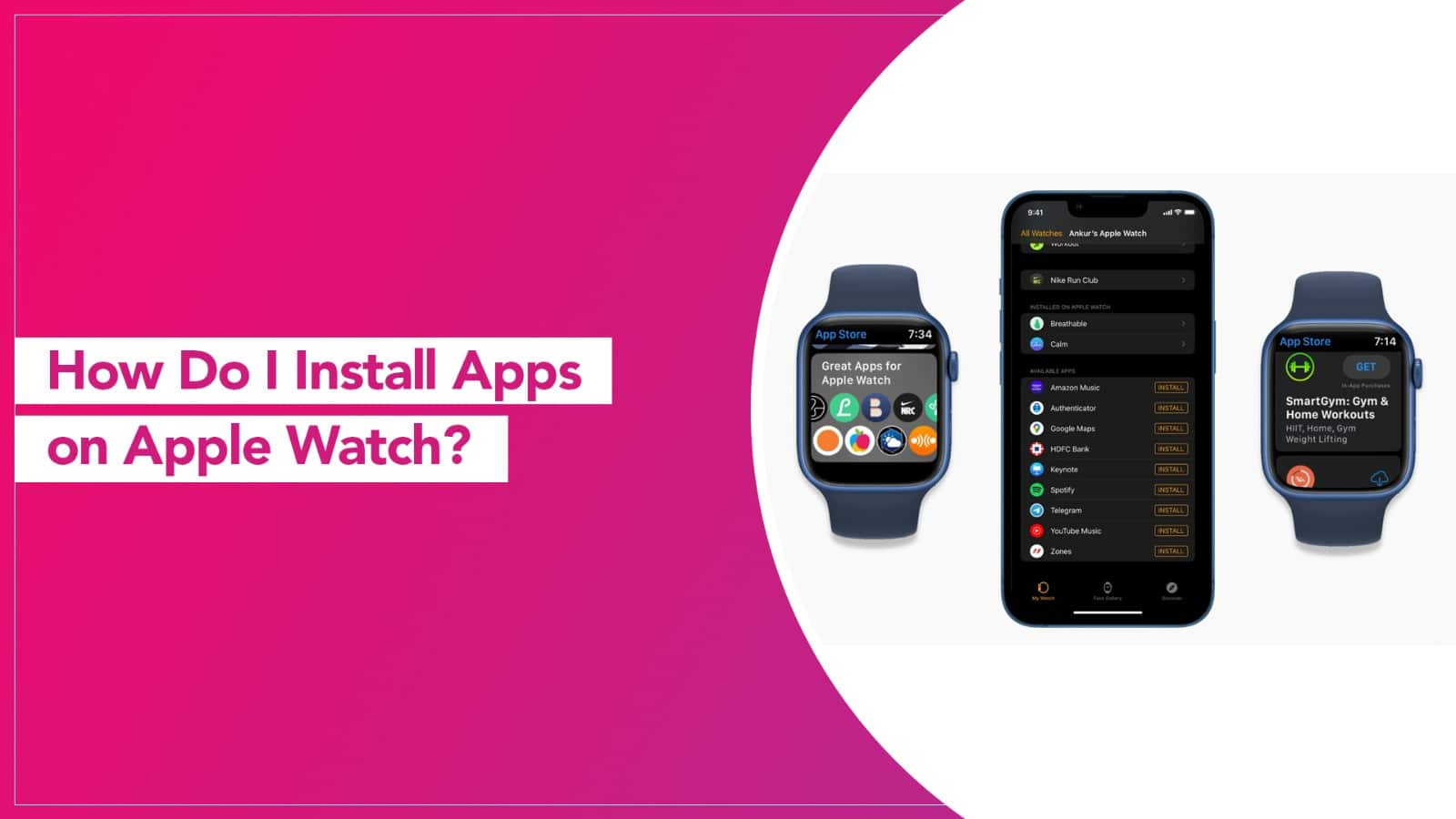
The Apple Watch feels complete straight out of the box. It tracks steps, shows notifications, and handles calls. But after a few days, most people realise something. It can do a lot more. You just need the right apps.
Installing apps on an Apple Watch is not complicated, but the process is slightly different from that of an iPhone. Once you understand the flow, it becomes second nature.
Let’s break it down properly.
First, Understand How Apple Watch Apps Work
Apple Watch apps are connected to your iPhone. Most of them are extensions of apps already installed on your phone. That means you don’t always download them directly to the Watch itself.
This is usually where people get confused and start searching for how to put apps on an Apple Watch.
The answer depends on whether the app already exists on your iPhone or not.
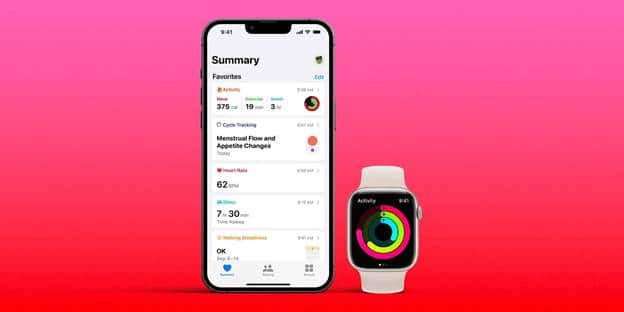
Source: 9to5 Mac
Method 1: Automatically Install Compatible iPhone Apps
By default, the Apple Watch can automatically install apps that support watchOS.
To check this:
- Open the Watch app on your iPhone
- Tap General
- Turn on Automatic App Install
Now, whenever you download an app on your iPhone that has an Apple Watch version, it will automatically appear on your Watch.
This is the easiest method.
Method 2: Manually Add Apps Through the Watch App
If the app didn’t install automatically, you can do it manually.
- Open the Watch app on your iPhone
- Scroll down to Available Apps
- Find the app you want
- Tap Install
This is the most common way for people learning how to add apps to the Apple Watch after initial setup.
The Watch will sync and install it within seconds.
Method 3: Download Directly From the Apple Watch
Newer versions of watchOS allow you to download apps directly from the Watch.
Here’s how:
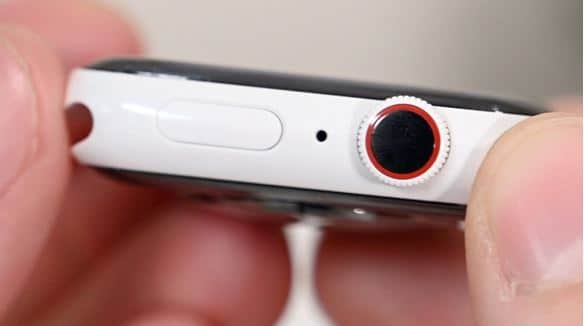
- Press the Digital Crown
- Open the App Store
- Search using voice, scribble, or keyboard
- Tap Get
- Enter your Apple ID password if required
This method works well when you want quick access without picking up your iPhone. It’s especially useful for fitness, productivity, and music apps.
This is what Apple means when you download apps on your Apple Watch without using your phone.
Source: Rapid Repair
Read More – How to Unpair an Apple Watch Without Confusion
How to Rearrange or Remove Apps
Once installed, you can manage them easily.
To rearrange:
- Press and hold any app icon
- Drag it to your preferred position
To delete:
- Press and hold the app
- Tap the small X
- Confirm removal
Keeping the Watch uncluttered makes navigation easier.
Why Some Apps Don’t Appear
Sometimes an app does not show up on the Watch. That usually happens because:
- The app doesn’t support watchOS
- Automatic install is turned off
- The Watch is not properly paired
- Software needs updating
Updating both iOS and watchOS often solves the issue.
A Quick Tip for Better Performance
Avoid installing too many unnecessary apps. The Apple Watch works best when it is focused. Too many background apps can affect battery life and performance.
Install what you actually use. Fitness. Banking alerts. Music. Maybe one productivity app. That’s usually enough.
Installing apps on an Apple Watch is simpler than it first appears. Whether you prefer automatic syncing or manual control, the process takes less than a minute. Once you personalise it with the right apps, the Watch feels far more useful.
And that is when it starts feeling like an extension of your phone, not just a notification screen on your wrist.
FAQs
1. Can I install apps on Apple Watch without an iPhone?
Yes, if your Watch supports the App Store directly. You can search and install apps using Wi-Fi or cellular.
2. Why are my iPhone apps not showing on Apple Watch?
Check if Automatic App Install is enabled and confirm the app supports watchOS.
3. Do Apple Watch apps affect battery life?
Yes, especially fitness and background tracking apps. Install only what you need.
4. Can I reinstall deleted apps?
Yes. You can download them again from the Watch App Store or through the Watch app on iPhone.
5. Do all iPhone apps have Apple Watch versions?
No. Only apps designed with watchOS support will appear.
Read More – How to Pick the Best Apple iPad for You
