
Source: CNET
iPhones usually run smoothly on their own, so most people don’t think about cache until the moment the device starts feeling slower than usual. Pages take a second longer to open. Apps feel a little heavy. Storage quietly fills up. That’s when clearing cache becomes useful, even though the steps aren’t always obvious.
The tricky part is that iPhones don’t have a single “clear cache” button. You clear things here and there, depending on what exactly you want to clean. This guide walks you through all of it, without making it sound more technical than it needs to be.
Start With Safari
Safari is the place where most cached data builds up, especially if you browse a lot. Websites save small files to load faster the next time. It’s harmless, but over time it gets bulky.
To clear Safari data:
- Open Settings
- Scroll to Safari
- Tap Clear History and Website Data
- Confirm
This clears saved pages, cookies, temporary files, and old browsing info. If someone asks how to clear cache and cookies on iPhone, this is the simplest answer.
Clearing Only the Cache Without Losing History
If you want to keep browsing history but still clean the heavier stuff:
- Open Settings
- Tap Safari
- Scroll down
- Tap Advanced
- Tap Website Data
- Remove data from specific sites
This is useful when a particular site is acting glitchy and you don’t want to delete everything.
Using App Offloading
iPhones don’t allow direct cache clearing for most apps. But there’s a different trick called offloading. It removes the app but keeps its data safe. Once you reinstall it, the clean version usually feels lighter.
Steps:
- Go to Settings
- Open General
- Tap iPhone Storage
- Choose an app
- Tap Offload App
This helps apps that feel slow, especially heavy ones like Instagram or Reddit.
Source: TUAW
Clearing Cache Inside Individual Apps
Some apps have their own buttons to delete cached files. Examples include:
- YouTube
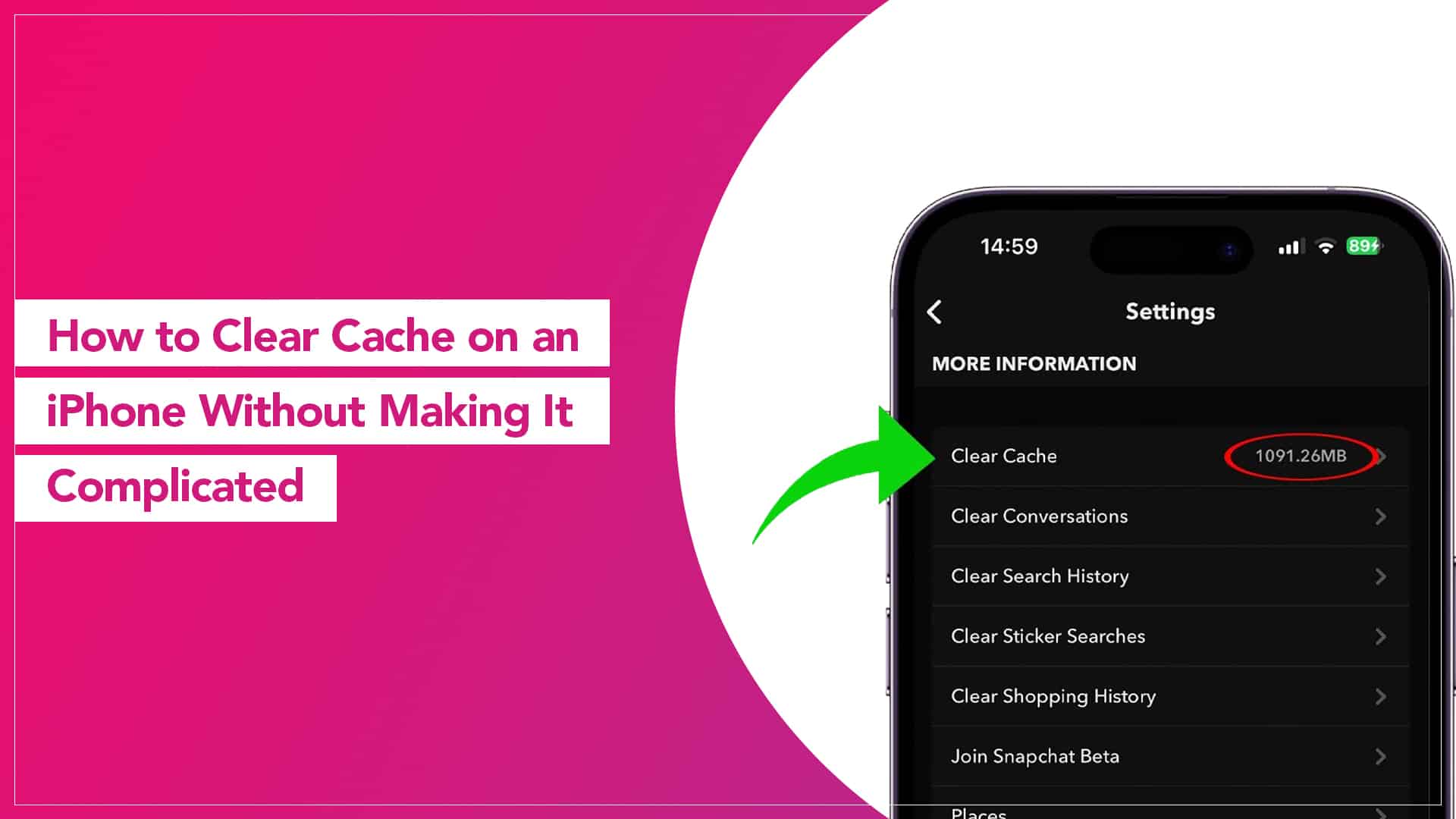
- Snapchat
- Chrome
You’ll usually find it inside the app’s Settings, under Privacy, Storage, or History.
Chrome, for instance, lets you clear stored files with one tap. That’s the easiest way to clear browser cache on iPhone without touching anything else on the device.
Read – White Spot on Your iPhone Screen: What It Means, Why It Happens & How to Fix It
Removing Safari Cache When Pages Don’t Load
Sometimes Safari behaves strangely. Websites load halfway or not at all. That’s when you want to clear only the Safari cache, not the whole history.
The cleanest way is:
- Settings
- Safari
- Advanced
- Website Data
- Remove All Website Data
That’s the specific method people mean when they say clear safari cache on iPhone.
Restarting Helps More Than You Think
After clearing caches and offloading apps, restart the iPhone. It refreshes small background processes and gives the system a cleaner start. Many users forget this tiny step.
Clearing Cache From Streaming Apps
If Netflix or Prime Video keeps showing the same error, or thumbnails load slowly, clearing the downloaded files sometimes helps. Just open the app and look for Downloads, then remove anything old. These files take a surprising amount of storage.
A Few Myths That Don’t Actually Help
People often try things that have nothing to do with cache:
- force closing apps repeatedly
- running “cleaner” apps
- deleting random system files
- switching airplane mode on and off
None of these clear cache meaningfully. Some make battery performance worse.
When Clearing Cache Won’t Fix the Problem
Cache helps only when the issue is related to storage or old website data.
If the iPhone stays slow after cleaning, the problem could be:
- low storage
- old battery
- a heavy update installing in the background
- an app stuck in a loop
- iCloud sync delays
- old software
Sometimes, a simple update or restart fixes more than clearing anything.

Source: Slash Gear
Clearing cache on an iPhone isn’t a daily chore. You don’t need to obsess over it. Do it when Safari slows down, when apps feel heavy, or when websites misbehave. A quick cleanup once in a while keeps the device smooth, without digging too deep into settings.
If you stick to the steps above, you won’t need any third-party tools or complicated tricks. Just a bit of cleaning in the right places.
Read – The Importance of Regular Software Updates for Your Apple Devices
FAQs
1. Do I need to clear cache on my iPhone regularly?
No. iPhones manage cache automatically. Clear it only when Safari slows, websites break, or apps feel unusually heavy.
2. Will clearing cache delete my photos or files?
No. Cache deletion only removes temporary data. Photos, messages, and personal files remain untouched.
3. Why can’t I clear cache for every app?
iOS blocks direct cache clearing for most apps. Offloading or reinstalling is the only workaround.
4. Does clearing Safari data sign me out?
Yes—if you clear History and Website Data together. Using Advanced → Website Data only removes stored files.
5. Is app offloading safe?
Yes. Apps are removed, but documents and data remain and restore automatically when reinstalled.
6. My iPhone is still slow. Why?
Cache wasn’t the problem. Common causes include low storage, battery health issues, background updates, or outdated apps.
