
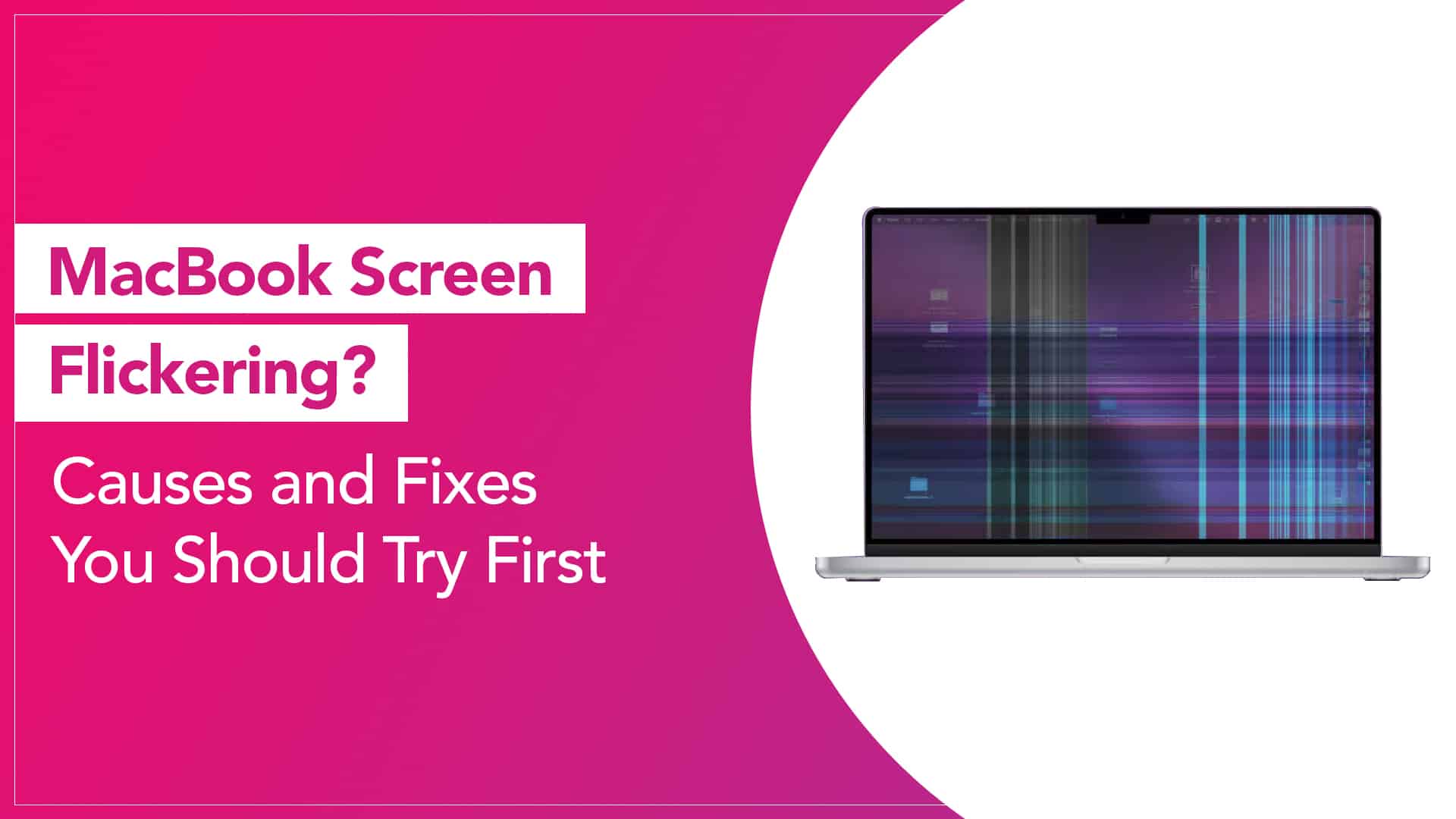
A MacBook display is supposed to be smooth, stable, and predictable. When the screen starts flickering, even slightly, it can make simple tasks uncomfortable. Text becomes hard to read. Videos look choppy. Sometimes the brightness seems to pulse on and off.
If you are facing a MacBook screen flickering issue, the good news is that the cause is often something simple. In many cases, it can be fixed without replacing any hardware. Apple support experts usually recommend checking software settings first before assuming the worst.
Let’s look at the most common reasons behind this problem and what you can do to fix it.
What Does Screen Flickering Usually Look Like?
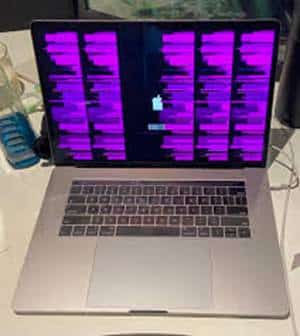
Different users describe flickering differently. Some notice quick flashes. Others see horizontal lines or brightness jumping randomly.
Typical signs include:
- Screen brightness is fluctuating by itself
- Horizontal lines appear briefly
- Display flashing when opening apps
- Flickering while adjusting brightness
- The screen behaves normally after restarting, but the flicker returns later
Understanding the pattern helps identify whether the problem is software-related or hardware-related.
Source: Apple Support Communities
Restart Your MacBook First
It sounds basic, but restarting the system often solves temporary glitches.
Sometimes macOS graphics processes get stuck or overloaded. Restarting clears memory and reloads the display drivers.
Steps:
- Click the Apple logo in the top-left corner
- Select Restart
- Wait for the system to boot again
If the flickering disappears afterwards, it was likely a temporary system process issue.
Check macOS Updates
Display problems sometimes appear after a buggy update or when your system is outdated.
Apple frequently releases updates that fix graphics driver issues.
To update macOS:
- Open System Settings
- Click General
- Select Software Update
Install any available update and restart the system afterwards. Many users on Apple support forums report that display glitches disappear after updating.
Read More – How Long Do MacBooks Last?
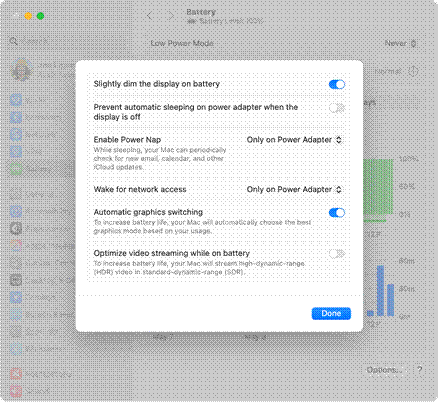
Turn Off Automatic Graphics Switching
MacBook Pro models with dual GPUs sometimes flicker when switching between integrated and dedicated graphics.
You can test this by disabling automatic switching.
Steps:
- Open System Settings
- Click Battery
- Select Options
- Turn off Automatic graphics switching
If the flicker stops, the issue may be related to GPU switching behaviour.
Source: Apple Support
Adjust True Tone and Night Shift
Display features like True Tone and Night Shift constantly adjust colour temperature based on lighting conditions. Occasionally, these adjustments may look like flickering.
To test this:
- Open System Settings
- Click Displays
- Turn off True Tone
- Disable Night Shift
Observe the screen for a while. If the flickering stops, one of these features may have been triggering the behaviour.
Reset NVRAM or PRAM
Apple recommends resetting NVRAM when you experience unusual display behaviour.
NVRAM stores display settings, brightness preferences, and graphics configurations.
To reset it on Intel MacBooks:
- Shut down the Mac
- Turn it on and immediately press Option + Command + P + R
- Hold the keys for about 20 seconds
- Release them and let the Mac start normally
After this reset, check whether the MacBook display flickering problem continues.
Boot in Safe Mode
Safe Mode loads macOS with only essential system extensions. If the flickering stops in Safe Mode, a third-party app or background process may be responsible for the issue.
Steps:
- Shut down your Mac
- Turn it on while holding the Shift key
- Release the key when the login screen appears
If the display behaves normally in Safe Mode, recently installed apps or system extensions might be interfering with the graphics system.
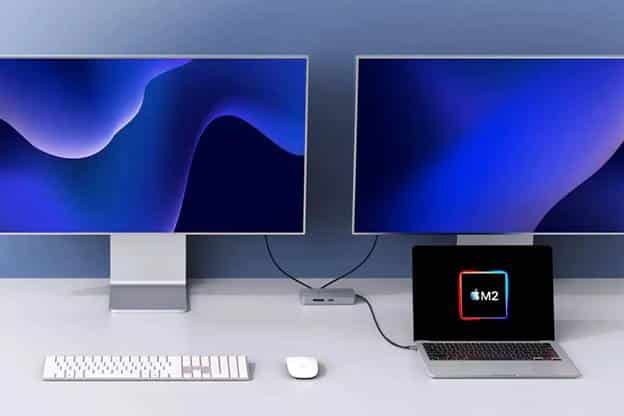
Check External Displays and Cables
If you use an external monitor, flickering may come from:
- faulty HDMI or USB-C cables
- incompatible display adapters
- refresh rate mismatches
Try disconnecting the external display temporarily. If the MacBook screen becomes stable, the issue might be with the external setup rather than the laptop itself.
Source: Mac World
When It May Be Hardware Related
If none of the software solutions work, hardware may be involved.
Possible causes include:
- display cable wear from repeated lid movement
- graphics chip issues
- panel damage after drops or pressure
- ageing display components
In such cases, running Apple Diagnostics can help identify internal faults.
To run diagnostics:
- Shut down the MacBook
- Turn it on while holding the D key
- Follow the on-screen instructions
Apple Diagnostics can detect certain hardware issues that may cause flickering.
Display flickering does not always mean the screen is failing. Many cases of MacBook display flickering problems are caused by software conflicts, display settings, or graphics switching behaviour. Trying these troubleshooting steps often resolves the issue without any repair.
However, if the flickering continues even after system resets and updates, it may indicate a deeper hardware problem that needs professional inspection.
Read More – MacBook Screen Problems: Common Issues and Fixes
FAQs
Why is my MacBook screen flickering randomly?
Random flickering often occurs due to graphics driver glitches, automatic graphics switching, or display settings such as True Tone or Night Shift. Updating macOS or restarting the system often fixes it.
Can software cause screen flickering on a MacBook?
Yes. macOS bugs, incompatible apps, and graphics driver conflicts can cause display instability. Booting in Safe Mode can help determine if software is responsible.
Does overheating cause screen flickering?
In some cases it can. When the system overheats, the graphics processor may behave unpredictably, which can affect display stability.
Is MacBook screen flickering a hardware issue?
Not always. Many flickering issues are software-related. Hardware problems are usually suspected only after software troubleshooting fails.
Can resetting NVRAM fix flickering?
Yes. Resetting NVRAM restores display and graphics settings to default values, which sometimes resolves display glitches.
Should I replace the screen if it flickers?
Only if troubleshooting confirms a hardware fault. Always rule out software causes first before considering display replacement.
