It’s Glowtime – Apple Launch Event 2024 Just Took Us Closer To The Future

Apple launched its latest range of iPhones, AirPods, and Apple Watch on September 9th. The products testify to a huge leap in technology from previous generations. Here’s all you need to know as an Apple fan in India.

With every launch event, Apple takes us a step closer to the future through new technological innovations. The Apple Event of 2024 ‘It’s Glowtime’ was nothing different. The tech giants just launched the iPhone 16 series along with the AirPods 4 series, Apple Watch Series 10 and Apple Watch Ultra 2. Each gadget is a testimony to not just how technology can add more ease to human life, but also how it can empower us. Before knowing all about the new gadgets, let’s have a look at the upgrades in technology, that Apple introduced last night.

Apple Launch Event – Upgrades to look at

Though each new model has got a new touch in it, some key upgrades in hardware and software cover multiple gadgets. Let’s discuss them first before moving to the gadgets.

Grade 5 Titanium – Using titanium to build the bodies of Apple gadgets is nothing new. But this time, Apple opted for 95% recycled grade 5 titanium in some of the series 10 Apple Watches and iPhone 16. This played an important part in significantly reducing the weight of these gadgets and increasing their durability. The metal is distinctively used to give an elegant look to these gadgets.

Latest generation ceramic shield glasses – Apart from significant upgrades in the display quality of the new Apple Watches and iPhones, the latest generation ceramic shield glasses are used to build the display. Apple claims that the material is at least 50% stronger than the glasses used in any smartphones or smart watches.

Silicon chips – Apple has heavily relied on its Silicon chips to power the latest innovations and advanced features in its gadgets. With a bunch of new products, a bunch of new silicon chips have also been introduced. Be it the Silicon S10 chip for the Apple Watch Series 10, the H2 chip for new AirPods or the family of A18 bionic chips for the iPhone 16 series, major upgrades have been done in these processors to support the new features.

Apple Intelligence – Apple has redefined AI with the introduction of Apple Intelligence. This will heavily contribute to the functioning of the iPhone 16 and Apple Watch Series 10 models. Apple Intelligence has been designed to give a personalized experience to the user. Many of the apps will be powered by Apple Intelligence and it will be available with the iOS 18 update later this year.

Source: NextPit

Spatial Audio – With a key upgrade in the audio technology of the new AirPods and iPhone 16s, Apple introduced the Spatial Audio. For AirPods, it will give you a whole new listening experience by placing the sound all around you. In the iPhone 16 series, it will give you more control in recording and listening to audio.

Now, let’s dissect all the new gadgets one by one and discuss how they are better than their previous generations.

Apple Launch Event – The new gadgets to look at

Now that you know of all the key upgrades the benefits of which can be avail across gadgets, you must know about the unique updates in each of these new gadgets. From the latest fusion camera in iPhone 16 to the new update in Apple Watch 10 speakers, there’s a lot to look at.

Apple Watch Series 10

Source: Apple

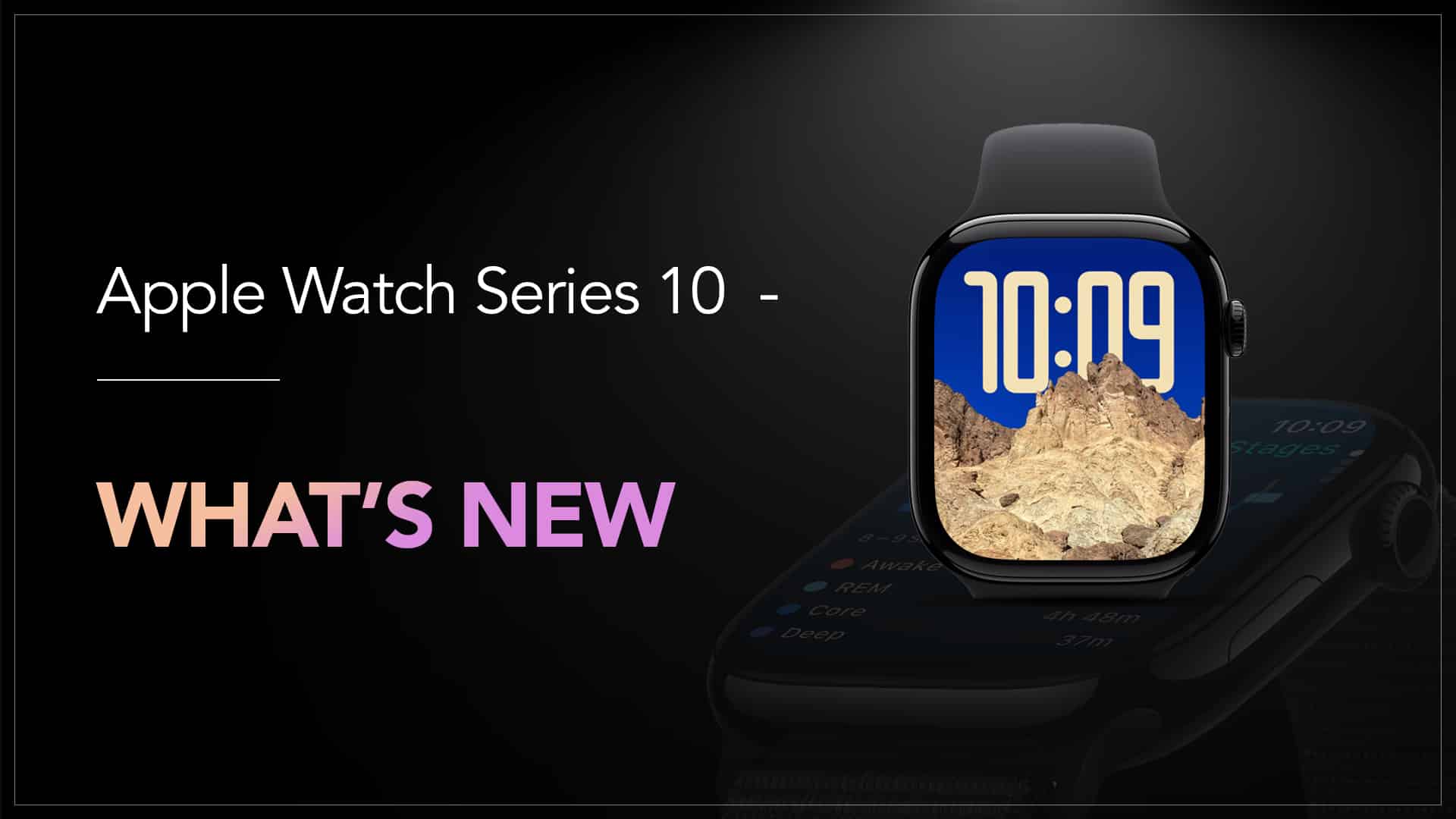
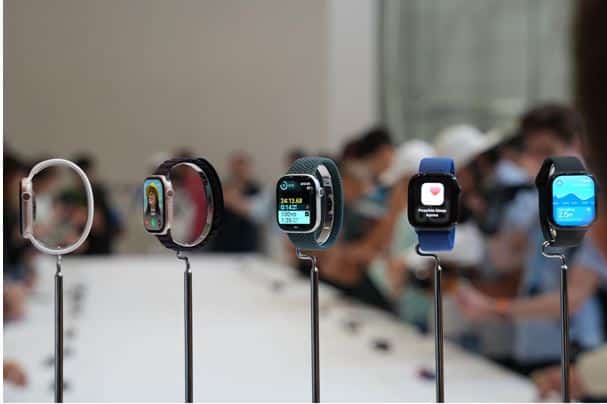
The series 10 Apple Watch boasts the thinnest design and the largest display in any Apple Watch. Powered by an Apple Silicon S10 chip, it features an innovative wide-angle OLED display, which makes the display brighter when viewed from an angle. It is available in both aluminium and titanium cases. There are tons of new features powered by Apple Intelligence to monitor fitness and health routines and produce advanced reports. One huge upgrade is, that, unlike previous generation models, Apple Watch Series 10 is capable of playing media through its speaker. With fast charging technology, it can be charged up to 80% within 30 minutes.

It will be available in 42mm and 46mm sizes in jet black, rose gold, and silver aluminium cases, as well as natural, gold and slate titanium cases. Options are available for Hermes and Nike bands. In India, the Apple Watch Series 10 price starts at Rs 46,900/- and will be available from 20th September 2024.

Apple Watch Ultra 2

Source: Apple

This tough titanium case 49 mm jet black Apple Watch is the ultimate sports and adventure watch. It has the most accurate GPS in a sports watch. Along with all the new features in the Apple Watch Series 10, it has up to 36 hours of battery life. Apple claims that the Apple Watch Ultra 2 has the brightest display in the Apple Watch family. With a faster on-device Siri, it’s like tying a supercomputer to your wrist.

It is available on the Indian market from 20th September and the price starts from Rs 89,900/-.

AirPods 4

Source: Forbes

The Apple Launch Event introduced us to the most advanced generation of AirPods. Powered by the H2 chip, it offers a super clear audio quality with Personalized Spatial Audio. With a longer battery life than previous generation models, special care has been taken to ensure a comfortable user experience. This range also offers an Active Noise Cancellation option that reduces low-frequency environmental noise and enhances call clarity.

The price in India is Rs 12,900/- for the normal version of AirPods 4 and Rs 17,900/- for AirPods 4 Active Noice Cancellation. They will be available from 20th September.

AirPods Max

Source: Apple

The all-new AirPods Max will give a theatre-like listening experience with its Personalized Spatial Audio and Adaptive EQ features. With Pro-level Advanced Noise Cancellation and the option to switch to Transparency mode, which lets you interact with the natural ambience, this new range has taken the audio listening experience to a whole new level.

Available from 20th September, the price starts from Rs 59,900/- in a whole range of colour variants.

AirPods Pro 2

Source: Apple

With all the features of AirPods 4 and AirPods Max, the best part of AirPods Pro 2 is its ability to reduce loud environmental noise for better hearing health. Imagine you are in a concert with loud music on. Just put on your AirPods Pro 2, and you can adjust the volume of the concert music for your ears. This AirPods is also powered with features that make it function like a hearing aid, with hands-free Siri interactions.

The price starts from Rs 24,900/- and it is available from 20th September onwards.

iPhone 16 series

Source: CGWall

The new iPhone series includes the iPhone 16, iPhone 16 Plus, iPhone Pro, and iPhone 16 Pro Max. Apple has upgraded from its previous generation of A16 Bionic chips and used the latest A18 and A18 Pro Bionic chips for this range. It is 40% faster than the previous generation chips. This was done to support the Apple Intelligence activities in iPhone 16. The integration of Apple Intelligence into the iPhone user experience will take it to a whole new level. Imagine all that AI can do for you. You will get that in every interaction with your iPhone seamlessly. It will write your texts for you, create new customized emojis, search for photos and videos through text or voice inputs, collate them to create a special montage, create reminders and do much more. With a lot more updates, here are two new iPhone 16 features that need to be discussed. First, the new Camera Control button will enable you to activate Visual Intelligence in your iPhone 16. It will also help you operate your camera easily in a more productive way, like zooming, setting exposure, and clicking through different taps on the button. The second is the 48 MP Fusion camera which is the most advanced in the entire iPhone family. The iPhone 16 series will make content creation much more easier and fun with its camera and audio recording features.

The series is available from 20th September, and the iPhone 16 price in India starts from Rs 79,900/- for iPhone 16 and iPhone 16 Plus. For the two models of iPhone 16 Pro, the price starts at Rs 1,19,900/-. It is available in five colour variants.

So this was all that we got from the Apple It’s Glowtime Event 2024. Undoubtedly, this introduced a new era of technology, by integrating AI in daily smart gadgets. At the end of the century, this will regarded as a juncture when technology saw a new dawn of evolution.

iPhone SE Screen Replacement Cost in India

The cost to replace your iPhone SE’s screen depends on several factors. It can vary from place to place, depending on the type of service providers selected and the quality of the replaced screen used. In India, many Apple-authorized service centres and independent repair providers offer iPhone SE screen replacement. Besides, local mobile repair shops can be found in any Indian town. The price charged by them differs heavily.

In this blog, you will learn about not only the best price charged in India to replace an iPhone SE screen but also the value for money it offers, which you should look for! But before that, let’s look at a few boxes you must tick before trusting a repair service provider with your iPhone.

iPhone SE screen replacement – Things that matter

Below are a few points that you must consider before selecting an iPhone SE screen damage repair service provider.

Source: iFixit

Apple original screen – If the damaged screen of your iPhone SE is not replaced with a genuine Apple OEM screen, the display quality will be affected, which will reduce the resell price and cancel any warranty on the device. Spare screens made by Apple Original Equipment Manufacturers will fit in the iPhone perfectly and retain the display quality. Not every repair service provider has access to Apple OEM spare parts.

Skills of technicians – iPhones are differently built. A repair technician needs some training and experience, to handle the complicated engineering of an iPhone SE. Not to mention, the job also needs best-in-class equipment, to reduce any risk of a faulty repair.

Warranty period – An enquiry should be made on whether there is any warranty provided on the service. More importantly, it must be ensured that there is a warranty on the spare screen. This will save you from harassment in the future if any fault arises on the display of your iPhone SE.

Time to repair – Before giving your iPhone SE for screen replacement, you must ask about the time they need to repair your iPhone. It always helps to know beforehand how long you have to stay separated from your iPhone.

Other additional services – Ask the repair service provider if they provide doorstep pickup and delivery of your gadget. You can also enquire about additional services like free diagnosis of the gadget and provision of a spare smartphone for the repair time.

Hidden charges – While enquiring about the price, it is always wise to ask if any hidden charges are involved. Just like the popcorn seller in multiplexes who confuses you into paying for the ‘complimentary’ instant popcorn packet, many repair service providers can add hidden charges to the bill.

Source: etradesupply

So now that you are aware of the criteria for selecting the best iPhone SE screen replacement service in India, let’s get to the price point.

iPhone SE screen replacement – What is the cost

As mentioned earlier, not every iPhone repair service provider has access to genuine Apple OEM spare parts. As we have already talked about the importance of using an OEM screen for your iPhone SE screen replacement, here, we will disclose the price charged by the service centres that can get hold of them. Apart from Apple-authorized service centres, only a handful of independent repair providers can source genuine Apple OEM parts. Rapid Repair is the best independent repair provider for Apple gadgets in India.

An Apple-authorized service centre will charge around Rs 13,200/- to replace the screen of the iPhone SE 2nd and 3rd generations. If you have an AppleCare+ subscription, then you can get the job done by paying just Rs 2,500/-.

Source: TheVerge

An iPhone SE 1st generation screen replacement service at Rapid Repair will cost you Rs 2,500/- plus GST. For iPhone SE 2nd and 3rd generations, they will charge Rs 5,500/- plus GST. Once a service is booked, they provide free doorstep pickup and delivery from anywhere in India, a free diagnosis of the iPhone, and a lifetime warranty on the service. As the name suggests, their turnaround time is really fast.

Got issues with your Apple Watch, iPhone, iPad, MacBook or any Apple device? Is a trustworthy repair centre not in sight? Don’t worry, the experts can help you get a free pickup and drop service and provide a bright repair solution for all your Apple woes. Call today for your iPhone battery replacement, screen replacement, and other top repair services.

MacBook Air M3: Specifications, Design Color & Price in India

MacBook Air M3 Feature Details

Whether you are planning to step into the Mac world or think it’s time to replace your old MacBook with a new one, it’s important to know the nitty-gritty of a preferred model. After its launch on 4th March this year, you might have heard about the latest Apple MacBook Air M3. It comes in the 13-inch and 15-inch models. However detailed research is a must before making the buying decision. Will the MacBook Air M3 suit your needs? How is it better than the MacBook Air M2? Can it be an alternative to MacBook Pro? And most importantly, is the price worth it? The answer to these questions can help you to make the right decision.

After its launch in October last year, the Apple-made M3 silicon chip has been the talk of the tech town for a long time. The tech giant claimed the CPU performance of the M3 chip is up to 30% faster than M2. In comparison to the fastest Intel-based MacBook Air, it is 13x faster. So a MacBook Air M3 is an obvious choice over a MacBook Air M2. Both come in the same price range. The sleek fan-less design and a significantly light weight of 1.5 kg can also make you consider it a replacement for some entry-level MacBook Pro models. But, to make a fair decision you need to know more.

Apple-made M3 silicon chip

Source: TechRadar

MacBook Air M3 – Specifications and details

Now, let’s talk about the MacBook Air 13 features. Some of them are freshly introduced and some shadow the earlier MacBook models.

MacBook Air M3 Colour & design

When it comes to the design, it is identical to the MacBook Air M2. The size of the keyboard is spacious enough and the trackpad is large. Both the 13-inch and 15-inch variants are available in Silver, Starlight, Space Grey, and Midnight colour options.

MacBook Air M3 Colour & design

Source: Cult of Mac

Performance of MacBook Air M3

Coming to the MacBook Air M3 performance, a 3-nanometre processing M3 chip powers this new batch of MacBook Air. The models in both sizes come with an 8-core CPU with four performance and 4 efficiency cores, along with a 16-core Neural Engine. Now this can ensure a smooth 4K video rendering, which is a hard job in comparison to many daily tasks you might carry on your MacBook Air. Coming to the graphics, all models of MacBook Air M3 are powered by a 10-core GPU except the 13-inch base model which comes with an 8-core GPU. The base models come with 8GB unified memory and are configurable up to 24GB.

MacBook Air M3 Display

Just like in the previous generation MacBook Air, Apple used the best-in-quality LED-backlit with IPS technology and 500 nits brightness. With Wide Colour (P3) and True Tone technology, it supports up to 1 billion colours. The brightness is automatically adjusted in accordance with the available surrounding light. Typically, the Mac Air M3 supports one external display with up to 6K resolution at 60Hz. But there’s an update here. Close the lid of the MacBook and you will be able to connect to a second external display with up to 5K resolution at 60Hz.

MacBook Air M3 Display

Source: Apple

MacBook Air M3 Battery & Power

Apple claims that the MacBook Air M3 can support up to 18 hours of Apple TV app movie playback and up to 15 hours of wireless web browsing. Charging can be done via two USB-C ports at a maximum speed of 70W. The MagSafe port is also an option for charging. The MacBook Air M3 battery life is dependent on how you use it. While tasks like video rendering and gaming will drain the battery faster, other tasks can prolong the battery life.

Audio MacBook Air 3

Coming to the audio, there’s an upgrade from the previous generation MacBook Air. The 13-inch comes with a 4-speaker sound system and the 15-inch is equipped with a 6-speaker sound system with force-cancelling woofers. They support Spatial Audio when playing music or video with Dolby Atmos on built-in speakers and dynamic head tracking when using AirPods (3rd generation), AirPods Pro and AirPods Max. The supported audio formats include AAC, MP3, Apple Lossless, FLAC,

Dolby Digital, Dolby Digital Plus and Dolby Atmos.

Price of MacBook Air M3 in India

Coming to the price, the 13-inch MacBook Air M3 starts at Rs 1,14,900/- and can go up to Rs 1,54,900/-. The 15-inch models range between Rs 1,34,900/- and Rs 1,74,900/-. The price will vary according to the customised configuration and from the source you will be buying.

Why buy a Mac Air M3?

With all the above tech features, one thing is crystal clear MacBook Air M3 is a much better option than the M2 models and at times can be compared to MacBook Pro M3 models, which come for a higher price. No matter whether you are planning to upgrade your Mac or are a first-time Mac user, it is undoubtedly a good choice. For gamers, content creators, and music producers who travel often, a 16 GB variant can be a good option instead of the pricier and heavier MacBook Pro. Those who are looking for heavier tasks, like 3D rendering and all, can avoid MacBook Air. For general users, a MacBook Air M3 8 GB will be the perfect companion.

Why buy New MacBook Air M3

Source: Tom’s Guide

So that’s all you need to know about Mac Air M3. Now it’s high time you pass your judgement. Will you go for it?

Got issues with your Apple Watch, iPhone, iPad, MacBook or any Apple device? Is a trustworthy repair centre not in sight? Don’t worry, the macbook repair experts can help you get a free pickup and drop service and provide a bright repair solution for all your Apple woes. Call today for your MacBook battery replacement, screen replacement, and other top repair services.

Apple iOS 17.5 & 17.5.1 – All you need to know!

Source: India TV News

As a tech brand that always strives to hold the number one position in the industry, Apple keeps on introducing new versions of iOS every now and then. As an iPhone user, you might wonder what’s the need for frequent updates. But rest assured, these updates are not all in vain. With each update, Apple fixes some existing bugs and takes a step forward to provide a better user experience.

Apple launched the iPhone update iOS 17.5 on 13th May. Within a week, the iOS 17.5.1 update was launched. Now, what was the need for the launch of two back to back updates? Also, is it worth updating your iPhone to these latest iOS versions? You will get the answers yourselves if you know more about these two latest updates.

Apple iOS 17.5 review

In this new iOS version, Apple has addressed a few important security issues and introduced some cool features. Below you will find about all of those fixes and features, which you can get in India.

Repair State mode – In the Find My app, a new Repair State feature is introduced, where a user will be able to track their device when it is being repaired in a service centre. Unlike earlier, the user will not have to turn off Find My and Stolen Device Protection while leaving their iPhone in a service centre. By enabling the Repair State, a user can confirm that they are sending their iPhone for repair.

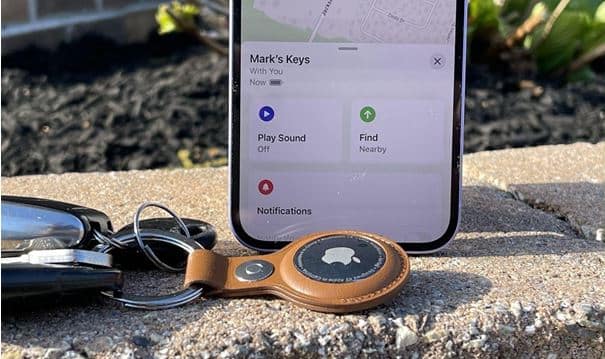
Unknown Third-Party Tracker detection – If any unknown Apple Air Tag or any other third-party tracking device stays near your device for a long time, you will get a warning notification on your device. This feature will enable automatically once you update to iOS 17.5 or 17.5.1.

Read- iOS 17.4: Details That you Need to Know

Source: Apple

Pride Wallpaper – With iOS 17.5 Apple introduced a series of special Pride Collection wallpapers, in support of the LGBTQ+ community. The wallpapers come in five different colours.

Source: Apple

Dynamic colour for podcast widget – With the latest iOS, the podcast widget on your iPhone will adapt the colour of the artwork of the podcast you are listening to.

Last played podcast in Spotlight search – In this latest update, if you tap on Spotlight search and type podcast, you will see the last three podcasts you played, along with the Podcasts app.

New reading goal – In iOS 17.5 and 17.5.1, you will get a new Reading Goal feature in the Books app. The Books app has a new menu in the top right corner of the homepage, where you can set a daily reading time from five minutes to 24 hours a day. The menu will also help you to keep track of your daily reading time and find new books.

So these are all the iOS 17.5 update features that you can avail in India. Now, you might be wondering, why iOS 17.5.1 was released so soon and what’s there in it. Keep reading then.

iOS 17.5.1 – What’s there in it?

After updating to iOS 17.5, many users complained that the photos that they had deleted were resurfacing. This was happening due to a bug in the iOS 17.5. Apple took no time to fix the bug and launched iOS 17.5.1 within a week. In this updated iOS version, you will get all the features of iOS 17.5, minus the bug.

Is it necessary to update iOS or not?

For those who are still confused regarding whether to update to the latest version of iOS, it is recommended to always use the latest versions of Apple iPhone software update. Not only it will ensure the safety and longevity of your device, but it is a primary step in almost any troubleshooting.

Read – Apple iOS 17.3 – When & what to expect?

How to update?

To update to the latest software version, go to Settings>General>Software Update, and then tap on Update Now under the available software update. Any user using iPhone X or later can install iOS 17.5 or 17.5.1.

Source: Tech.co

So that’s all you need to know about the latest iOS. It’s high time you get into the healthy habit of keeping your iPhone iOS updated.

Got issues with your Apple Watch, iPhone, iPad, MacBook or any Apple device? Is a trustworthy repair centre not in sight? Don’t worry, the experts can help you get a free pickup and drop service and provide a bright repair solution for all your Apple woes. Call today for your iPhone battery replacement, screen replacement, and other top repair services.

How to Repair Cracked iPhone Back Glass?

Source: GadgetGone

Most of the iPhone users who have dealt with a cracked iPhone back glass admitted that their hearts shattered when their iPhones fell on the ground. You must be feeling the same right now. Well, don’t worry, it was meant to happen someday. And to be honest, getting it repaired is not that much of a hassle if you have comprehensive knowledge. So, here you will find out iPhone back glass repair cost, options, and all that you need to know.

But before that. Let’s talk about the iPhone back glass a bit. Apple first used back glass in the iPhone 4. However, it was not until the launch of the iPhone 8 series that they introduced wireless charging. Due to its low conductivity, glass enables wireless charging. All iPhone models from the iPhone 8 support Qi wireless charging (up to 7.5 watts) and iPhone 12, 13, 14, and 15 series support MagSafe wireless charging (up to 15 watts). So the back glass of your iPhone is not just to make it look more sleek. There’s a greater purpose.

Read – iPhone ear speaker not working? Let’s make it work!

Source: www.stanleymilton.com

Therefore, don’t even think about a DIY repair. It can damage the iPhone even further. It is better to just simply put a back cover and hide the cracks than to try repairing it yourself. But even with a back cover, there’s always a risk of the crack spreading or water seeping in. So it’s better to get it replaced by a professional.

iPhone back glass repair options and costs

No matter which city you live in, go to the nearest market with mobile repair shops, and you will get an assurance that your iPhone back glass will be replaced and it will work the same. But one thing you don’t know is that these local mobile repair shops don’t have access to Original Equipment Manufacturers or OEM spare parts. These are genuine Apple spare parts and if these are not used in any repair work, the quality of the iPhone might deteriorate and it can affect the resale value and warranty. So we are keeping the local repair shops out of the equation. So below you will find only the most trusted options.

Apple Authorized Service Providers

You can get your iPhone back glass repaired in any Apple Authorized Service Centre. For that, you have to visit your nearest Apple Store and book an appointment.

Source: Apple

The cost differs for AppleCare+ users and non-users. If you have subscribed to AppleCare+ the back glass repair cost for almost any iPhone will be around Rs 2500/-. But a two-year subscription cost of AppleCare+ for say, iPhone 13 is around Rs 14,900/-. Without AppleCare+, the iPhone 13 back glass replacement cost at an Apple Authorized Service Centre is around Rs 32,500/-.

Read – 5 Ways to Clear Up Storage in Your iPhone

Rapid Repair

Rapid Repair is the best Apple gadget repair service provider in India. They use only genuine OEM spare parts for repair and replacements. Not just that, they provide a lifetime warranty on their service. You can visit their website or call them on 8130609004 to book a service.

The cost depends on the model. For instance, Rapid Repair charges around Rs 6,500/- + GST for iPhone 13 back glass replacement.

As Rapid Repair uses OEM spare parts, your replaced iPhone back panel will be able to support Qi and MagSafe wireless charging. They also offer free doorstep pickup and delivery and a fast turnaround time.

How to connect Apple Pencil to iPad?

Got a new Apple Pencil? Good decision. Now you will get the best out of your iPad. Pair Apple Pencil with iPad and your user experience will reach a whole new level. Like a pen on paper, you can use an Apple Pencil on your iPad to write, sketch, highlight or even sign a document. The handwritten notes can be transformed into texts. The coalition of an iPad with an Apple Pencil can realise any 90s kid’s fantasy of transforming their notebooks into a magical one.  But the first step of this magical journey is to pair the devices.

Source: Apple

But before getting into the pairing process, there’s another aspect to look at.

Apple Pencil compatibility with different iPad models

Source: iDownloadBlog

Not all models of Apple Pencil are compatible with all models of iPad. As of May 2024, there are three models of Apple Pencil, the 1st Generation, the 2nd Generation, and the USB-C model. For tablets, there are different generations of iPad, iPad Pro, Air, and Mini. So let’s have a quick look at which Apple Pencil works with which iPad.

Apple Pencil (1st Generation) –

  • iPad mini (5th generation)
  • iPad (6th generation and later)
  • iPad Air (3rd generation)
  • iPad Pro 10.5-inch
  • iPad Pro 9.7-inch
  • iPad Pro 12.9-inch (1st & 2nd generation)

Apple Pencil (2nd Generation)

  • iPad mini (6th generation)
  • iPad Air (4th generation and later)
  • iPad Pro 12.9-inch (3rd generation and later)
  • iPad Pro 11-inch (all generations)

Apple Pencil USB-C

  • iPad (10th generation)
  • iPad mini (6th generation)
  • iPad Air (4th generation and later)
  • iPad Pro 11-inch (all generations)
  • iPad Pro 12.9-inch (3rd generation and later)

Read – Common Apple Watch Problems: How to solve them?

Source: Redmond Pie

So before proceeding, please make sure that your iPad is compatible with your Apple Pencil.

How to connect the Apple Pencil to the iPad?

Now, the method to pair Apple Pencil with iPad varies for different models. Below, you will get the steps for each of them. But before that, you must update to the latest iPadOS. Also, iPad 10th generation users will need a USB-C to Apple Pencil Adapter and Apple Pencil USB-C users need to get hold of a USB-C cable.

Source: iDestiny

To pair Apple Pencil (1st Generation),

  • Remove the Apple Pencil cap.
  • Plug it directly into the Lightning Connector of your 6th to 9th-generation iPads. For an iPad 10th generation, plug it with a USB-C to Apple Pencil Adapter.
  • Tap on the pair button that will appear on your iPad.
  • Once paired, unplug your Apple Pencil from the Lightning Connector or USB-C to Apple Pencil Adapter.

Source: Quora

To pair Apple Pencil (2nd Generation),

  • Find the Magnetic Connector of your iPad on its side.
  • Attach your Apple Pencil to it.
  • Wait for them to pair.
  • Then remove your Apple Pencil.

Source: Apple

To pair Apple Pencil (USB-C),

  • Slide the end of your Apple Pencil to open the USB-C slot.
  • Then plug a USB-C cable into it.
  • Plug the other end of the cable into your iPad.
  • Wait for the pair button to appear on your iPad and tap on it.
  • Once paired, unplug the cable.

Your devices will remain paired until your iPad is restarted or the Apple Pencil is paired with another device. If your Apple Pencil won’t connect to your iPad, make sure you are using the latest version of iPadOS, your Apple Pencil is compatible with your iPad, and there is no physical damage to your devices. In the case of the latter, you can always seek professional help.

Got issues with your Apple Watch, iPhone, iPad, MacBook or any Apple device? Is a trustworthy repair centre not in sight? Don’t worry, the experts can help you get a free pickup and drop service and provide a bright repair solution for all your Apple woes. Call today for your MacBook battery replacement, screen replacement, and other top Apple Watch Repair services.

How to turn off an Apple Watch?

The introduction of Apple Watches in modern human lives has paved the way for a seamless connection. What makes an Apple Watch different from any other gadget is the sheer control that it gives its users in monitoring all major aspects of their lives. Be it a thorough tracking of fitness activities, detailed health monitoring, or the ease of communicating with the world through your wrist, Apple Watch is a companion you can vouch for. Many users like to wear it on their wrists throughout the day. But just like with any other gadget, it is important to give it a proper rest at times.

Source: iDownloadBlog

Turning off an Apple Watch occasionally can help preserve its battery life. Moreover, no matter how much you like to use a gadget, it is important to take a break from it. Also, in case you need troubleshooting of your Apple Watch, turning off your Apple Watch can be the first step, before restarting it. So turn on the reading mode if you are wondering how to turn off my Apple Watch.

Read – Tips to extend Apple Watch Battery Life

How to turn the Apple Watch off?

Almost in any Apple Watch model, you will find an elongated side button. In the latest version of watchOS, to turn off an Apple Watch, you just have to press that side button and hold it, until the sliders appear. Then you have to drag the slider to the right, and your Apple Watch will turn off.

Source: Wareable

Now this will answer your question about how to power off Apple Watch, but ever wondered what to do if your Apple Watch fails to turn off?

Read – Apple Watch Not Pairing: How to Fix It

What to do if Apple Watch doesn’t turn off?

If your Apple Watch fails to turn off, you can use the method to force start it. To do that, simply press and hold the side button and crown button simultaneously for at least ten seconds.

Source: Apple Support

So now you know how to turn Apple Watch off. Make sure you use your gadget responsibly and take a break from it whenever needed. Keep enjoying the marvelous features of your Apple Watch.

Got issues with your Apple Watch, iPhone, iPad, MacBook or any Apple device? Is a trustworthy repair centre not in sight? Don’t worry, the experts can help you get a free pickup and drop service and provide a bright repair solution for all your Apple woes. Call today for your MacBook battery replacement, screen replacement, and other top Apple Watch Repair services.

How to Fix Mac Folder with a Question Mark?

The creation of the MacBook is a milestone in the history of computing. Its users worldwide can vouch for its reliability, regardless of which MacBook model they use. But no one can deny, it’s just a mere machine. And machines are prone to errors. So don’t panic if you are seeing a Mac folder with question mark flashing on your screen while starting the device. It’s an issue that can be resolved easily.

Source: Switch to Mac

If you see a flashing question mark on a folder, it can indicate that your MacBook’s startup disk is not available. Or it doesn’t contain a working macOS. A startup disk is usually an internal disk that contains the Mac operating system. This issue occurs when the macOS data on the hard drive somehow gets corrupted.

This may sound like a great problem, but it’s actually not! It can be fixed by following a few simple troubleshooting steps. Let’s figure them out.

Read – How to Find a Lost or Stolen MacBook?

Steps to fix the MacBook folder with a question mark

There are two tried and tested methods to fix this issue. The first one is to use the Disk Utility to repair the startup disk. Most of the cases are resolved by this method. The second is to reinstall your macOS. So let’s go through the first method first.

Source: Apple Support

  1. Shut down your MacBook
  2. Press and hold the power button for 10 seconds until your device shuts down.
  3. Go to macOS Recovery
  4. Press the power button and then press Command and R.
  5. You will get to macOS Recovery page.
  6. Select Disk Utility
  7. Select Disk Utility from the available options.
  8. Click on Continue.
  9. Select your Disk
  10. On the Disk Utility Menu Bar, click on View.
  11. Then click on Show All Devices.
  12. On the Side Bar, you will get all available disks including your startup disk.
  13. Repair your startup disk
  14. Under your startup disk, you might find multiple containers and volumes.
  15. Select the last volume of the disk, then click on the First Aid tab at the Menu Bar.
  16. Click on Run and the checkup will start.
  17. Once the last volume is checked, repeat the process to check all other available volumes, if any, followed by the containers, and then the entire startup disk in the end.
  18. Restart you MacBook
  19. Exit Disk Utility.
  20. Then restart your MacBook.

Source: Apple Support

This method might fix the issue for once and all. If you don’t see the Mac folder with question mark again after restarting your device, then you don’t have to follow the second method. In case the issue persists, here’s another method.

  1. Go to macOS Recovery
  2. Press the power button and then press Command and R.
  3. You will get to macOS Recovery page.
  4. Select the option to reinstall macOS
  5. Select Reinstall macOS Sonoma.
  6. Click on Continue.
  7. Follow the instructions
  8. After clicking on Continue, follow the instructions to reinstall macOS.
  9. You might have to provide your Mac login password.
  10. Don’t put your Mac to sleep until the installation is complete.
  11. After the installation, your Mac might start up to Set Up Assistant.
  12. Follow the instructions to complete the set up.

Source: ZDNet

Read – How to Optimize Battery Life on MacBook?

Make sure all your data is backed up before you start reinstalling your macOS. Hopefully, the issue of the Mac folder with question mark will be resolved by either of these two methods. If it continues to bother you, there might be chances that the problem is deep-rooted and you have to consult an expert.

Got issues with your Apple Watch, iPhone, iPad, MacBook or any Apple device? Is a trustworthy repair centre not in sight? Don’t worry, the experts can help you get a free pickup and drop service and provide a bright repair solution for all your Apple woes. Call today for your MacBook battery replacement, screen replacement, and other top repair services.

Tips to extend Apple Watch Battery Life

Throughout the years, one constant concern for all Apple Watch users has been its battery life. Especially for those, whose first job after waking up is to wear it on their wrist and the last job of the day is to remove it before falling asleep. As a gadget that covers all aspects of its users’ lives, from their workout routine to health monitoring to appointment reminders, the Apple Watch battery must last until its users’ day is over. But often, that is not the case. As a device that responds with the raising of a wrist, on days, an Apple Watch is prone to exhaust its energy too soon. But there are ways to save battery usage and use it in the most productive way.

Source: Inc Mag

How to improve Apple Watch battery life?

There are several apps and features that keep on running in the background of your Apple Watch. Chances are there that most of them are not of any use to you most of the time. Below, you will find out about them, along with some basic steps to improve your Apple Watch’s battery life.

Read – Apple Watch is not Charging: What to do?

Update to the latest software

Make sure your gadget is using the latest WatchOS as it significantly affects not just the battery life but overall battery health.

To do that,

  • Make sure your Apple Watch is connected to the WiFi.
  • Open the Settings app on your Apple Watch.
  • Go to General>Software Update.
  • If any update is available, Install it.
  • Put it on a charge while it is updating.

Use Low Power Mode more frequently

Source: Apple Support

When you know you don’t need your Apple Watch to be very active, turn on the Low Power mode. It will disable certain features, like the Always On Display and Heart Rate Monitor, but it will prolong the gadget’s battery life. To turn on Low Power Mode,

  • Swipe up from your home screen.
  • On the Control Centre, click on Battery Life Percentage.
  • Toggle Low Power Mode on.

Disable Heart Rate Monitor

If your Apple Watch is low on charge and you want it to run for longer until it’s recharged, this tip can help you. Turn off the heart rate monitor and it will extend the Apple Watch battery life. To do that, go to Privacy>Health>Heart Rate and toggle the monitor off.

Turn off the Wake Screen on Wrist Raise

Source: My Healthy Apple

Often your Apple Watch turns on unnecessarily when you raise your wrist. This drains the battery faster than you expect. Turn this feature off and it will save your Apple Watch battery from draining quickly.

  • Open Settings on your Apple Watch
  • Select General
  • Tap on the Wake Screen
  • Turn off Wake Screen on Wrist Raise

You can turn on your Apple Watch when needed by pressing the Crown Button.

Customize the notifications

Reducing the amount of notifications on your Apple Watch can help improve its battery life. Instead of getting all the notifications on your Apple Watch that you get on your iPhone, choose the notifications that you want on your Apple Watch. You can do it on your iPhone by opening the Watch App, clicking on the Mirror iPhone Alerts From, and then disabling the apps that you don’t want a notification from on your Apple Watch.

Source: Apple Insider

Read – Apple Watch Not Pairing: How to Fix It

These tips will help you to save your Apple Watch battery on a normal day. But apart from these, it is important to keep on monitoring your Apple Watch battery health. This will give you an overall idea about the lifespan of your gadget’s battery. You will get to know how much time is left before the battery needs a replacement. To check your Apple Watch battery lifespan, go to the Settings app, tap on Battery, and then on Battery Health. It will show the maximum charge that the battery can hold. A lower number will indicate that your Apple Watch battery needs a replacement.

Got issues with your Apple Watch, iPhone, iPad, MacBook or any Apple device? Is a trustworthy repair centre not in sight? Don’t worry, the experts can help you get a free pickup and drop service and provide a bright repair solution for all your Apple woes. Call today for your Apple Watch battery replacement, screen replacement, and other top repair services.
How to turn on Do Not Disturb on iPhone?

No matter how much you love your iPhone, an occasional break from using it will undoubtedly make your relationship with it healthier. But it’s actually tough to do, especially when notifications from several apps just keep on popping up, not to mention the calls and messages. But as a saviour, there’s Do Not Disturb mode on iPhone, that can keep your iPhone quiet by silencing calls, alerts and notifications.

Source: Reclamosyquejas

Not just that, the iPhone also allows you to customize the Do Not Disturb mode so that you can get the best out of it. Here we will know how. But before that, let’s look at how to turn on Do Not Disturb on iPhone.

Read – 5 Ways to Clear Up Storage in Your iPhone

How to put on Do Not Disturb on iPhone?

There are multiple ways to turn on DND on your iPhone, depending on the iOS you are using. First, let’s see how to do it by using the Control Centre.

  1. Open the Control Centre by swiping down from the top of your Home Screen.
  2. Tap on the Focus button with a crescent moon.
  3. Click on Do Not Disturb to turn it on.

Source: Apple Support

You can follow the same steps again to turn the Do Not Disturb feature off. Alternatively, you can ask Siri to turn DND on or off.

Now, if you are using iOS 16 or a later version, you can also connect a Lock Screen Wallpaper to DND. To do that,

  1. Hold the Lock Screen until the customize button appears.
  2. Tap on Focus on the bottom of the wallpaper.
  3. Select Do Not Disturb from the options that will appear.

On choosing the wallpaper for your lock screen, iPhone dnd will turn on automatically.

How to customize DND?

You can even customize the functions that you want the Do Not Disturb mode to perform, like alerting you in case you receive a notification from any particular person or app. Let’s see what are the customization options and how to do it.

  • Go to Settings.
  • Click Focus.
  • Tap on Do Not Disturb.
  • Select the feature you want to customize.

Read – iPhone FaceTime not working ? Here’s how to fix

Source: Apple Support

Allow Notification will help you to choose the people or apps you want notifications from in DND mode.

Customize Screens will help you select a Lock Screen or Home Screen that will enable DND.

With Set A Schedule you can fix a time between which your iPhone will automatically go into DND mode daily.

Focus Filters can help you to choose how certain apps will function in DND mode.

So this was all you need to know about iPhone dnd. Now it’s high time you use it so that you can take a break from the world of notifications, calls and FaceTime and enjoy some ‘me time’.

whatsapp logo